Overview of Experiment Environment
To open the Experiment Environment, in the Database Manager 1 Database Objects area select a workspace and in the 3 Experiment area click  .
.
In the Experiment Environment (EE), you can create, configure, and manage experiments.
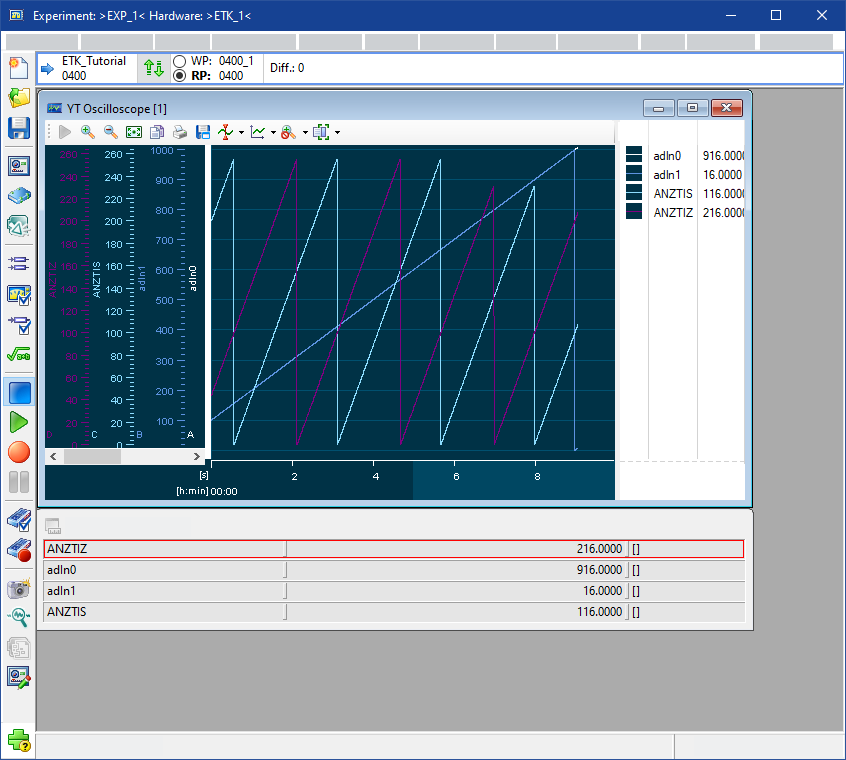
You select variables and display them in measure and calibration windows. You can create several layers with measure and calibration windows and switch between these layers to activate the displayed windows quickly and easily.
You can calibrate, measurement data, and record measurement value files.
Depending on from where the experiment environment was opened, for example, from the Calibration Data Manager, not all functions might be available. This help describes all functions.
Standard Measure and Calibration Instruments
INCA provides a number of standard measure and calibration instruments for visualizing and calibrating variables. These can be supplemented by customized instruments.
Measure Instruments
The following measure instruments are readily available in INCA:
- Measure Window
- Measure Table
- YT and XY Oscilloscope Window
- Sortable List
- Delta Bar Chart
- Signal Distribution Chart
- Absolute Value Bar Chart
Calibration Instruments
The following calibration instruments are readily available in INCA:
Customized Measure and Calibration Instruments
If customized measure and calibration instruments are required for specific use cases, further instruments can be integrated into INCA’s open Experiment Environment. Examples are animations, integrated web explorers, embedded model viewers, street map viewers visualizing measured courses of GPS coordinates, stimulation of parameters with generators, etc. As a consequence, customer specific data visualizations or data post processing do no longer require external applications connected via COM, INCA-MIP or ASAP3, but may be done directly in INCA.
Instrument integration is supported through the INCA Instrument Integration Development Kit (INCA-INS.DK), which is available for free from ETAS.
See also
Experiment Environment - Instructions Overview
Experiment Environment - Reference to User Interface
You can