Getting Started: Your First EHANDBOOK Container
This tutorial walks you through installing the EHANDBOOK Container-Build Toolbox for Simulink and generating your first interactive container. You should have this working in less than 10 minutes.
Prerequisites
Before you begin, ensure you have:
-
MATLAB/Simulink installed (version 2016b through 2024b)
-
Administrator rights to install MATLAB add-ons
-
A valid EHANDBOOK Container-Build Toolbox license (or evaluation license)
-
ETAS License Manager installed and configured
Step 1: Install the Toolbox
The toolbox installs through MATLAB’s Add-on Manager, just like any other MATLAB extension.
-
Open MATLAB
-
Click the Add-Ons button in the MATLAB toolbar
-
Select Manage Add-Ons
-
Search for "EHANDBOOK Container-Build Toolbox for Simulink"
-
Click Install
-
Accept the license agreement
-
Wait for installation to complete
MATLAB will notify you when installation is complete.
Step 2: Verify Installation
After installation, you should see the toolbox menu in Simulink.
-
Open Simulink or create a new model
-
In Simulink, look at the main menu bar
-
You should see a new menu item for EHANDBOOK Container-Build Toolbox
-
If you don’t see it, restart MATLAB and try again
If you still don’t see the menu, check Installation Troubleshooting.
Step 3: Open a Simulink Model
You need a Simulink model to generate a container. You can either:
-
Open an existing Simulink model from your project
-
Create a simple test model
For this tutorial, let’s open an existing model:
-
In MATLAB, go to File → Open
-
Navigate to a Simulink model file (.slx or .mdl)
-
Click Open
-
The model loads into Simulink
If you don’t have a model available, you can create a simple one:
-
In Simulink, go to File → New → Model
-
Add a few simple blocks (e.g., Sine Wave, Add, Gain, Scope)
-
Connect them to create a simple signal flow
-
Save the model with a name like
test_model.slx
Step 4: Generate Your First Container
Now you’ll generate your first EHANDBOOK container with one click:
-
In Simulink, with your model open, click the EHANDBOOK menu
-
Select Generate Container
-
A dialog appears with generation options
-
Accept the default settings
-
Click Generate
The toolbox will now:
-
Analyze your Simulink model
-
Generate interactive diagrams
-
Create the EHANDBOOK container
-
Save the .ehb file next to your model
You’ll see progress messages in the MATLAB console. This typically takes 10-30 seconds depending on model complexity.
Step 5: Open and Explore Your Container
Once generation completes successfully, you can explore your container:
-
Click the Open Container link that appears in Simulink
-
EHANDBOOK-NAVIGATOR launches automatically
-
You’ll see the top-level hierarchy of your model as an interactive diagram
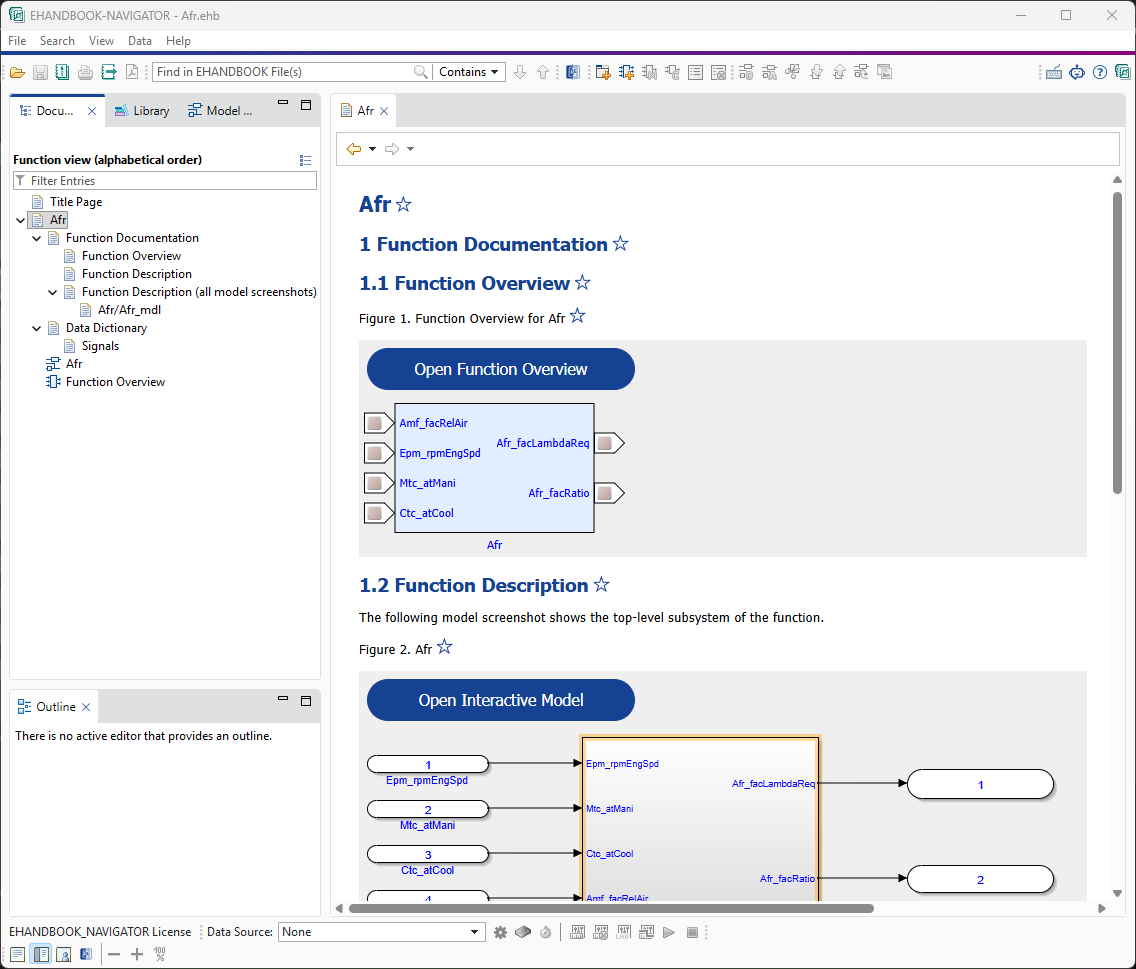
Now explore your container:
-
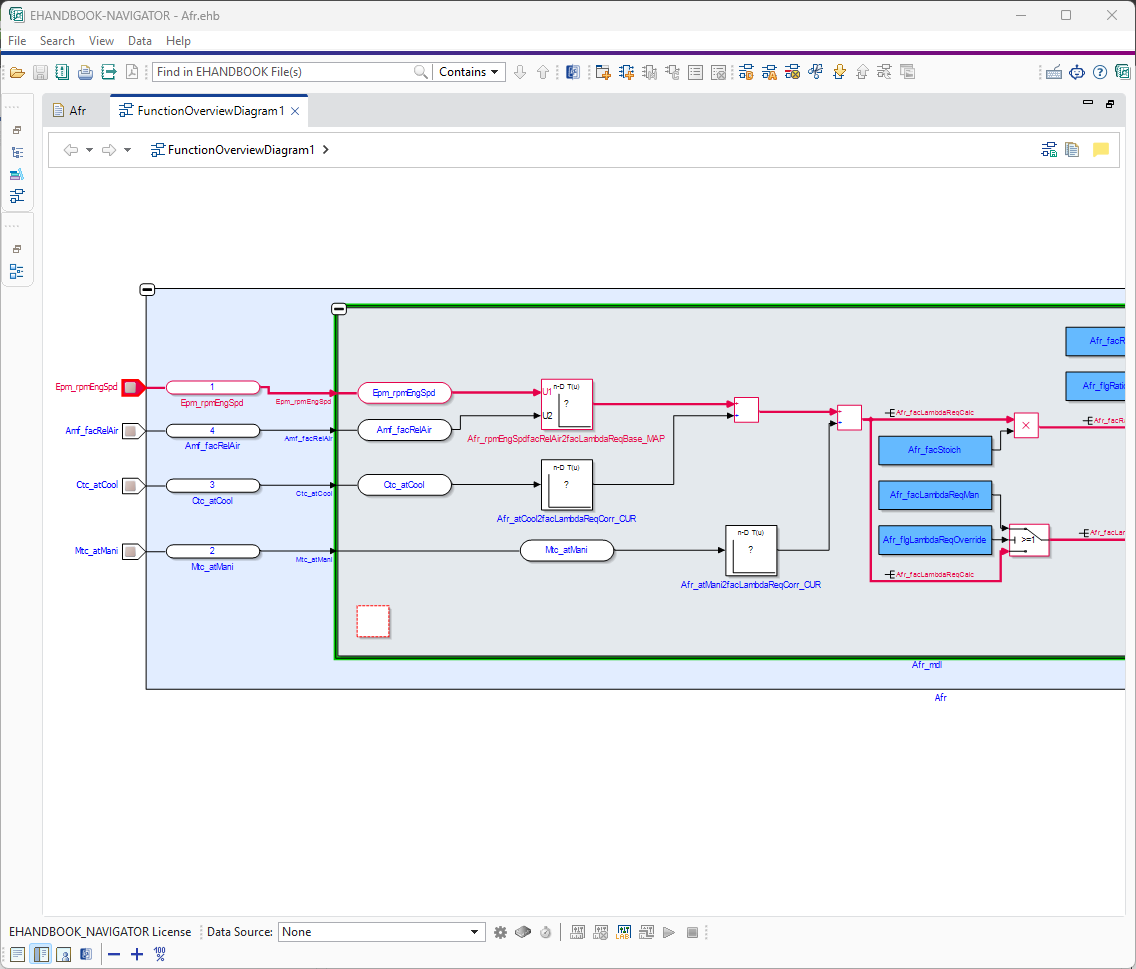
Expand subsystems: Double-click subsystems to zoom in and see their contents
-
Navigate back: Use navigation buttons to return to higher levels
-
Select signals: Click on signal lines to highlight them
-
View properties: Right-click elements to see their properties
Congratulations! You’ve successfully generated and opened your first EHANDBOOK container.
Troubleshooting
Container generation fails
-
Check the MATLAB console for error messages
-
Ensure your model has no syntax errors (in Simulink, run model check)
-
Verify your Simulink version is supported (2016b-2024b)
-
Try saving and reloading the model
Container won’t open
-
Ensure EHANDBOOK-NAVIGATOR is installed on your system
-
Try opening the .ehb file manually by right-clicking and selecting Open with EHANDBOOK-NAVIGATOR
Toolbox menu doesn’t appear
-
Restart MATLAB completely
-
Verify the installation through Add-on Manager
-
Check Installation Guide