How to Work with Comments
Overview
Comments feature in EHANDBOOK-NAVIGATOR allows you to add comments to specific portions of Document Viewer. Comments can be added to titles, figures and paragraphs. You can delete a comment. Comments can also be imported from another EHANDBOOK container or Comments file. You can also copy the comment to clipboard, which can be used in any other application by pasting it from clipboard.
Procedure
|
Comments are saved within the container. It can also be extracted to a new EHANDBOOK container. Comments can also be exported to a Comments file. |

-
Comments empty
-
Comments text box
-
Comments added
-
Options icon

-
Contains comments and import comments
-
Contains comments
-
Contains comments
To add comments:
-
Hover the mouse next to a title, figure or a paragraph.
A comment icon is displayed. -
Click on the comment icon to add comments.
A text box is displayed to add the comment. -
Add the required comment.
The color of the comment icon changes indicating the presence of comments.
To delete comments:
-
Click on the required comment icon, if the comment text box is not open.
-
On the top right corner of the comment text box, click on the options icon.
A menu is displayed. -
Click
Delete commentto delete the comment.
The comments added are deleted.
To copy comments to clipboard:
-
Click on the required comment icon, if the comment text box is not open.
-
On the top right corner of the comment text box, click options icon.
A menu is displayed. -
Click
Copy text to clipboardto copy the comment.
<Or> -
Select the comment and right-click.
A context menu is displayed. -
Select
Copy.
<Or> -
Select the comment and press <CTRL+C>.
The comments added are copied and it can be pasted to any application.
To save comments in the container:
-
When you close EHANDBOOK-NAVIGATOR or when you open some other container, a prompt message is displayed to save the changes. Click Save in the prompt message to save the comments in the container.
|
The comments which are added in the file will also be saved when you save it
by clicking |
To export comments:
-
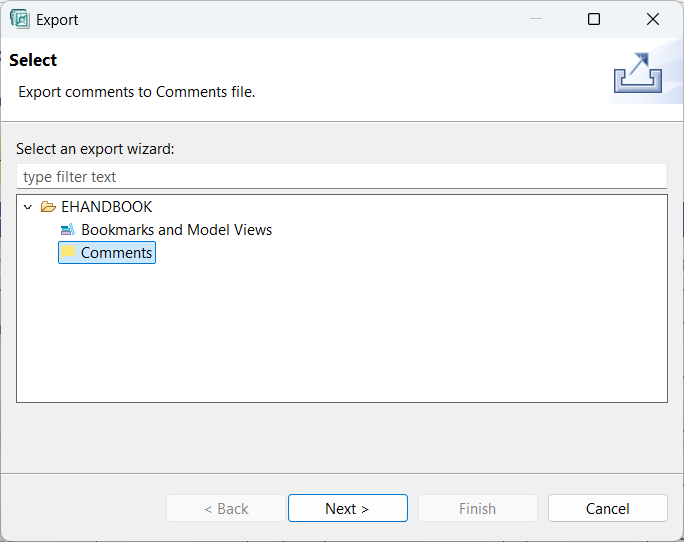
From the
Filemenu, selectExport.
Exportwindow is displayed.
-
Select
Commentsfrom the Documentation folder and then clickNext.
Export Commentswindow is displayed -
Select the EHANDBOOK container from which you want to export the comments.
-
Click
Browseand select the Comments file into which you want to export the comments.

-
Click
Finishto complete exporting of comments.
To import comments:
-
From the
Filemenu, selectImport.
Importwindow is displayed.

-
Select
Commentsfrom the Documentation folder and then clickNext.
Import Commentswindow is displayed -
Click
Browseand select the EHANDBOOK container or Comments file from which you want to import the comments. -
Select the EHANDBOOK container into which you want to import the comments.

-
Click
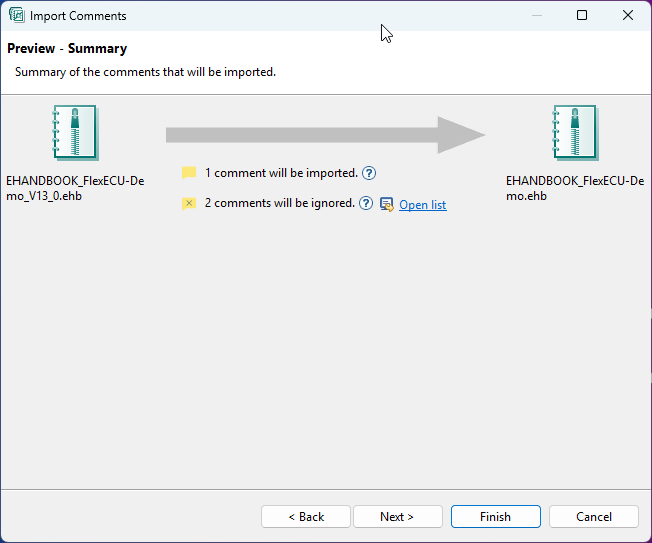
Next. A summary of the comments imported is displayed. In the summary, a list of comments that cannot be imported to a location (error marker) is displayed. This helps you to know the comments which are affected.
-
In case of ignored comments (if any), click
Open listto see the list of comments that could not be imported because of invalid locations of the comments according to the target EHANDBOOK container.

-
Click
Next.

-
Click
Finishto complete importing of comments.