Editing a Map/Curve
-
To edit an existing map/curve, select Parameter/Model → Edit →<map/curve name>.
Or
-
To edit a map/curve from the display area of a formula constraint, do the following:
- In the "Parameters" list, select the curve or map.
- Click on the Edit button below the list.
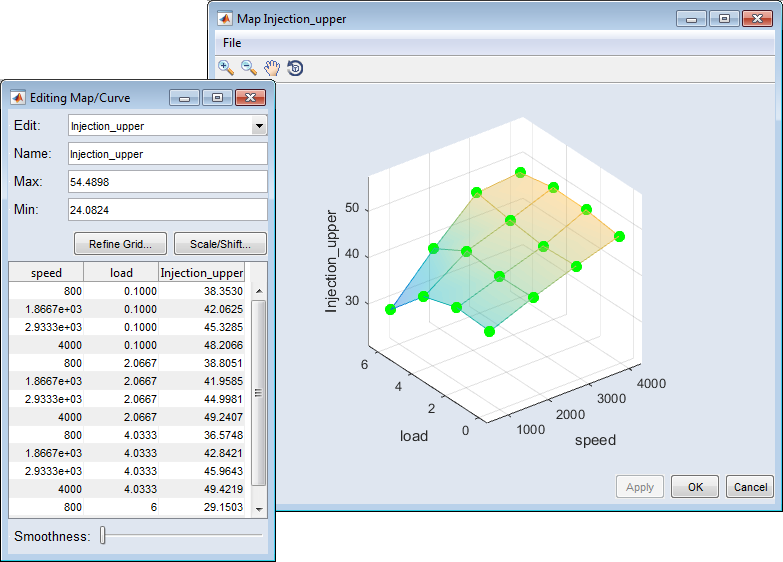
The
 "Editing Map/Curve" window and the "Map/Curve <parameter>" window open.
 -
In the "Editing Map/Curve" window, do one or more of the following.
-
In the "Name" field, enter a new name.
- In the "Max" and "Min" fields, enter the general upper and lower limits of the map.
-
Click on Redefine Grid if you want to adjust the grid parameters.
-
Click on Scale/Shift if you want to add a scale or shift to the values of the curve or map.
In the last column of the table, edit the values of the map/curve.
-
Use the Smoothness slider to adjust the map/curve smoothness.
-
-
In the "Map/Curve <parameter>" window, grab a grid point and drag it to the desired value.
-
When you have edited the curve or map according to your needs, click on the Apply button in the "Map/Curve <parameter>" window.
This applies your changes.
See also