Constraint Type "Map/Curve"
The area below the constraints list contains the graphic display of the planned measurement points and the specified limitation of the area.
Selecting variables
Assign the relevant inputs to the axes. In the case of a curve, the functional dependency is "y(x)", in the case of a map, it is "z(x,y)".
The measurement points of the current experiment plan are displayed in a 2D (or 3D) plot (see figure above). Since both inputs feature the property "clustered" (see the "Clustered" option), the result is a pure grid. The display of the measurement points is controlled via the "Measurement" option within the "Display Options" area.
In addition, the thicker points of the grid with which the constraint of areas is controlled are also displayed.
-
Click and hold on a point of the constraining line/area.
The mouse pointer changes to a double arrow.
-
Hold the mouse button pressed and drag the point to the desired position.
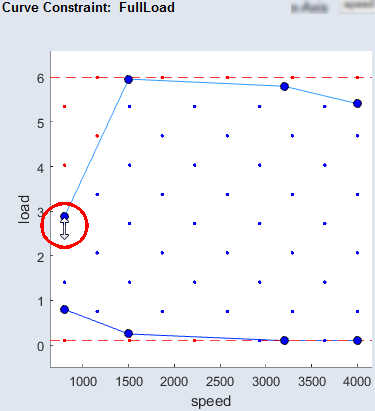
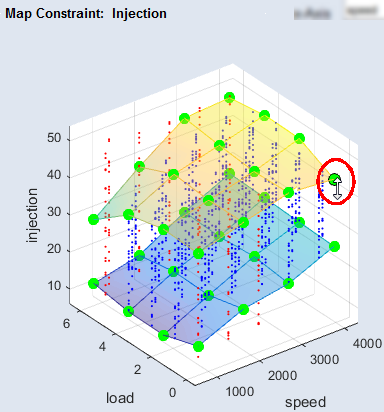
The display of the plot can also be influenced here with the tools of the toolbar (zoom, pan and rotate).
Display Options
This is where you can activate or deactivate display options.
- Measurement: Display of measurement points
- Upper/Lower: Display of the upper/lower limitations defined by the constraint
Processing Method
If the measurement range is constrained, you can select an option to handle the number of measurement points.
- Points Deleted: Number of measurement points deleted by the constraint
- Cutoff: Removes the points outside the constraint, leaving the points inside the constraint the same. The number of deleted points is shown above (Points Deleted).
- Limit: Points outside the constraint are set to the value of the constraint. Points inside the constraint remain unchanged.
- Shrink: All points are scaled proportionally by the range defined by the upper and lower constraints. This option moves the points into the measuring range so that the measuring points are closer together.
- Cutoff Inside: Removes the points inside the constraint and keeps the points outside the constraint. The number of deleted points is shown above (Points Deleted).
Global Limits
The global limits of the variables to be limited (as defined in Step 1: General Settings).
Table for Displaying and Editing Grid Nodes
The grid nodes can also be edited in the tables to the right of the plot – one register each is available for the upper and lower constraint.
Changing the number of grid nodes
The number of points that define the constraining lines/areas can be controlled via Redefine Grid. A dialog window for entering the number of desired grid nodes opens (in each case for the upper or lower constraint).
Importing map data
If your ExpeDes project already contains map/curve data, these can be selected via Import and associated with the new map. The already created maps are then available in the "List of Maps" area. In addition, you can use the Import from file button in the  "Select Map from imported Map(s)" window to import additional map data to the existing map data and assign the desired constraint.
If you have not yet created a map using Parameter/Model → New, a file selection window opens directly, in which you can import map data (*.dcm, *.csv / *.xls) for further use.
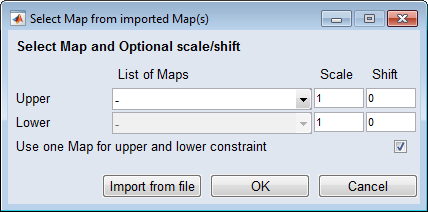
For more information on editing map data, see Editing a Map/Curve.
|
Note |
|---|
|
To extend the lower borders, the value of the shift must be negative. |
Exporting map data
Map data can also be exported as *.dcm or *.csv files. To do so, use the Export button.
Importing/exporting maps
You can import maps/curves as *.dcm or *csv files (via the Import button below the "Parameters" list or via Parameter/Model → Import) and export them as *.dcm or *csv file (via Parameter/Model → Export).
See also