Importing Maps/Curves
You can import existing maps and curves stored in *.dcm or *csv files. To do so, proceed as follows.
-
Select Parameter/Model → Import.
Or - for formula constraints -
-
Click on the Import button below the "Parameters" list.
A file selection window opens.
-
In the file selection window, enter or select path and name of the file that contains the maps/curves you want to import.
-
Click on Open to start the import.
The
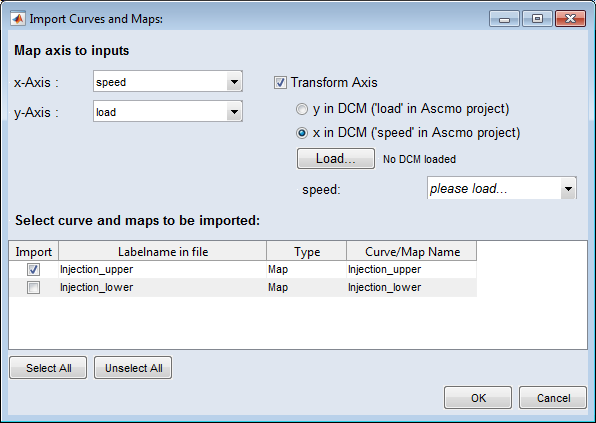
 "Import Curves and Maps" window opens. In the lower list, all maps/curves in the selected file are listed.
 -
In that window, do the following:
-
In the "x-Axis" and "y-Axis fields", map the curve/map axes to inputs.
-
In the lower list, activate the option in the "Import" column for each map/curve you want to import.
-
-
If necessary, specify an axis transformation.
If the axes of the map that you want to import is not stretched over the operating point axis (Speed / Load) used, you have the ability to transform an axis of the map.
-
To transform an axis of a map, enable the option Transform Axis.
-
Activate y in DCM or x in DCM to select the axis you want to transform.
For the conversion you first need another map that contains the conversion factor.
-
Click on Load to specify the conversion map.
A *.dcm file can contain multiple maps, you must specify the required maps via the selection list.
-
In the combo box below the Load button, select the map/curve that contains the required conversion factor.
The transformed map will be imported.
Note
A map/curve that you have selected for the transformation of an axis will not be imported because it is only required to determine the conversion factor.
-
-
Click on OK.
The selected maps/curves are imported. They are listed in the Parameter/Model → Edit menu and - for formula constraints - in the "Parameters" list.
See also