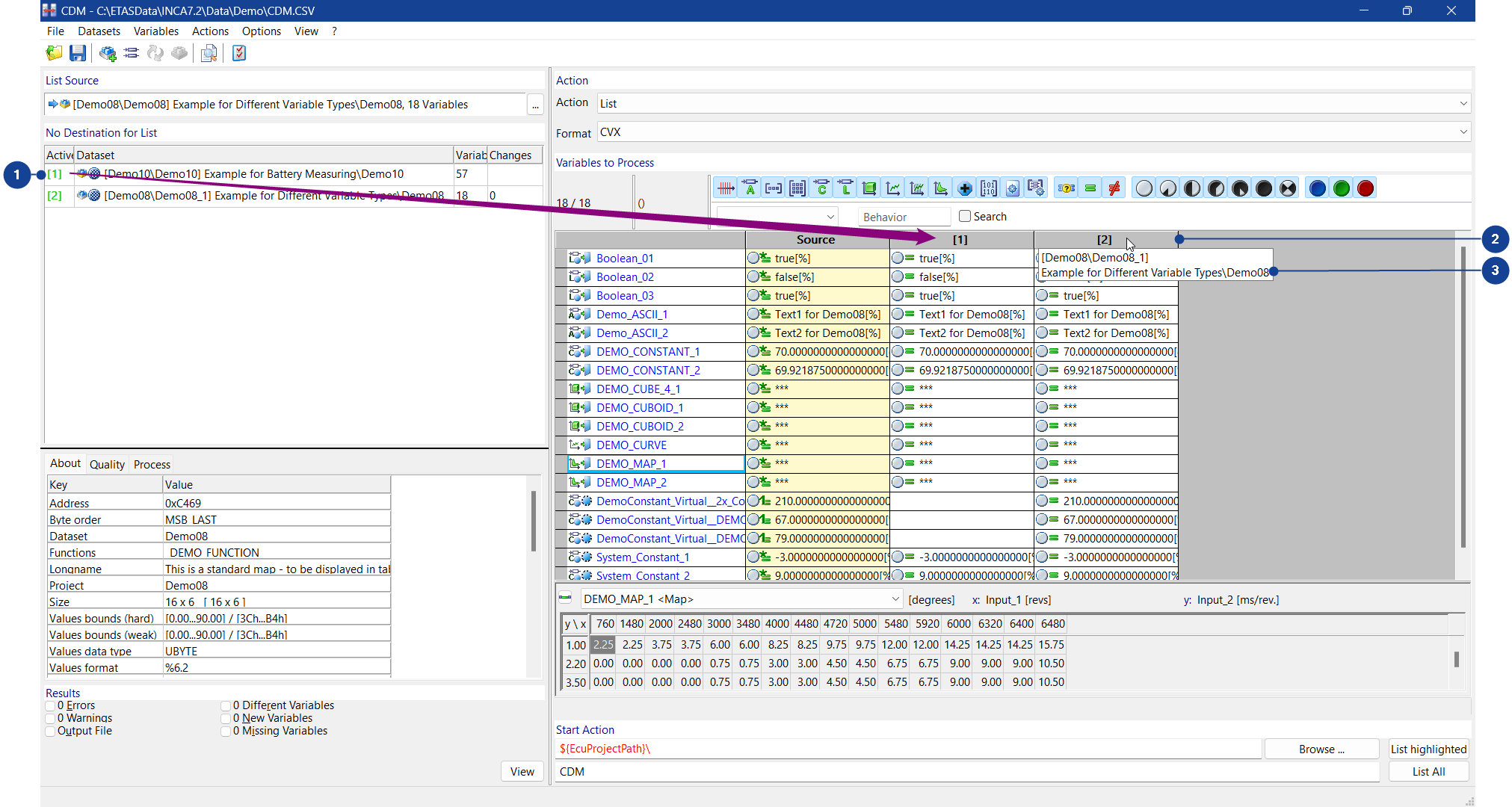
Calibration Data Manager work-file Window
This window contains the following components:
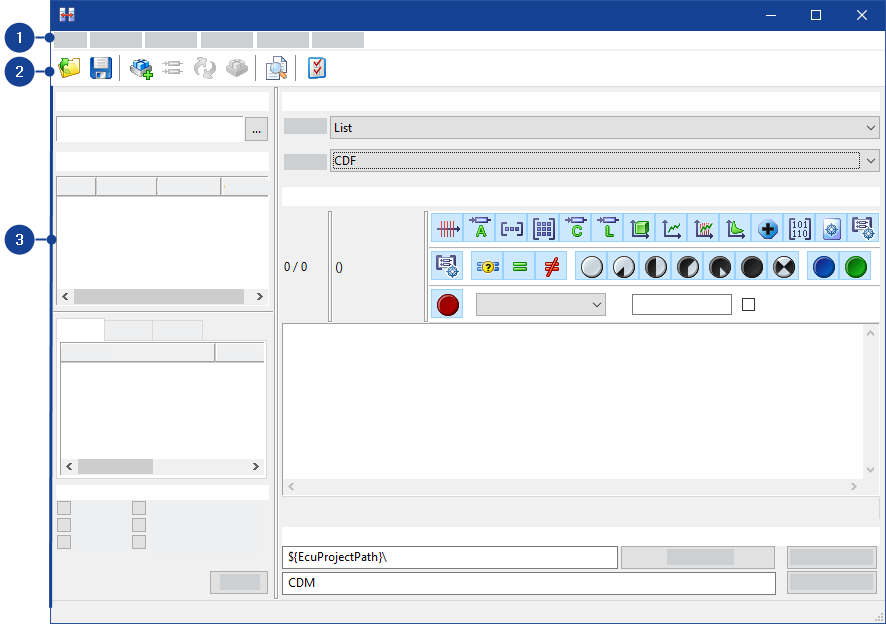
 1 Menubar
The CDM window contains the following menus:
File menuThis menu contains the following functions:
New configuration
Creates a new CDM configuration.
Load configuration
Opens the Load dialog box in which you can select the CDM configuration saved in a project folder in the database manager.
Save configuration
Saves the CDM configuration in the database.
Save configuration as
Opens the Save as dialog box in which you can save the CDM configuration in a project folder in the database manager.
Load configuration from file
Opens a dialog box in which you can select a file from which to load saved settings for the Calibration Data Manager.
Save configuration to file as
Opens a dialog box in which you can specify a file to save your settings for the Calibration Data Manager.
Exit
Exits the Calibration Data Manager.
If you have changed any settings, a message box opens. You can specify whether you want to save your changes or not.
Datasets menuThis menu contains the following functions:
Select source dataset
Opens the Select source dataset dialog box where you can select a dataset from the INCA database as source dataset.
Opens a dialog box where you can select a data exchange file from which the source dataset is read. The following reading options are available:
Read from file | Reads a file in one of the available data exchange formats. |
Update from file | Updates the data exchange file. This option overwrites any changes made in CDM. |
Connect to asap2 project | Opens a dialog where you can select an ECU-Project (A2L) from the INCA database. The data from the data exchange file are combined with additional information from the ECU-Project (A2L), for example, Data Types, Long Names. If the source was successfully linked to the project, the Source for Action field will display the project symbol. |
These menu functions provide direct access to any enterprise calibration data management system from within INCA.
Note |
These menu functions are only available if the eCDM add-on is installed. |
Connect to Enterprise CDM Adapter | Establishes a connection to the Enterprise CDM system.
| ||
Get ECU Projects | INCA loads a project description file (*.A2L), a HEX file (optional), and a CDF V2.0 file for quality meta data (optional) from the Enterprise CDM system in order to use the corresponding items as source. | ||
Send ECU Project | INCA transmits the current project description file (*.A2L), HEX files and/or data exchange files from INCA into the Enterprise CDM system. | ||
Get Datasets | INCA loads HEX files (and optionally CDF V2.0 files for quality meta data) from the Enterprise CDM system and adds them as new datasets.
| ||
Send Datasets | INCA transmits the selected HEX files from INCA to the Enterprise CDM system.
| ||
Update from Data Exchange File | INCA loads one or more data exchange files from the Enterprise CDM system and copies the contents over the selected dataset. | ||
Get Data Exchange File | INCA loads a data exchange file (CDF V2.0) from the Enterprise CDM system and uses it as source. | ||
Send Data Exchange File | INCA transmits the selected data exchange file to the Enterprise CDM system. | ||
About | Provides information on the plug-in which is installed for connecting your Enterprise CDM system to INCA (class name, DLL name). |
Remove source
Removes the source dataset from the corresponding field in the Calibration Data Manager. (The dataset remains in the database.)
Freeze source working data
Saves the source dataset as a new reference dataset and creates a new working dataset. The new working dataset is used as the new source dataset.
Store source data back to file
Saves the source data in the database file from which it was read under the original file name and path.
Write Calibration Log
Saves a list of calibration actions performed in the current CDM session in the calibration action log file. The name of the file is displayed in the monitor.
Add destination dataset
Opens the Select destination dataset dialog box where you can select a dataset from the INCA database as destination dataset.
Opens a dialog box where you can select a data exchange file from which the destination dataset is read. The following reading options are available:
Read from file | Reads a file in one of the available data exchange formats. |
Update from file | Updates the data exchange file. This option overwrites any changes made in CDM. |
Connect to asap2 project | Opens a dialog where you can select an ECU-Project (A2L) from the INCA database. The data from the data exchange file are combined with additional information from the ECU-Project (A2L), for example, Data Types, Long Names. If the destination was successfully linked to the project, the Destination for Action field will display the project symbol. |
Enterprise CDM for destination
These menu functions provide direct access to any enterprise calibration data management system from within INCA.
Note |
These menu functions are only available if the eCDM add-on is installed.. |
Connect to Enterprise CDM Adapter | Establishes a connection to the Enterprise CDM system.
| ||
Get ECU Projects | INCA loads a project description file (*.A2L), a HEX file (optional), and a CDF V2.0 file for quality meta data (optional) from the Enterprise CDM system in order to use the corresponding items as destination. | ||
Send ECU Project | INCA transmits the current project description file (*.A2L), HEX files and/or data exchange files from INCA into the Enterprise CDM system. | ||
Get Datasets | INCA loads HEX files (and optionally CDF V2.0 files for quality meta data) from the Enterprise CDM system and adds them as new datasets.
| ||
Send Datasets | INCA transmits the selected HEX files from INCA to the Enterprise CDM system.
| ||
Update from Data Exchange File | INCA loads one or more data exchange files from the Enterprise CDM system and copies the contents over the selected dataset. | ||
Get Data Exchange File | INCA loads one or more data exchange files (CDF V2.0) from the Enterprise CDM system and uses them as destination. | ||
Send Data Exchange File | INCA transmits the selected data exchange files from INCA to the Enterprise CDM system. | ||
About | Provides information on the plug-in which is installed for connecting your Enterprise CDM system to INCA (class name, DLL name). |
Remove destination
Deletes all marked destination datasets from the destination dataset list in the CDM box. (The dataset remains in the database.)
Activates or deactivates the marked destination dataset, see Defining Active Destination Datasets. Only active destination datasets are considered for the actions.
Exchange destination and source
Replaces the marked destination dataset by the source dataset in the CDM box. (The datasets are not exchanged in the database.)
Freeze destination working data
Saves the marked destination dataset as a new reference dataset and creates a new working dataset. The new working dataset is used as the new destination dataset.
Store destination data back to file
Saves the destination data in the database file from which it was read under the original file name and path.
Browse calibration history
Note |
This menu function is available only if the add-on INCA-QM BASIC is installed together with INCA. |
Opens the Calibration history for dataset window in which you can show and edit the calibration history of the current dataset.
Variables menuThis menu contains the following functions:
Add
Opens the Select variables dialog box in which you can select variables from the source dataset.
Variable Name Display Setup
Opens the dialog box Variable Name Display Setup in which you can define how the variables are displayed in the CDM.
Add All
Selects all variables from the source dataset.
Add by Mask
Contains menu functions for adding variables and functions to the Variables and Functions to Process list.
Variables | Opens a dialog box in which you can enter a search criteria. All matching variables from the source dataset are selected. |
Functions | This option is available in function mode only. Opens a dialog box in which you can enter a search criteria. All matching variables from the source dataset are selected. |
Add Variable File
Opens a dialog box in which you can select a file from which the variables are added to the Variables ( & functions) to process list.
Add Empty Variables
Adds all calibration variables of the type value block, map, curve and axis which are empty or have been filled with default values during the software development phase.
CDM recognizes calibration variables as being empty if all cells have the same value.
Select/Deselect All
Selects all variables in the Variables (& functions) to process list, or deselects them if they are all marked.
Select/Show All Differences
In the Variables (& functions) to process list, shows only the variables that have unequal variable values in the source dataset and the active destination datasets.
Delete
Deletes marked variables from the Variables (& functions) to process list.
Delete All
Deletes all variables from the Variables ( & functions) to process list.
Delete by Mask
Opens a dialog box in which you can enter a search mask and delete all matching variables from the Variables ( & functions) to process list.
Variables | Opens a dialog box in which you can enter a search criteria. All matching variables are deleted from the Variables ( & functions) to process list. |
Functions | This option is available in function mode only. Opens a dialog box in which you can enter a search criteria. All matching variables are deleted from the Variables ( & functions) to process list. |
Delete by Variable File
Opens a dialog box in which you can select the file containing the variables that are to be deleted from the Variables ( & functions) to process list.
Copy Name(s)
Copies variable names to the clipboard, see Copying Variable Names.
Open Variable File
Opens a dialog box in which you can select a file containing the variables with which the variables in the Variables ( & functions) to process list are to be replaced.
Save Variables to File
Opens a dialog box in which you can specify a file in which all variable names from the Variables (& functions) to process list are to be saved.
Save Selected Variables to File
Opens a dialog box in which you can specify a file in which only the selected variable names from the Variables ( & functions) to process list are to be saved.
Open Grid Editor
Opens the Grid Editor where you can edit variable values of destination datasets directly. You don't have to change between destination and source datasets. The Calibration Data Manager selects the type of editor depending on the parameter type. Other editors stay open in parallel. See, Displaying the Grid Editor.
Edit Variable
Opens the CDM Variable viewer dialog box in which you can edit the marked variables (from the working dataset) or view them (from the reference dataset).
If you opened the CDM from the Experiment Environment, the experiment window instead of the CDM Variable Viewer will be activated for calibration. If the variable is already used in the experiment, the corresponding layer and instrument will be activated. If the variable is not yet part of the experiment, a new layer named Calibration Data Manager with a new calibration instrument containing that variable will be created.
Open Label Viewer
Opens the Label Viewer window where you can edit variable values of source and destination datasets.
Defines the experiment configuration with which a dataset or a data exchange file is displayed when you view datasets and data exchange files in the Experiment Environment.
Shows the selected dataset or the selected data exchange file as working page in the Experiment Environment. The experiment configuration stored in the experiment is used. However, variables or calibration variables not included in the dataset or in the data exchange files are not displayed. The experiment is in offline mode and no connection is made to the hardware.
Open Previewer
Opens the preview window with information about the marked variables, functions or groups.
Note |
You can also use this function to open the preview window even if you have hidden its display in the settings. |
About variable
Opens a message field containing further information on the first marked variable in the Variables (& functions) to process list.
Variable Documentation
Note |
The control unit document is only displayed if the control unit manufacturer has provided such document and if the corresponding control unit document has been added to the project in the Database Manager. |
Shows the ECU document of the marked variable under Variables (& functions) to process.
Edit Last History Entry
Note |
This menu function is available only if the add-on INCA-QM BASIC has been installed together with INCA. |
Opens the Edit status history for variable dialog box in which you can make settings for the last status history entry of the variable.
Create New History Entry
Note |
This menu function is available only if the add-on INCA-QM BASIC has been installed together with INCA. |
Opens the Edit status history for variable dialog box in which you can make settings for a new status history entry of the variable.
Display Status History
Note |
This menu function is available only if the add-on INCA-QM BASIC has been installed together with INCA. |
Opens the status history for variable window in which you can view and edit the status history of the current variable.
Actions menuThis menu contains the following functions:
Select action
Sets the Action field to the selected action.
Invalid combinations of Action and Format are corrected automatically.
Output format
Sets the Format field to the selected format.
List highlighted / List to eCDM highlighted / Copy highlighted / Compare highlighted
Note |
The text of this menu option depends on the selected action (list, list to eCDM, copy, or compare). List to eCDM highlighted is only available if the add-on eCDM is also installed. |
Starts the specified action only for selected variables, functions and groups (i.e. those displayed with a blue background).
List all / List to eCDM all / Copy all / Compare all
Note |
The text of this menu option depends on the selected action (list, list to eCDM, copy, or compare). List to eCDM highlighted is only available if the add-on eCDM is also installed. |
Starts the specified action for all variables, functions and groups that are added to the Variables to process group field. This also includes those variables, functions and groups that are currently hidden from the view because they are filtered.
View result files
Opens a dialog box in which you can open the selected result file.
View output file
Opens the result file of the last action performed.
Options menuThis menu contains the following functions:
Settings
Opens the CDM: Settings dialog box, in which you can make all settings of the Calibration Data Manager.
View menuThis menu contains the following functions:
Collapse all
Minimizes in function mode all functions and groups in the Variables & functions/Variables to process list.
Expand all
Expands in function mode all functions and groups in the Variables & functions/Variables to process list.
Display filter
Contains menu functions for filtering the display of variables in the Variables & functions/Variables to process list:
filter by type | Variables of the selected types are not displayed. |
Filter by attributes | Depending on the selected menu item, variable types that have the same or different values than the variables of the active destination dataset are not displayed. |
filter by quality meta data states | Variables and functions with the quality meta data values selected in the list (degree of validation) are not displayed. |
filter by quality meta data state comparison | Variables and functions with the quality meta data reference values selected in the list are not displayed. |
Note |
This quality meta data menu function is available only if the add-on INCA-QM BASIC has been installed together with INCA. |
In the Variables & functions to process list, you can switch between two views, the single column view and the multi column view.
Single Column View | Displays the source datasets. |
Multi Column View |
|
? menuThis menu contains the following functions:
Hotkey Assignment
Opens the Hotkey assignment for dialog box, in which you can view the keyboard assignment for the Calibration Data Manager.
Help on Current Window
Opens the CDM help.
Help
Opens the INCA help.
Manuals and Tutorial
Opens the directory containing the INCA manuals.
Video Tutorials
Opens an overview listing all video tutorials for INCA. You can access the videos directly from the overview.
Info
Opens an information box about INCA/CDM.
Product Disclaimer
Opens the warning notice for the use of INCA.
2 ToolbarThe toolbar contains the following icons:
| Opens a dialog box in which you can select a file to read saved settings for the Calibration Data Manager. |
| Opens a dialog box in which you can specify a file in which to save your settings for the Calibration Data Manager. |
| Opens the Select source dataset or Select destination dataset dialog box for selection of the source dataset or destination dataset. The field for the source dataset or the destination datasets must be active. |
| Opens the Select variables dialog box for selecting variables from the source dataset. |
| Replaces the marked destination dataset by the source dataset. (The datasets are not exchanged in the database.) |
| Saves the marked source dataset or destination dataset as new reference dataset and creates a new working dataset. The new working dataset is used as the new source dataset or destination dataset. |
| Opens a dialog box in which you can open the desired result file. |
| Opens a dialog box in which you can define CDM settings. |


 3 Group Fields
The Calibration Data Manager window contains the following group fields:
Source group fieldNote |
The title of this group field depends on the action that is currently selected: |
This group field contains the source dataset (for listing, comparing and copying).
In addition to the dataset symbols can be displayed with additional information on the dataset:
| This dataset is a Master dataset. | ||
| This dataset is a read-only dataset. | ||
| This dataset is a working dataset. | ||
| The data are saved in a data exchange file in one of the available data exchange formats. | ||
Additional information may be provided by means of overlay icons which are placed on top of one of the above dataset icons. The following overlay icons may be shown:
|


 Dataset which was automatically generated by importing
a data exchange file.
Dataset which was automatically generated by importing
a data exchange file. Dataset which is loaded from Enterprise CDM.
 Note |
If the data exchange file is linked to an ASAP2 project description file
(*.a2l), the ECU project icon If the add-on INCA-QM BASIC is installed, symbols for quality meta data information will also be displayed. |
 will also be displayed.
 ...
...
The button next to the field opens the Select source dataset dialog box.
Destination group fieldNote |
The title of this group field depends on the action that is currently selected: |
This group field contains a table with the destination datasets (for listing, comparing and copying). The table contains 2 colums:
|
 will also be displayed.Information on Variable (& Function) group field
The CDM window contains an area for detail information on the variable or function that is selected in the Variables (and functions) to process group field.
It comprises the following tab:
About
Displays the information on the selected variable as defined in the project description file (*.a2l).
This tab is always shown (also without the add-on INCA-QM-BASIC).
Additional tabs are displayed if the add-on INCA-QM-BASIC is also installed.
Action group fieldThis group field contains the following fields:
Action
Specifies the desired action.
Invalid combinations of Action and Format are corrected automatically.
Format
Specifies the desired file format for saving the output file.
Variables (& Functions) to Process group fieldThe group field contains the following elements:
Toolbar with filter symbol
Using the filter symbol above the list box, you can show/hide variables with the corresponding attributes.
Note
The List, Compare and Copy actions are performed irrespective of the display with all variables to be processed.

Display no axis points.

Display no ASCII values.

Display no value blocks.

Display no value matrices.

Display no continuous values.

Display no binary values.

Display no multidimensional maps (ASAM-MCD-2MC keywords: CUBOID, CUBE_4).

Display no curves.

Display no variables of the axis type CURVE.

Display no maps.

Display no dependent parameters.

Display no binary large object parameters (ASAM-MCD-2MC keyword: BLOB).

Display no functions.

Display no groups.

Display only variables which cannot be compared, since they are not present in the active destination dataset.

Display only those variables whose values are identical to those of the active destination dataset.

Display only those variables whose values differ from those of the active destination dataset.

Display only those variables that are used in the experiment. The result list is automatically updated if there are variables added to or removed from the experiment.
Note
This filter is only available if you opened the CDM from the Experiment Environment.
List box Variables (and functions) to process
Displays the selected variables (and functions/groups, if applicable) of the source dataset, along with some additional information. These variables, functions and groups are used in the various actions.
The listbox columns contain the following information:
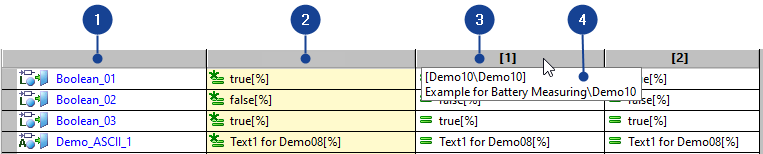
Variables (& Functions) name
Source datasets
Destination datasets
The index [x] references the dataset name in the Destination group field (green index [x]).

To activate or deactivate a destination dataset, see Destination active.
Dataset name and path
Hover over the index header to display this information.
The entries may contain the following information:
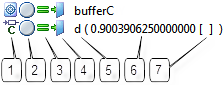
- Data type
This icon represents the data type of the variable:
axis point
ASCII value
value blocks
value matrix
continuous value
binary value
multidimensional map (ASAM-MCD-2MC keywords: CUBOID, CUBE_4).
curve
variable of the axis type CURVE.
map
binary large object (ASAM-MCD-2MC keyword: BLOB).
If the list entry is not a simple variable, but a function or group, the corresponding icon for functions or groups is shown instead:
Function
Group
- Maturity information
This icon is only shown if the add-on INCA-QM-BASIC has also been installed.
If the add-on INCA-QM-BASIC was installed with INCA, you can display symbols to show the current quality meta data of variables, functions and datasets. For comparisons, the coloring of the icons indicates whether the quality states of the compared objects are equal or different, or whether one variable or function is not present in one of the datasets, for example,
 : status "calibrated", quality meta data not equal.
For detailed information, see the help for the INCA-QM-BASIC add-on (available only if INCA-QM-BASIC has also been installed).
- Result of instant comparison
This icon is only shown if only if immediate comparison has been activated.
If you enable instant comparison in the settings, the variables and possibly functions are compared with the variables of the active destination datasets. The settings you define for the standard comparison are used. The results of the instant comparison are displayed as symbol next to the variables:
Detailed information on Instant Compare
Functions / variables cannot be compared, since they are not present in any of the active destination datasets.
Functions / variables are present in at least one destination and in all destinations, where they are present they are identical with the source.

If two or more destination datasets have been activated: the function / variable is present in exactly one dataset and identical to the source.

If two or more destination datasets have been activated: the function / variable is present in all datasets and identical to the source.
In at least one destination the function / variable differs from the source.

If two or more destination datasets have been activated: the function / variable is present in exactly one dataset and different to the source.

If two or more destination datasets have been activated: the function / variable is present in all datasets and different to the source in at least one destination.
For checks, a status icon is displayed. The status refers to both the online dataset check and the online bounds check. For more information about the checks, see Online Dataset Check and Online Bounds Check.

Displayed if both checks are ok.

Displayed if the checks detected an error.
- Variable access
This icon shows how the variable is accessed:

Calibration is possible.

Calibration is not possible.
Dependent characteristic

Virtual variable
- Name
The variable name can be displayed in black, gray, or red, whereby the colors have the following meaning:
variable name shown in black
normal use
variable name shown in gray
The variable value contains fill bytes.
Variables containing fill bytes are not taken into account during listing or copying actions.
variable name shown in red
The calibration variable misses some basic definitions; it cannot be used for editing, compare, list and copy.
- Value
The variable value can only be displayed directly for scalars (i.e. for variables of the types continuous, logical, and ASCII).
For any other type of variable, you must double-click the entry to open the corresponding editor.
- Unit
The unit of the value is shown in square brackets. If the unit is not defined or cannot be shown directly, the square brackets are empty.
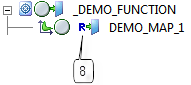
- Possession
This icon shows the relation between the variable and the function or group. Consequently, it is only displayed in the function view.

The variable is defined in the function or group.

The variable is referenced by the function or group.
Use Index as Column Header
This feature offers the following options:
Referencing the dataset name in the Destination group field by index.
Display more columns by reducing the column width.
Display dataset name and path when hovering over index header.
 : status "calibrated",
  : quality meta data not equal, and process meta data. For further information please see the QM-BASIC online help.Start Action group field
This group field contains the following fields:
Output base name (at directory of option 'output'):
Enter the base for the file name under which the results of the selected action (list, copy, or compare) will be saved. The result files will be saved in the path that is set in the CDM output settings; CDM displays this path above the field Output base name. A suffix will be appended to the output base name, dependent on the contents and format of the output file.
Note |
CDM also supports variables in the output file and path name field. The variables can be entered manually or are available in the context menu. Right-click in the file name field and select Insert Variable. |
Supported variables for the file name:
| Variable | Description |
| EcuProjectName |
|
| EcuProjectDbPath |
|
| EcuDatasetName |
|
| Date | Current date (format from the language settings of the OS) |
| Time | Current time (format from the language settings of the OS) |
| IncaUser | Current INCA user (INCA options) |
dd | Current day (01-31) |
MM | Current month (01-12) |
yyyy | Current year (for example 2022) |
yy | Current year (for example 22) |
hh | Current hour of the day (00-12) |
HH | Current hour of the day (00-24) |
mm | Current minute (00-59) |
ss | Current second (00-59) |
tt | Current clock identifier (AM or PM) |
| QmdProjectInfo |
|
| QmdVariant |
|
| QmdTestObject |
|
| QmdContext |
|
Supported variables for the path name:
| Variable | Description |
| EcuProjectPath |
|
Browse
Clicking this button opens a dialog window. There you can choose your desired storage location.
List highlighted / List to eCDM highlighted / Copy
highlighted / Compare highlighted
Note |
The text on this button depends on the selected action (list, list to eCDM, copy, compare). List to eCDM highlighted is only available if the add-on eCDM is also installed. |
Clicking this button starts the specified action only for selected variables, functions and groups (i.e. those displayed with a blue background).
List all / List to eCDM all / Copy all /
Compare all
Note |
The text on this button depends on the selected action (list, list to eCDM, copy, compare). List to eCDM all is only available if the add-on eCDM is also installed. |
Clicking this button starts the specified action for all variables, functions and groups that are added to the Variables to process group field. This also includes those variables, functions and groups that are currently hidden from the view because they are filtered.
Results group fieldThis group field contains the following fields:
Results
Displays the results of a comparison.
| No errors of this result type have occurred. |
| Errors of this result type have occurred. The number of results and the result type are shown next to this symbol. |
| There are no results to display, for example, because they are not relevant for the selected action). |


View
The View button opens a dialog box in which you can open the desired result file.