Recorder Manager Window
To open the Recorder Configuration, in the Experiment Environment  click
click  .
.
The user interface of the Recorder Manager consists of the following components:
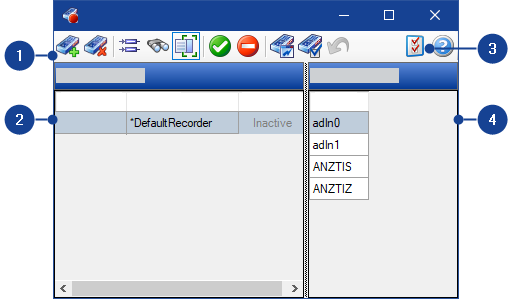
 1 Toolbar
The toolbar provides the following functions:
| This command creates a new recorder in the recorder list. |
| This command deletes a recorder.
Deleting a recorder
can be undone by clicking on the |
| This command opens the Variable Selection dialog. Here, you select the measurement variables to be recorded with the corresponding recorder. |
| It opens the search window. Depending on whether the Recorders pane or the Variables pane is active, you can search for recorder names or for variable names. |
| Clicking on this icon shows or hides the list of variables. |
| This command activates all recorders at the same time. |
| This command deactivates all recorders at the same time. |
| Clicking on this button opens the event display. |
| Clicking on this button opens the recorder configuration for the selected recorder. |
| This command restores deleted recorders. |
| This command opens the Recorder Manager Preferences Dialog Box. Here, you can adjust the displayed information and the respective font and font size. |
| Clicking on this button calls up the online help. |


 2 Recorders Pane
The following elements can be displayed in the Recorders pane:
Enabled
This column indicates whether or not the recorder is activated.
When the recorder is activated, the  symbol is displayed. If not, the
  symbol is
displayed.
If the
symbol is
displayed.
If the  symbol is displayed, the recorder is
configured incompletely or incorrectly.
symbol is displayed, the recorder is
configured incompletely or incorrectly.
Name
This column displays the name of the recorder. The default recorder is also marked by a * symbol and cannot be deleted.
Status
The status is indicated in this field. The following statuses are possible:
- Inactive
- Waiting for trigger
- Record
- Wait for comment
Reliable Trigger
This column displays the delay if the data volume is too large to be permanently buffered (Define Automatic Start Trigger, Define Automatic Stop Trigger).
Recordings
This column displays the number of records. The sum total comprises the initial record and the number of repeats set in the recorder configuration.
Note |
This option is available only for trigger-controlled records. |
Trigger PreStart
This column displays the prestart time set in the recorder configuration.
Note |
This option is available only for trigger-controlled records. |
Duration
This column indicates how long each recorder has been recording.
Remaining Time
This column indicates how long a started recorder still has to run.
Note |
Requirement: a fixed recording time has been set in the recorder configuration. |
Post Stop
This column displays the run-on time set in the trigger definition.
Note |
This option is available only for trigger-controlled records. |
Timestamp Errors
This column displays the number of errors determined by the plausibility check (Settings for checking the plausibility of timestamps).
Context MenuTo open the context menu, right-click in the Recorder pane.
Create New Recorder
This command creates a new recorder. Before you can use/activate this recorder, you must add at least one variable to be recorded.
Delete Recorder
This command deletes the selected recorder. This
operation can be undone by clicking on the  icon or using
the Redo Last Change (Ctrl + z) command in the
context menu.
icon or using
the Redo Last Change (Ctrl + z) command in the
context menu.
Note |
The default recorder cannot be deleted. |
Add Variables
This command opens the Variable Selection dialog to add additional variables to the selected recorder. The added variables are displayed in the list of variables for the respective recorder.
Open Recorder Configuration
This command opens the Recorder Configuration. You can make settings for the following areas:
- Output file
- Recording
- Trigger
- MDA
Note |
Settings for the MDA behavior can be made only for the default recorder. |
Open the Recorder Event View
This command opens the Recorder Event Viewer. It shows which recorders have been started or stopped as well as the name and the path of the output file.
Undelete
This command reverses the deletion of a recorder.
Enable Recorder
This command activates a recorder.
Disable Recorder
This command deactivates a recorder.
Rename
This function allows you to change the name of a recorder. Duplicate names cannot be assigned.
Copy
This command copies the selected recorder with all the settings to the clipboard.
Note |
If you copy the default recorder, the MDA settings are not copied. |
Paste
This commands creates a new recorder with the settings of the recorder stored on the clipboard.
Preferences
This command opens the Recorder Manager Preferences dialog window. Here, you can adjust the displayed information and the respective font and font size.
3 Preferences Dialog BoxIn this dialog box you can configure the display of the recorder raster and the variable raster as follows:
Recorders grid settings
Column Headers Font
Select the font which you want to use for the column headers in the Recorder Manager. You can specify any of the fonts installed on your computer.
Grid Font
Select the font which you want to use for the cells in the Recorder Manager. You can specify any of the fonts installed on your computer.
Visible elements
Activate the Visible option for the elements you want to display.
Note
You can edit the displayed names of the elements in the Recorder Manager. To do this, double click the corresponding entry in the Column Heading column and enter the name of your preference.
You can display the following elements:
Enabled
This column indicates whether or not the recorder is enabled.
When the recorder is activated, the
 symbol is displayed.
If not, the
symbol is displayed.
If not, the  symbol is displayed.
Name
This column displays the name of the recorder. The default recorder is also marked by an * symbol and cannot be deleted.
Status
The status is indicated in this field. The following statuses are possible:
- Inactive
- Waiting for trigger
- Record
- Wait for comment
Reliable trigger
This column displays the delay if the amount of data is too large to be permanently buffered, see 4 Lower Icon Bar.
Recordings
This column displays the number of records. The sum total comprises the initial record and the number of repeats set in the recorder configuration.
Note
This option is available only for trigger-controlled records.
Trigger PreStart
This column displays the prestart time set in the recorder configuration.
Note
This option is available only for trigger-controlled records.
Duration
This column indicates how long each recorder has been recording.
Time remaining
Note
This column indicates how long a started recorder still has to run. Requirement: a fixed recording time has been set in the recorder configuration.
Post stop
This column displays the post stop trigger time set in the trigger definition.
Note
This option is available only for trigger-controlled records.
Time stamp errors
This column shows the number of errors determined by the plausibility check.
Variables Grid settings
Column Headers Font
Select the font which you want to use for the column headers in the Recorder Manager. You can specify any of the fonts installed on your computer.
Grid Font
Select the font which you want to use for the cells in the Recorder Manager. You can specify any of the fonts installed on your computer.
Visible elements
Activate the Visible option for the elements you want to display.
Note
You can edit the displayed names of the elements in the Recorder Manager. To do this, double click the corresponding entry in the Column Heading column and enter the name of your preference.
You can display the following elements:
Variable
This column displays the variable name.
Device
This column displays the device which supplies the variable.
Raster
This column displays the raster to which the variable is assigned.
4 Variables PaneThe following elements can be displayed in the Variables pane:
Variable
This column displays the variable name.
Device
This column displays the device which supplies the variable.
Raster
This column displays the raster to which the variable is assigned.
Context MenuTo open the context menu, right-click in the Variables pane.
Delete
This command deletes the Variable(s) selected in the list of variables. This process cannot be undone.
Add variables
This command opens the Variable Selection dialog. Here, you select the measurement variables to be recorded with the corresponding recorder .
Copy
This command copies the selected variable(s) to the clipboard. The copied variables can be added to any recorder.
Paste
This command adds the variables stored on the clipboard to the selected recorder.
About variable
Opens the About Variable dialog box. This window displays additional information about the variable.
Variable Documentation
Note |
The ECU documentation is displayed only if provided by the manufacturer of the control unit and if the corresponding ECU documentation has been added to the ECU project in the Database Manager. |
The ECU documentation for the selected variable is opened.
Attributes
This command opens the Recorder Manager Setup dialog window. Here, you can adjust the displayed information and the respective font and font size.