Navigation Pane of ASCMO-MOCA
The navigation pane at the left side of the window leads you through the process steps from the import of the measuring data up to the export of the optimized parameters.
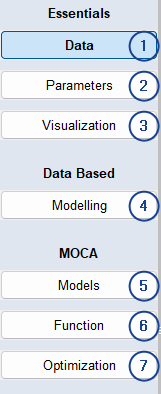
1 – Data: In the Data step, you can import a measurement file, edit the measurement data and export the data to a measurement file. You can also map the data channel from the measurement file to the corresponding function variable (Channel Name Mapping).
For more information, see Data,
2 – Parameters: In the Parameters step, you can manage and modify maps, curves, scalars, cube-3D, cube-4D, compressed model and matrix for use in the Function step.
For more information, see Parameters ,
3 – Visualization: In the Visualization step, you can visualize your data.
For more information, see
Visualization
4 – Modelling: In the Modelling step, you can create and train data-based models (e.g., machine learning or black box models).
|
Note |
|---|
|
To use this step you need an ASCMO-DYNAMIC license. |
5 – Models: In the Models step, you can import models and link the parameters, inputs, and outputs to the parameters available in ASCMO-MOCA.
|
Note |
|
To use a Simulink® model in ASCMO-MOCA, a Simulink® installation with a valid license is required. |
For more information, see Models,
6 – Function: In the Function step allows you to construct a function from the stepwise creation of the nodes. The main point here is to link the parameters and the data.
For more information, see Function,
7 – Optimization: In the Optimization step, you can perform the following main tasks:
- Define the parameter-based optimization criterion (e.g., smoothness, gradient constraints).
-
Define parameters as a reference for comparison with subsequent optimization results.
-
Starting the optimization.
- Export optimized parameters.
For more information, see Optimization,
See also
Tutorial: Working with ASCMO-MOCA