Committing an Item
When you are done editing an item that is already under version control, proceed as follows to commit (i.e. to check in) the item by storing its current status as a new version in the Subversion repository:
- In the ASCET component manager, select the item you want to commit.
Open the SCM menu and select Commit.
If all components referenced by your item are available, the Commit dialog box opens. Continue reading at the last step.
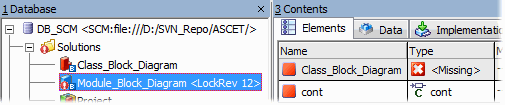
If your item contains a
 missing reference, the following error message opens:
 At least one item cannot be processed. Please see monitor for details!
If the Allow commit with missing references tool option is activated, you can Continue or Abort the procedure. If Allow commit with missing references is deactivated, you can only confirm the abort.
If possible, and desired, click Continue to commit the item despite the missing reference.
Note
Committing an item with a missing reference can lead to problems later on in the process.
The Commit dialog box is displayed.
Use the Commit dialog box to commit the item(s).
The item's overlay icon changes from
 to
to  , indicating that the item is no longer locked.
Note |
|---|
If an item is not yet under version control, Add and Commit enables you to bring this item under version control and to commit it to the Subversion repository in a single operation. |
See also
Typical Workflow – Using Subversion for Revision Control
Adding and Committing an Item (Simple Mode)
Commit Dialog Box (Simple Mode)