Display Configuration Tab
You can configure your experiment using the Display Configuration tab. You can create layers and windows, move variables and edit the properties of the experiment elements.
- Open the Display Configuration tab by clicking on Display Configuration or pressing Ctrl + 2.
The Display Configuration tab includes the following components:
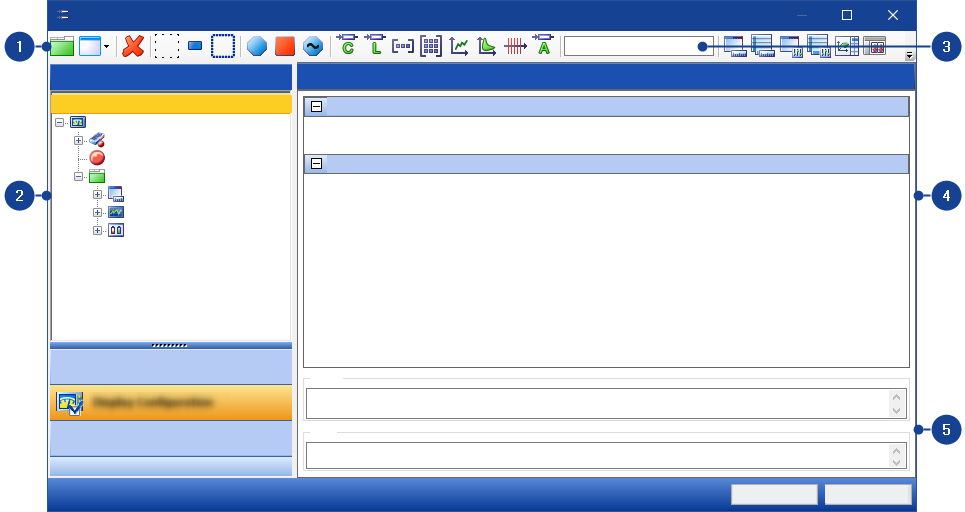
 1 Toolbar
In the toolbar of the Display Configuration tab, the following groups of functions are available:
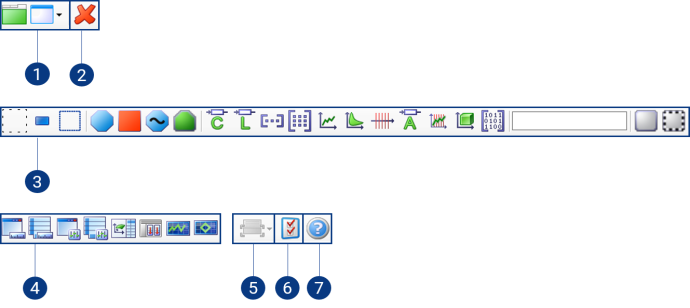
- Add Elements
- Delete Filters
- Variable Filters
- Display Window Type
- Information window
- Settings for Variable Selection
Note |
You can insert additional filters in the toolbar through the context menu,see Configuring the Representation of Variables View. To save your filter configuration, see Saving Filter Configurations. |
1. Add Elements
To add elements to the experiment, the following Functions are available:
| Adds a new layer to the experiment. |
| Opens a selection with which you can add new measure/calibration windows to the experiment. |


2. Delete Filters
| Use this button to delete all selected filters. |

3. Variable Filters
To filter the list of variables by variable type, the toolbar provides the following functions:
Selection Status
Filters in the Selection Status group filter the list of variables with respect to the selection status.
 | All variables neither added to an experiment nor selected in the current variable list are displayed. |
 | All variables added to an experiment are displayed. |
 | All variables selected in the current variable list are displayed. |
Class
Filters in the Class group filter the list of variables with respect to the class to which the variables belong.
| Use this filter to view only the configuration variables. These variables can be changed. |
| Use this filter to view only the measured-value variables. These variables can be measured, but cannot be changed. |
| Use this filter to view only the variables of the adaptive parametersclass. |
| Use this filter to view only the slewing variables. |


Type
Filters in the Type group filter the list of variables with respect to the class to which the variables belong.
| Use this filter to view the variables of the type scalar. |
| Use this filter to view the variables of the type Boolean. |
| Use this filter to view the variables of the type vector. |
| Use this filter to view the variables of the type matrix. |
| Use this filter to view the variables of the type curve. |
| Use this filter to view the variables of the type map. |
| Use this filter to view the variables of the type axis. |
| Use this filter to view the variables of the type ASCII. |
| Use this filter to view the variables of the type curve axis. |
| Use this filter to view the variables of type multidimensional map. |
| Use this filter to view the variables of type Blob (binary large object). |


Virtual
Filters in the Virtual group filter the list of variables with respect to real variables and virtual variables.
| Use this filter to view only non-virtual variables, i.e. these variables exist in the control unit and are not simulated by the system. |
| Use this filter to view only the virtual variables. Virtual variables are simulated by the system. |


Inactive
The filter in the Inactive group filters the list of inactive variables, which are grayed out and marked with the following overlay icon.
| Use this filter to view only inactive variables, see Variable Status in INCA.. |

No-match
The filter in the no-match group filters the list of no-match variables, which are grayed out and marked with the following overlay icon.
| Use this filter to view only no-match variables, see Variable Status in INCA. |

4. Display Window Type
To filter the experiment structure by measure/calibration windows, the toolbar provides the following filters of the Display Window Type group:
 | Use this filter to view Measure Windows. |
 | Use this filter to view Measure Tables. |
 | Use this filter to view Calibration Windows. |
 | Use this filter to view Scalar Table Editors. |
 | Use this filter to view Combined Editors. |
 | Use this filter to view Calibration Scenario Editors. |
 | Use this filter to view YT-Oscilloscopes. |
 | Use this filter to view XY-Oscilloscopes. |
 | Use this filter to view Delta Bar Charts. |
 | Use this filter to view Signal Distribution Charts. |
 | Use this filter to view Sortable Lists. |
 | Use this filter to view Absolute Value Bar Charts. |
5. Information window
| Use the information window to show more detailed information on a variable you have just selected. The meta-information can be shown at the right side or bottom section of the variable pane. If this information is no longer required, it can be hidden again through the information window. |

6. Settings for Variable Selection
| Use this button to open the window in which you can set the defaults for variable selection. |

7. Help for variable selection dialog box
| Use this button to activate the help for the Variable Selection Dialog. |
 2 Display Configuration Pane
The experiment is displayed in the following experiment structure in the Display Configuration pane:
- Experiment >> Layer >> Measure/Calibration Window >> Variable
Context MenuTo open the context menu, right-click in the Display Configuration pane.
The following functions are available in the context menu of the Display Configuration pane:
Add Layer
Adds a new layer to the experiment.
Add Widget
Adds a new measure/calibration window to the experiment.
Change Widget To
Changes the type of a measure/calibration window.
Select all instances
Selects all instances of an element.
Cut
Moves an element to the clipboard.
Copy
Creates a copy of an element on the clipboard.
Paste
Inserts an element from the clipboard.
Remove
Removes an element.
Rename
Renames an element.
Move Up
Moves an element in the experiment structure up by one step.
Move Down
Moves an element in the experiment structure down by one step.
Preselect <Variable Type>
It defines which variable type should be displayed in a measure/calibration window.
3 Variable SearchVariable Search
With the Variable Search in the tabs Display Configuration and Variables Configuration, you can search the experiment structure for variables in the Display Configuration or Variables Configuration tab by entering the name of the variable or using the wildcard function. This type of search is an advantage if the exact name of the variable is unknown or if a number of variables with similar attributes are searched for.
Note |
Searching for variables by using wildcard symbols (* for strings, ? for a single character) lists variables corresponding to the query. |
4 Experiment PaneThe properties of the elements contained in the experiment can be displayed and edited in the Experiment pane.
An experiment may contain the following elements:
- Layers
- Measure/calibration instruments
- Variables
When you select an element (experiment, layer, instrument or variable) in the tree view in the Display Configuration pane, then the properties of the corresponding element and the subordinate elements of the next level are shown. If you select more than one item in the tree view, then only those properties are shown in the tabular view that are defined for all of the selected elements.
Context MenuTo open the Properties context menu, right-click in the Experiment pane.
The following functions are available in the context menu of the properties in the Experiment pane:
Hide column
Hides a column.
Sort column
Sorts a column in alphabetical order.
Hidden columns
Shows hidden columns again.
5 Information PaneHelp text and error messages for the selected property are displayed in the Information Pane.
Note |
An error message may occur if a maximum limit is less than the minimum limit. The error message then displays that the maximum limit must be greater than the minimum limit. |
Context MenuTo open the context menu, right-click in the Help field.
The following functions are available in the context menu of the Information Pane on the Display Configuration Tab tab:
Undo
The last change to the text is undone.
Cut
Moves marked text to the clipboard.
Copy
Places a copy of the marked text on the clipboard.
Paste
Inserts a text from the clipboard.
Remove
Removes marked text.
Mark All
Marks the entire text.
Left-to-right text direction
The text direction changes from left to right.
Show Unicode control character
Displays the Unicode control character.
Insert Unicode control character
Opens a submenu with a selection of Unicode control character.
See also