Toolbar (Variables Configuration Tab)
In the toolbar of the Variables Configuration tab, the following groups of functions are available:
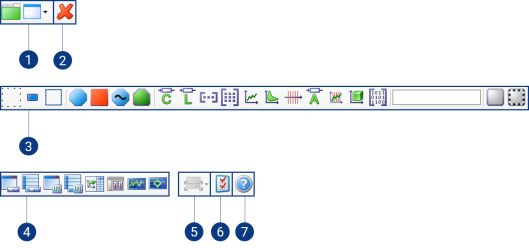
- Add Elements
- Delete Filters
- Variable Filters
- Display Window Type
- Information window
- Settings for Variable Selection
- Help for variable selection dialog box
Note |
You can insert additional filters in the toolbar through the context menu (see Configuring the Representation of Variables View). |
1. Add Elements
To add elements to the experiment, the following Functions are available:
| Adds a new layer to the experiment. |
| Opens a selection with which you can add new measure/calibration windows to the experiment. |


2. Delete Filters
| Use this button to delete all selected filters. |

3. Variable Filters
To filter the list of variables by variable type, the toolbar provides the following functions:
Selection Status
Filters in the Selection Status group filter the list of variables with respect to the selection status.
 | All variables neither added to an experiment nor selected in the current variable list are displayed. |
 | All variables added to an experiment are displayed. |
 | All variables selected in the current variable list are displayed. |
Class
Filters in the Class group filter the list of variables with respect to the class to which the variables belong.
| Use this filter to view only the configuration variables. These variables can be changed. |
| Use this filter to view only the measured-value variables. These variables can be measured, but cannot be changed. |
| Use this filter to view only the variables of the adaptive parametersclass. |
| Use this filter to view only the slewing variables. |


Type
Filters in the Type group filter the list of variables with respect to the variable types.
| Use this filter to view variables of type scalar. |
| Use this filter to view the variables of the type Boolean. |
| Use this filter to view variables of type vector. |
| Use this filter to view variables of type matrix. |
| Use this filter to view variables of type curve. |
| Use this filter to view variables of type map. |
| Use this filter to view the variables of the type axis. |
| Use this filter to view variables of type ASCII |
| Use this filter to view the variables of the type curve axis. |
| Use this filter to view the variables of type multidimensional map. |
| Use this filter to view the variables of type Blob (binary large object). |


Virtualness
Filters in the Virtualness group filter the list of variables with respect to real variables and virtual variables.
| Use this filter to view only non-virtual variables, i.e. these variables exist in the control unit and are not simulated by the system. |
| Use this filter to view only the virtual variables. Virtual variables are simulated by the system. |


4. Display Window Type
To filter the experiment structure by measure/calibration windows, the toolbar provides the following filters of the Display Window Type group:
 | Use this filter to view Measure Windows. |
 | Use this filter to view Measure Tables. |
 | Use this filter to view Calibration Windows. |
 | Use this filter to view Scalar Table Editors. |
 | Use this filter to view Combined Editors. |
 | Use this filter to view Calibration Scenario Editors. |
 | Use this filter to view YT-Oscilloscopes. |
 | Use this filter to view XY-Oscilloscopes. |
5. Information window
| Use the information window to show more detailed information on a variable you have just selected. The meta-information can be shown at the right side or bottom section of the variable pane. If this information is no longer required, it can be hidden again through the information window. |

6. Settings for Variable Selection
| Use this button to open the window in which you can set the defaults for variable selection. |

7. Help for variable selection dialog box
| Use this button to activate the help for the Variable Selection Dialog. |

See also
Variable Search (Display Configuration/Variables Configuration Tab)
Experiment Pane (Display Configuration Tab)
Information Pane (Display Configuration Tab)
You can also
Filtering an Experiment Structure