Guided Troubleshooting: Can you find other Ethernet hardware?
Can you find other Ethernet hardware?
 How to find out whether other Ethernet hardware can be found
Use one of the following methods to find out whether other Ethernet hardware can be found:
Via INCA:
- Make sure that some Ethernet measurement and calibration hardware is connected to the PC; if there is no other Ethernet hardware available than the one that could not be found when searching for hardware, try to connect the hardware directly (without a switch).
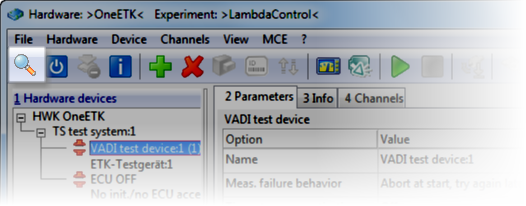
Do another search for hardware (e.g. by opening the Hardware Configuration Editor and clicking in the toolbar).
Via the IP Manager:
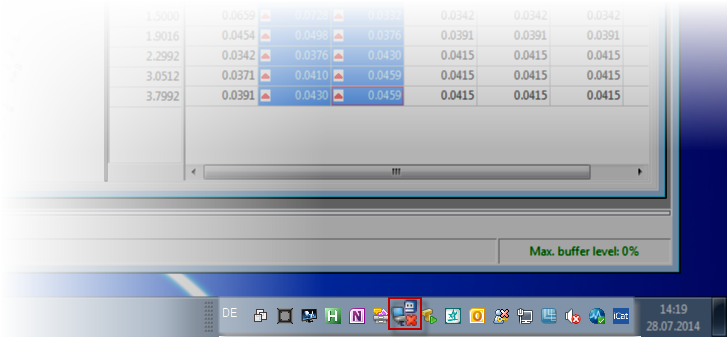
Look for the IP Manager icon in the Windows taskbar.
 Screenshot: Windows 10 taskbar with IP Manager icon
The Windows taskbar is located at the bottom of the monitor (right justified, next to the system clock):
Note
The IP Manager icon may not be visible in the Windows taskbar, even if INCA is started and the hardware initialized. If you don't see the IP Manager icon, reconfigure your taskbar to make the IP Manager icon visible.
Details for Windows 10Click the arrow on the Windows taskbar to open a pop-up list of the icons which are currently set to hidden mode.
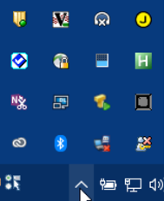 .
.Drag the IP Manager icon
 onto the taskbar.
The IP Manager icon is now shown in the Windows taskbar.
Right-click on the IP Manager icon and select 'Ethernet system configuration' from the context menu.
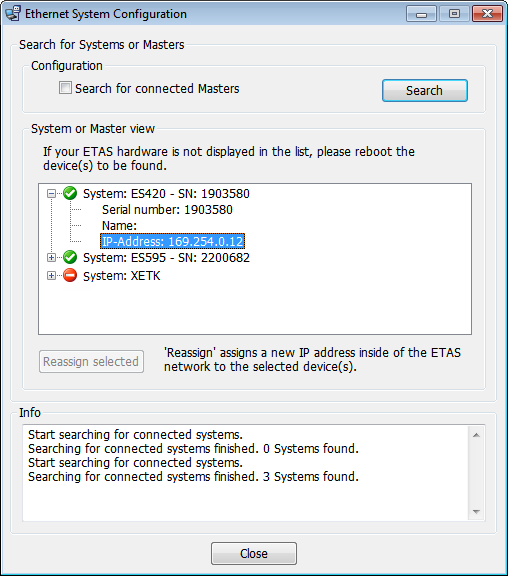
A dialog opens. The field 'System or Master view' displays a tree view of all Ethernet hardware systems that were found by the IP Manager.
The icons in front of the system name show whether communication is possible or not.
If a system is preceded by the icon
 , the system can be found, but communication is not possible, e.g. because the IP address of that system is located outside of the IP address range for ETAS hardware.
If the list is empty, the IP Manager could not find any Ethernet measurement and calibration hardware.