Guided Troubleshooting: Does the IP Manager icon show a red cross?
Does the IP Manager icon show a red cross?

 How to find and interpret the IP Manager icon
The task of the IP Manager is to manage IP addresses for Ethernet measurement and calibration hardware; this is necessary to enable communication between ETAS software and MC hardware devices. When the IP Manager is activated by an ETAS software requiring hardware access, the following icon is shown in the Windows taskbar for Windows 10 and in the Hardware Configuration Editor:
 Screenshot: Windows 10 taskbar with IP Manager icon
The Windows taskbar is located at the bottom of the monitor (right justified, next to the system clock):
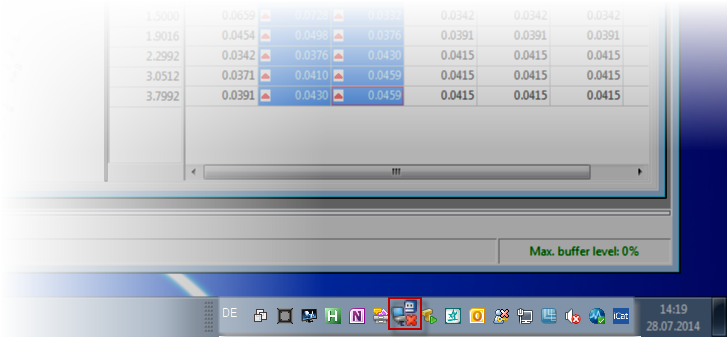
The IP Manager icon may be shown in 4 different variants; these represent the following network status:
The ETAS network is configured so that the IP Manager can detect and assign IP addresses.
This is a necessary requirement for accessing Ethernet hardware.
When placing the mouse pointer on the icon, a tooltip shows the IP address of the subnet as well as the number of hardware systems found.

The IP Manager is in passive mode, e.g. because there is more than one computer in the network trying to access the hardware.
Access to the Ethernet devices in the ETAS network is possible.
The ETAS network is configured so that the IP Manager can detect and assign IP addresses.
However, a warning persists (e.g. because a hardware was detected with an IP address outside of the IP address range for the ETAS network).
When placing the mouse pointer on the icon, a tooltip provides further information.
The ETAS network is not configured correctly (e.g. the network is physically not available, it is not allowed to work because it is using the DHCP network (company network), or the network card has just switched from DHCP to APIPA and the network is not yet available).
The IP Manager can not access the ETAS network.
When placing the mouse pointer on the icon, a tooltip provides further information.
Note
The IP Manager icon may not be visible in the Windows taskbar, even if INCA is started and the hardware initialized. If you don't see the IP Manager icon, reconfigure your taskbar to make the IP Manager icon visible.
Details for Windows 10Click the arrow on the Windows taskbar to open a pop-up list of the icons which are currently set to hidden mode.
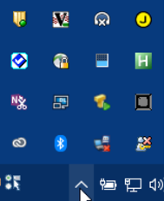 .
.Drag the IP Manager icon
onto the taskbar.The IP Manager icon is now shown in the Windows taskbar.
