Sources

Opens a file selection dialog to choose files to add to the job.
See also, Add files.

Opens a folder selection dialog to choose a folder to add to the job.
See also, Add a folder.

Removes all added files and folders from the job.
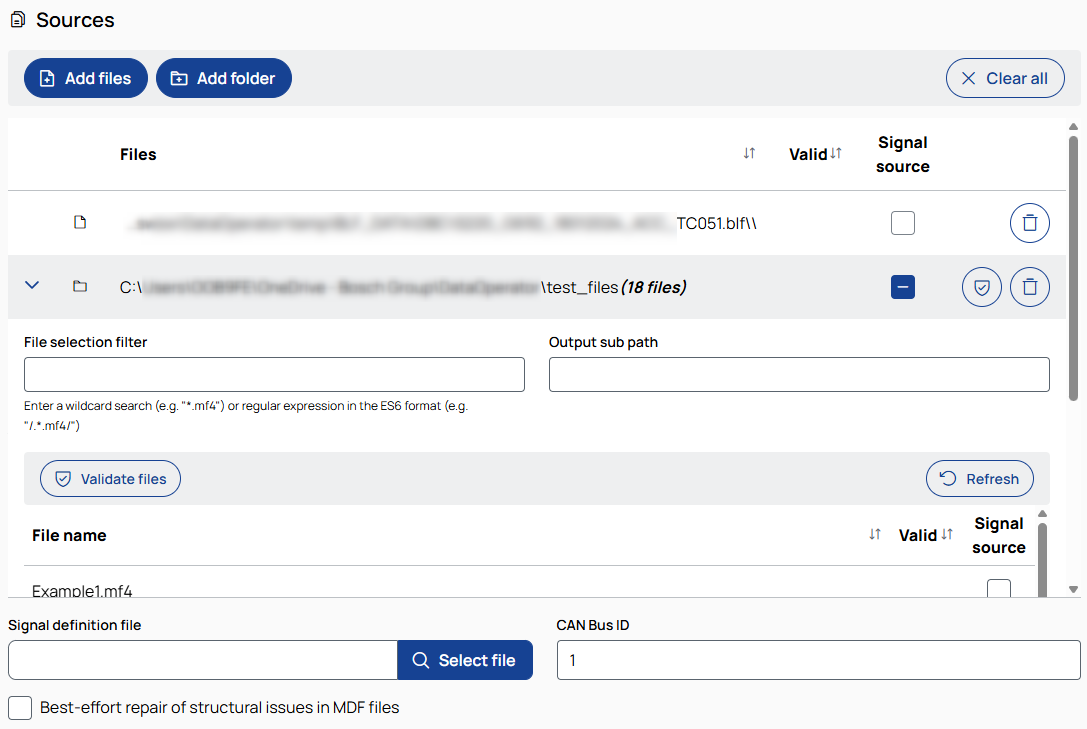
Files
Lists all files in the job, sorted by most recently added.
To sort the list alphabetically, ascending or descending, click the column header.
Valid
This column shows whether an MF4 file is valid or corrupt.
A green check mark indicates a valid file, while a red cross indicates a corrupt one.
Enables or disables a file or folder as a source for signal selection in operations.
-
When you add individual files, the first five files are automatically enabled as signal sources.
-
When you add a folder, no files are preselected as signal sources.
-
You can manually enable or disable any files or folders as signal sources.
If a file has changed after the signals were loaded, deselect and reselect it to refresh the signal database.
 /
/
Validates all MF4 files in the folder.
A green check mark indicates a valid file, while a red cross indicates a corrupt one.
Single files are validated during upload.
When a filter is applied, only the visible (filtered) files are validated.
Signal definition file
Select a signal definition file to interpret CAN data in BLF files.
Click  to open a file selection dialog and choose a DBC or ARXML file.
CAN bus ID
Enter an integer value that defines the CAN bus used for signal extraction.
Bus name
Select the CAN bus from the drop-down list.
This field is only available if an ARXML file is selected.
Best-effort repair of structural issues in MDF files
Scans MDF files for structural issues and attempts a best-effort repair.
Unreadable or damaged sections may be removed to restore file integrity, which can lead to partial data loss.
It is recommended to repair a copy of the original file.
Behavior when executed in a job:
Repair only
If the Best-effort repair of structural issues in MDF files option is enabled and the job is executed without any additional operations, all input MDF files are scanned, files with structural issues are repaired, and the repaired versions are saved to the destination folder.
Repair before operations
If the Best-effort repair of structural issues in MDF files option is enabled and the job contains one or more operations, all input files are repaired first. After this repair step, the configured operations are applied to all resulting (initially valid and repaired) files.
This ensures that all subsequent processing is performed on structurally valid MDF files.

Removes the file from the job.

Refreshes the folder. Updates changes made to the folder outside the application.