Defining Parameters for Optimization
Before you start optimizing, you should first define the permissible range of parameter variation for all variables.
|
Note |
|---|
|
The Calibration menu is only available, if operating point axes have been selected during data import (see Assign Inputs and Outputs). You can set the operating point axes afterwards in the menu In/Outputs > Set Operating Point Axes. |
Limiting areas for parameter variation
-
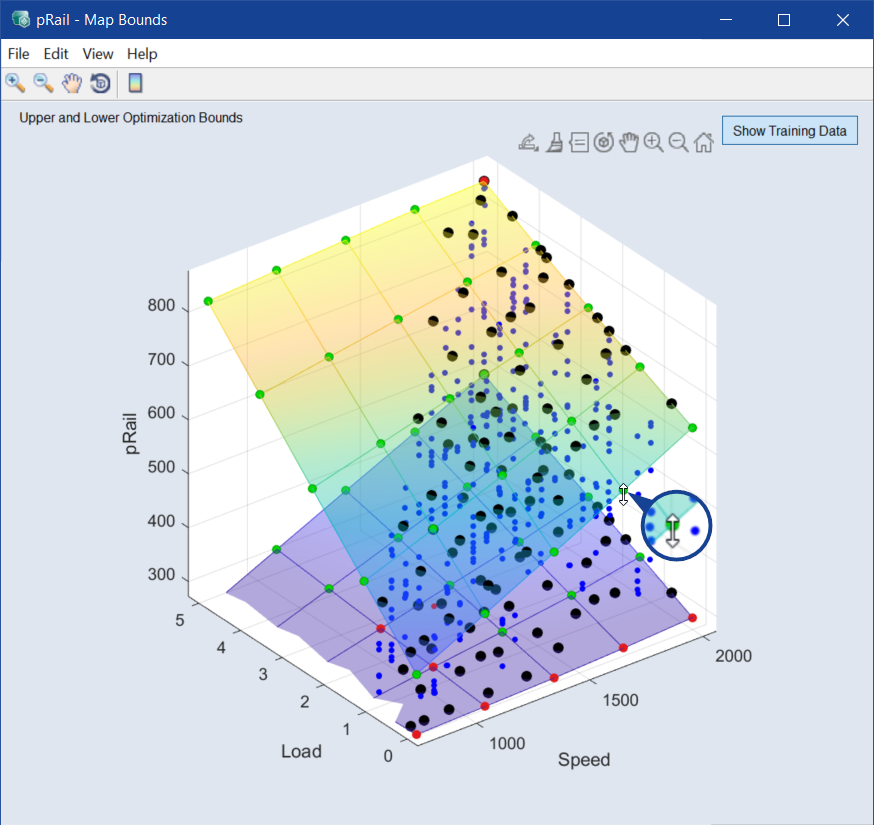
Select Calibration > Map Bounds over OP > Fit Bounds to Data.
All <input> - Map Bounds windows and the Fit Map Bounds to Data window open. In the latter, Apply to all Maps is activated.
-
In the Fit Map Bounds to Data window, do one or more of the following:
- Enter a smoothness factor for the map bounds.
- In the Grid Nodes area, refine the grid.
-
Click OK or Apply to continue.
The valid range for all inputs is adapted to the range actually measured. Then, parameters can only be adjusted at all operating points within the measured range.
-
To change the limit manually, click one of the (green) operating points.
-
The mouse button becomes a double arrow and the limit can be moved up and down.
Parameterizing optimizers
-
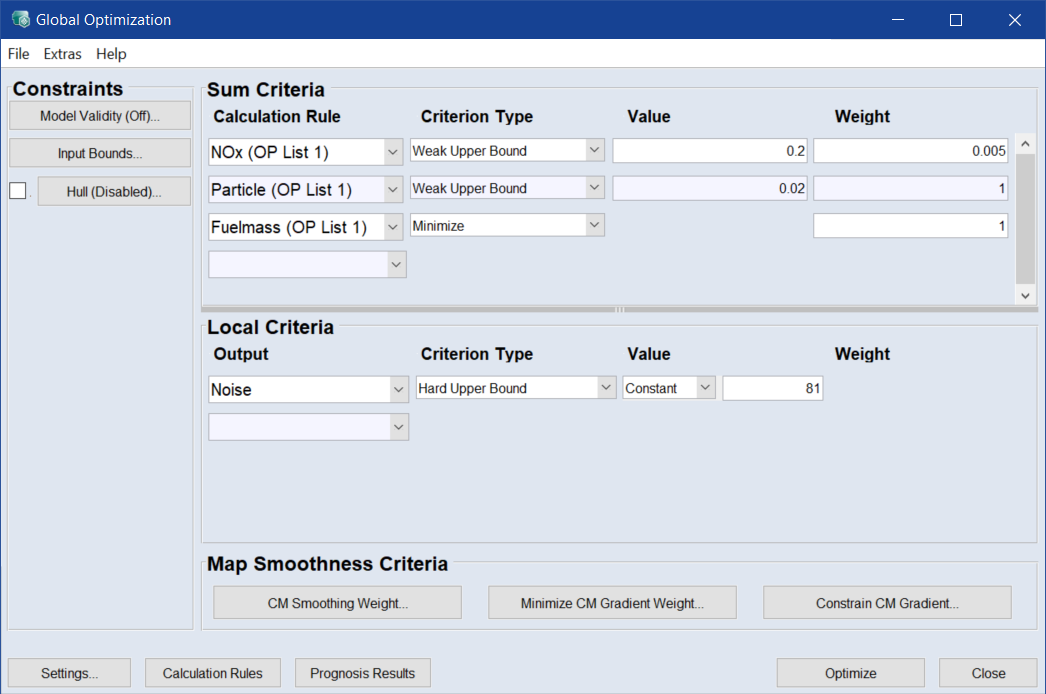
Select Optimization > Global Optimization.
The Global Optimization window opens.
-
Enter the required thresholds for pollutant emissions in the Sum Criteria area:
- NOx: Weak Upper Bound / 0.2 g/km
- Particle: Weak Upper Bound / 0.02 g/km
-
Specify the proper calculation rules for the outputs.
The conversion factor for pollutant emissions measured in the European driving cycle in g/h to g/km can be found in the ASCMO-STATIC online help.
-
Generally, fuel consumption should be minimal – select Minimize as criterion for the Fuelmass output.
Further criteria can also be defined, e.g. that engine noise must not exceed 80 dB. This is specified as a Local Criterion (Hard Upper Bound / 80 dB) and can be set either for all operating points (Value = Constant) or for each individual operating point (Value = per OP).
-
To limit the optimization result to the range of the valid model output, proceed as described in Limiting the optimization results.
-
The individual optimization criteria are weighted (= prioritized).
Weighting the optimization criteria
- In the Weight column of the Sum Criteria area, enter weights for the sum criteria.
-
In the Weight column of the Local Criteria area, enter weights for the local criteria.
A higher number means a higher weight.
Note
You cannot enter a weight for criteria of type Hard Upper Bound or Hard Lower Bound.