Using the If Statements
Note |
|---|
This instruction applies only to SWCs specified as block diagrams. Using the if...else statement in an SWC specified in ESDL is described in If...Else (ESDL Editor). |
In the Basic Blocks palette or toolbar, click the
 If Then or
  If Then Else button to load the mouse cursor with the respective block.
 You can use the options in the Kind context menu of an If...* block to change its type.
Place the block in the drawing area.
The If Then block and the If Then Else block look nearly alike, except that If Then Else has two control flow branches.
Connect the input to a logical element.
Specify the actions for the branches.
Right-click the sequence call you want to connect to a branch, and select Connector from the context menu.
The sequence call becomes a connector. The colored line of an unresolved sequencing changes to black.
Connect the desired branch to the connector.
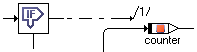
You can connect a branch to more than one actions. In that case, edit the connector numbers (according to Editing the Sequence Call in the Sequence Editor). As for sequence calls, each number must be unique.
Repeat these actions for the second branch of the If Then Else block.
See also
The following link applies only to the ESDL editor for software components:
The following links applies only to the block diagram editor for software components: