Using the While Loop
Note |
|---|
This instruction applies only to SWCs specified as block diagrams. Using the while , do...while and for loops in an SWC specified in ESDL is described in While, Do...While, and For. |
The only loop construct available in block diagrams is the While loop.
- In the Basic Blocks palette or toolbar, click the
 button to load the mouse cursor with the respective block.
 - Place the block in the drawing area.
- Specify the loop condition.
Connect the condition to the loop input.
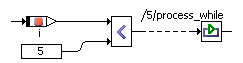
- Specify the loop action.
Right-click the sequence call you want to connect to the loop output, and select Connector from the context menu.
The sequence call becomes a connector.
Connect the loop output to the connector.
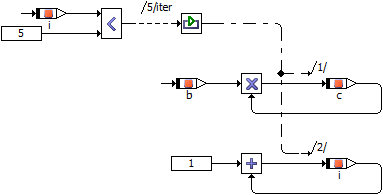
You can connect the output to more than one actions. In that case, edit the connector numbers (according to Editing the Sequence Call in the Sequence Editor). As for sequence calls, each number must be unique.
Note |
|---|
Make sure that you avoid infinite loops or loops unsuitable for real-time applications, e.g., via an appropriate setting for Max Number of Loop Iterations in the project properties, Experiment Code node, of the associated project. |
See also
Project Editor – Experiment Code Node
The following links apply only to the ESDL editor for software components:
The following link applies only to the block diagram editor for software components: