Loading a Workspace
Open the Select database or workspace window with one of the following actions.
- In the File menu, select Open.
- Click the
 Open button.
 - Press <Ctrl> + <o>.
The Select database or workspace window opens. The directory specified in the Database Path option (see Paths Options (Environment)) is preselected. Databases are marked by
 , workspaces are marked by
  .
.Select the workspace you want to open and click OK.
The workspace is loaded. The most recently selected component is selected again.
If you open a workspace that contains components with damaged *.amd files, the following happens:
- If the *.main.amd of a component is invalid, the component does not appear in the Component Manager, and an error message is issued in the Monitor tab of the ASCET monitor window. The component is not removed from the workspace index, though, the *.amd files are not deleted, and the component will not be overwritten.
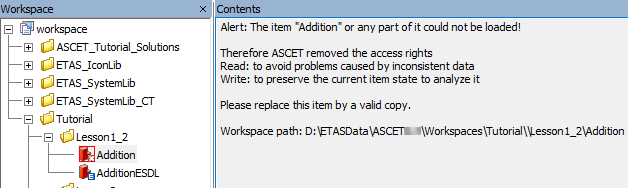
If the *.main.amd of a component is valid, but one of the other *.amd files (e.g., *.implementation.amd or *.data.amd) is invalid, the component appears in the Component Manager, but it is marked as invalid, access rights are removed, i.e., you cannot edit the component. If you select the invalid component, a message appears in the "Contents" field.
See also