Using the Communication Status Operator
Note |
|---|
The Communication Status operator is available in modules only. |
- Create an imported Receive message.
- In the Basic Blocks palette or toolbar, click the
 Communication Status button, then place the operator in the drawing area.
 Connect the left side of the operator to the Receive message.
Note
You must connect the Communication Status operator to a Receive message. If you connect the operator to something else, an error (MMdl1194) is issued during code generation.
- Create a literal and set its value to one of the error codes.
- Create a comparison operator.
Connect the Communication Status element and the literal to the inputs of the comparison operator.
You can now specify appropriate behavior for the error case (see the
 example).
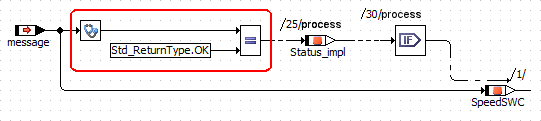
The error behavior is only relevant if the module is used in an AUTOSAR project. In a non-AUTOSAR project, the operator is always generated to OK. Code that becomes obsolete in that case is is removed during code optimization. The same happens if – in an AUTOSAR environment – the RTE does not support the configured error code.
An example that includes generated code for AUTOSAR and NON-AUTOSAR environment is given in Example: Communication Status Operator.
See also