Inserting an Element into a Connection
Do one of the following:
- In the Elements palette or toolbar, click the button for the new element you want to insert.
- In the Basic Blocks palette or toolbar, click the button for the operator you want to insert.
- In the Outline tab, select the existing element you want to insert.
Do one of the following:
- To insert a new element or operator, click the connection where you want to insert the item.
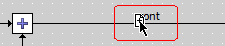
- To insert an existing element, drag the element onto the connection and drop it.
The plus sign on the mouse pointer must be positioned on the connection line. Otherwise, insertion will not work.
You are asked if you want to insert the block.
If you do not want to be asked each time you insert an element, activate the Don't show this hint again option.
Do one of the following:
- Click Yes to insert the element into connection.
- Click No to add the element to the diagram without inserting it into the connection.
See also