
Installation
RTA-SQF is distributed as a platform-specific installer package. Separate installers are provided for Windows and Linux (Ubuntu).
Prerequisites
Before installing RTA-SQF, ensure the following components are present on the target system:
Administrator / root privileges — administrator privileges are required to run the installer.
RTA-CAR — RTA-SQF is designed to work with a licensed installed version of RTA-CAR.
RTA-SQF license file — a valid
.licfile is required to run the tool. See License Configuration for details.
Windows
Installation
RTA-SQF is distributed as a self-contained .exe installer.
Supported platforms:
Windows 11 version 24H2 or later
Installation steps:
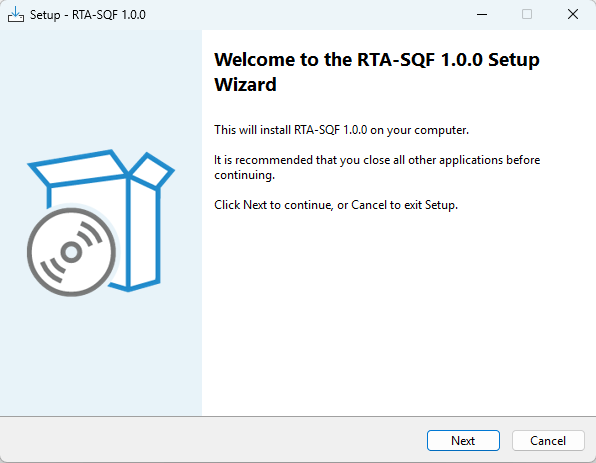
1. |
Run the RTA-SQF Setup executable. The Setup Wizard guides through the installation. |
|
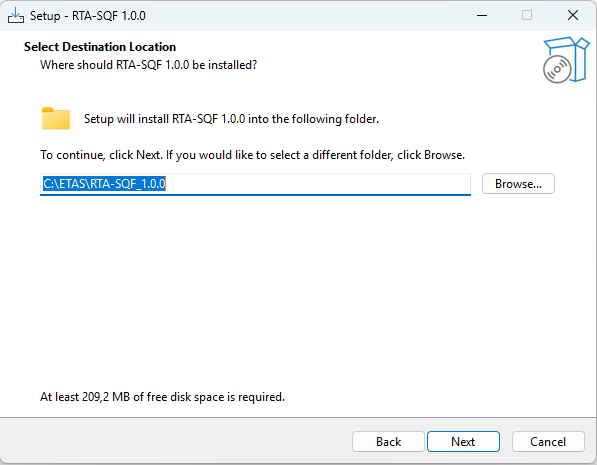
2. |
Select the installation directory and continue with the installation. |
|
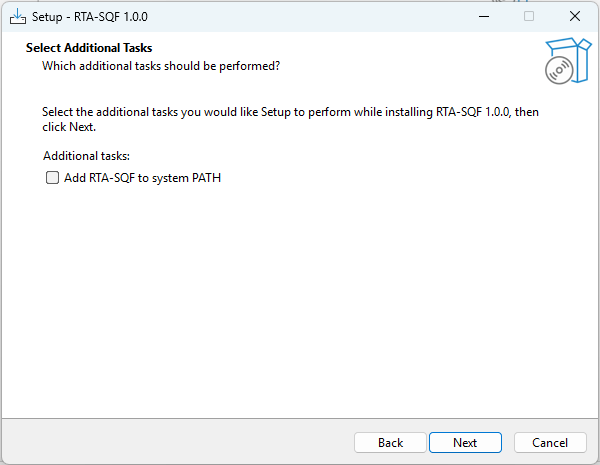
3. |
If you want to make |
|
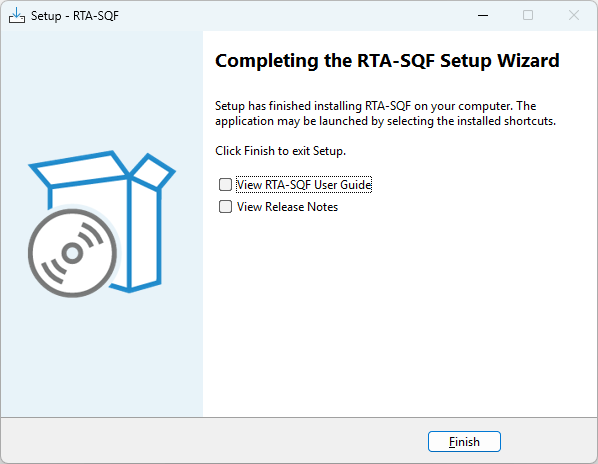
4. |
Finish the installation. |
|
Installation paths:
Item |
Path |
|---|---|
Application directory |
|
Executable |
|
Documentation (PDF) |
|
Start Menu shortcut |
|
Uninstallation
Use Programs and Features (or Apps & features) in the Windows Control Panel to uninstall RTA-SQF. Each version appears as a separate entry. Alternatively, run the uninstaller from the Start Menu shortcut ETAS\RTA-SQF <version>\Uninstall RTA-SQF <version>.
Linux
Installation
RTA-SQF is distributed as a Debian package (rta-sqf_<version>_amd64.deb).
Supported platforms:
Ubuntu 22.04 or later
Installation steps:
1. |
Install the RTA-SQF package: sudo dpkg -i rta-sqf_<version>_amd64.deb
|

|
2. |
The installer runs pre-installation checks (platform detection, ETAS License Manager verification) and then unpacks and configures the package. Upon success, the installation paths and license instructions are printed to the terminal. |
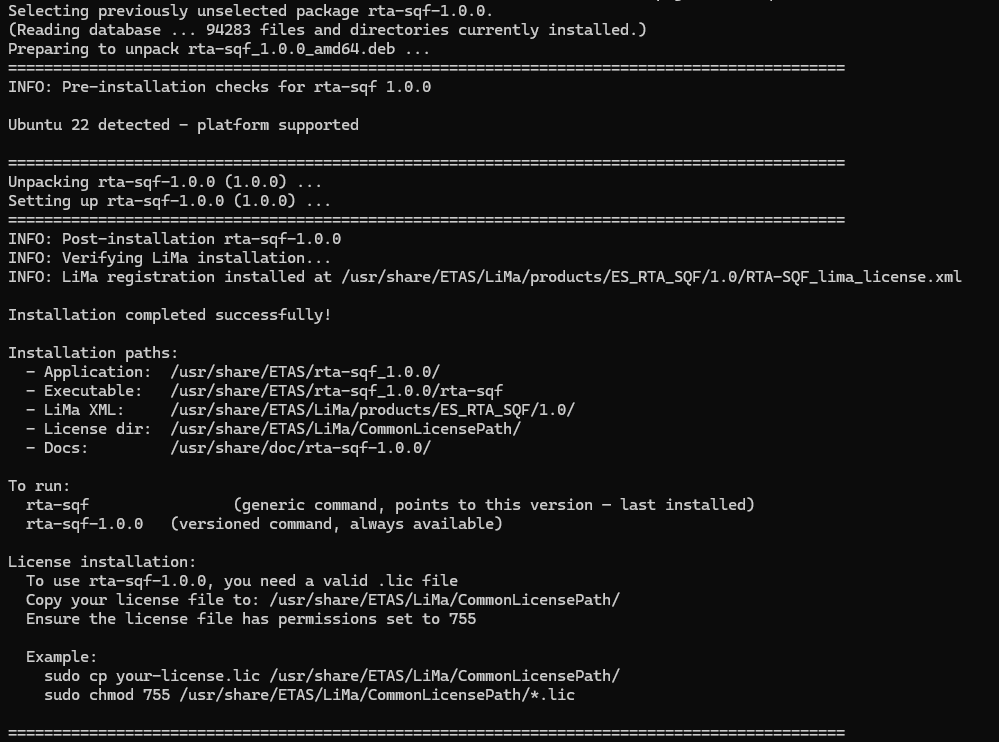
|
Installation paths:
Item |
Path |
|---|---|
Application directory |
|
Executable |
|
Shell command (versioned) |
|
Shell command (generic) |
|
Documentation (PDF) |
|
Uninstallation
Each version is an independent package. To remove a specific version:
sudo dpkg --purge rta-sqf-<version>
License Configuration
A valid .lic license file is required to run analysis commands in RTA-SQF.
See also
For full details on ETAS license models, activation, and the ETAS License Manager, refer to the Software Licensing chapter in the RTA-CAR User Manual.
Verifying the Installation
After installation, verify that RTA-SQF is working correctly by running the following commands:
rta-sqf --version
rta-sqf --help
--version prints the installed version string.
--help lists all available commands and global options.
For a complete description of the command-line interface, available commands, and options, refer to chapter Working with RTA-SQF.