
Working with RTA-SQF
Basic Design of the Command Line Interface
The basic design for a command line call of RTA-SQF is defined as:
rta-sqf <command> [--option{=[argument]}]
The executable for RTA-SQF is named rta-sqf.exe. All functionalities of RTA-SQF are performed through this executable.
Executing a specific command involves invoking the RTA-SQF application with the appropriate parameters. The set of available options depends on the specific command being executed.
The available commands and their options are described in detail in chapter Supported Commands.
RTA-SQF processes the command line as a list of tokens separated by spaces. The first token specifies the command, followed by options and their arguments in any order. RTA-SQF validates the command and options, providing error messages for incorrect usage.
The architecture supports modular addition of new commands. This means that for each new topic, a new command (including the required set of options) will be specified and implemented.
Description of the ‘Command’ Token
A command is a token that specifies an action that is executed by RTA-SQF. In most cases, a command represents the implementation of a category of checks.
A list of available commands can be found in chapter Supported Commands.
It is possible to evaluate the list of available commands by using the help option of RTA-SQF. The command line call is as follows:
rta-sqf --help
Additionally, for each supported command the user can obtain a detailed description of the command and the available options by using the help option of RTA-SQF.
The command line call is as follows:
rta-sqf <command> --help
Description of the ‘Option’ Token
An option is a named parameter passed to a command. Each command may have a unique set of options, ranging from none to many. The order of options is not fixed.
Options are prefixed with two hyphens (--), following the POSIX convention. Option names consist of one or more lowercase words separated by hyphens (-).
Example:
rta-sqf <cmd> --my-option=option_value --my-second-option=option_value_1
Whether an option can be set only once (the default) or multiple times (with different argument values) depends on the individual command. RTA-SQF validates the use of options individually for each command. In the event of a validation error, the user will be informed, and the command will not be executed.
Global Options
The RTA-SQF application provides a set of options that are common to all commands. These options are referred to as Global Options.
These options are available for all commands and can be used to customize the behavior of the RTA-SQF application.
Name of Option |
Description |
|---|---|
|
Set the output directory for the results of the command. The default is the |
|
Set the configuration directory for the command. The default is the |
|
Enables verbose console output for detailed information during execution. |
|
Specifies the name of the AoU to be checked. This option is used to limit the checks to specific AoUs. |
|
Specifies the name of the AoU to be ignored. This option is used to exclude specific AoUs from the checks. |
|
Specifies the project directory folder to be checked. |
|
Skips the generation of the report file after executing the command. |
|
Show help and usage information. |
Note
AoU Selection
The options --only and --ignore are only relevant for the commands that support AoU validation.
If both options are provided, RTA-SQF gives precedence to the --only option when an AoU is specified in both options.
Path Handling
When an option’s argument specifies a file or folder path, it can be provided as either an absolute or relative path. RTA-SQF evaluates the path structure to identify whether it is absolute or relative.
Note
For relative paths, the reference point is the directory from which RTA-SQF is executed or the –dir if specified.
Default Options
The RTA-SQF application can provide help and version information for each command. The options used for these features are called Default Options. The user receives documentation describing the program version and the required options to ensure that the command-line input is parsed correctly according to the requirements of the related command and in accordance with the POSIX or Windows conventions. The following table lists the supported default options.
Name of Option |
Description |
|---|---|
|
Shows version information. |
|
Shows help and usage information. |
Example: Get the Version of RTA-SQF
rta-sqf --version
Example: Get the main help information of RTA-SQF
rta-sqf --help
rta-sqf -h
rta-sqf -?
Example: Get the help information of a specific command
rta-sqf <command> --help
Commands, Rules and Messages
A command implements a unique use case provided by RTA-SQF. Therefore, a command is the smallest atomic unit that can be executed by the RTA-SQF tool (for more details, refer to the Command Line Interface Specifications).
Each command is further subdivided into a set of rules representing particular contexts of the topic to be checked.
Detailed documentation about each command, its implied rules, and possible messages is provided in chapter Supported Commands.
Rule Identification
The ID of each rule corresponds to the AoU ID that the rule verifies.
Message Identification
Each rule can generate messages, providing positive or negative feedback to give users a clear evaluation of the checked rules.
Each message has a unique ID following the convention: Id_XXX, to implement the message string lookup procedure explained in chapter 3.11.7 of the SARIF - Static Analysis Results Interchange Format Specification7.
Note
Id_000
Id_000 is reserved for special cases, e.g., exceptions during the rules evaluation.
Result Files
Each successful execution of an RTA-SQF command generates an individual output file containing the result of the related command.
The result file is based on the Sarif standard (see SARIF - Static Analysis Results Interchange Format6). Sarif is a JSON-based file (see JSON - Wikipedia3).
During the execution of the software, the user receives information about the execution in the standard output (stdout) and the standard error output (stderr). For technical purposes, the RTA-SQF tool might also generate log files. The log files are intended for use by ETAS support and developers and may be requested for troubleshooting purposes.
The user can specify a folder where the output files are saved.
By default, RTA-SQF also generates an HTML report alongside the Sarif result file. The report provides a user-friendly summary of the analysis results.
Tip
Result overwrite
If RTA-SQF is called again with the same configuration for the output folder then the existing result/log files from a previous run of RTA-SQF will be overwritten. If you want to keep the result files from previous runs then please make sure to use different output folders for different runs of RTA-SQF, or move the previously generated files.
Naming Conventions
The Sarif-based result file is created with the following name: rta-sqf-result.sarif
The internal log file is created with the following name: rta-sqf.log
Definitions for the Sarif Result File
The Sarif file contains the resulting messages for the implemented commands. Each result message is tagged with the “Kind” and “Level” properties which are taken from the Sarif specification. Both properties are relevant to classify the individual message. The kind attribute specifies the “nature” of the message, which should be considered first, and the level property represents the “severity” in case of an available problem. The possible values and descriptions of both properties are shown in the following two tables. The description shows the interpretation of the RTA-SQF tool for each value.
Values of Property “Kind” to Specify the “Nature” of a Message
Value |
Description |
|---|---|
pass |
No problem was found. The command of the rule passes without any issue. No action is required on the part of the user. |
fail |
The result represents that a problem was found. The user must react. The severity of the problem is specified by the property “level”. |
open |
The implementation of the command cannot decide if a problem exists. This could be the case if the input sources contain too little information for a decision. Within the provided explanation of the message, the user will be informed what kind of information can be added, so that the implementation of the command can make a decision (at best “pass” or “fail”). |
informational |
Indicates just an information or improvement, e.g., that a preferred value is not set for a specific setting. There is no problem found at all. |
review |
The result requires review by a human user to decide if it represents a problem. Similar to kind “open,” the implementation of the command was not able to produce a concluding result for the certain condition. From the point of the Sarif standard, the review value shall bring to the user’s attention the possibility that there might be a problem. |
notApplicable |
Related rule was not evaluated - Currently not used from RTA-SQF. |
Values of Property “Level” to Specify the “Severity” of a Message
Value |
Description |
|---|---|
note |
A minor problem was found or an opportunity to improve the code was found. |
warning |
A problem was found. |
error |
A serious problem was found. |
none |
No “severity” was applied because the “kind” property is set to something else than “fail”. |
The “Level” property is relevant only when the “Kind” property is set to “fail”, with all values except “none” being applicable. When Kind is “fail”, the level distinguishes among note, warning, and error. In all other cases, the “Level” property is set to “none” because no severity can be determined.
User Workflow: Iterative Review Process
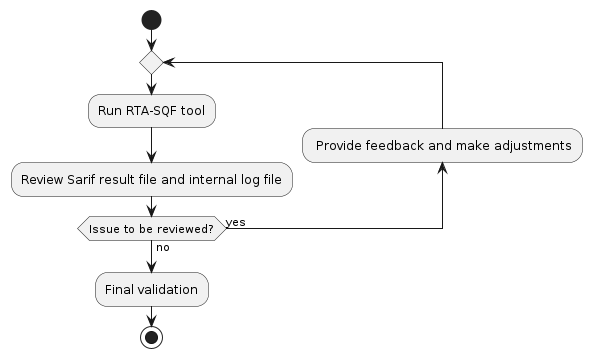
RTA-SQF supports an iterative review process to ensure the quality and reliability of the results.
The review process involves the following steps:
Initial Analysis: Before running RTA-SQF, verify that the tool is configured correctly: check the RTA-SQF parameter values, and confirm that the whitelist and review configuration files reflect the intended project setup. Carefully select which AoUs to include or exclude using the
--onlyand--ignoreoptions to ensure that the scope of the analysis matches the project requirements. Then run RTA-SQF with the appropriate command and input sources. The tool generates the Sarif result file and the internal log file.Analysis of Results: The user opens and evaluates the generated Sarif result file and, if necessary, the internal log file to identify any issues.
Feedback and Iteration: Based on the analysis, the user provides feedback and makes necessary adjustments to the input sources or configuration. The user may also re-run the RTA-SQF tool to validate the changes.
Final Validation: Once the user is satisfied with the results, a final validation is performed to ensure the quality and reliability of the output.
This iterative review process allows users to continuously improve the quality of their analysis and ensures that any AoU violations or items requiring review are addressed effectively.
It also promotes collaboration and communication among team members, as feedback can be shared and discussed to achieve the best possible results. In addition, the review process helps to identify any potential violations of Assumptions of Use (AoUs) and ensures that the analysis is conducted in accordance with the defined guidelines and standards.
First Execution of the RTA-SQF Tool
The first execution of the RTA-SQF tool requires the user to provide the necessary input sources and configuration. Depending on the number and complexity of the checks to be performed, the execution may need different parameters and may take different amounts of time. Refer to the documentation of the individual checks for more details on the parameters of each check: Supported Commands.
At the end of the execution, the user will receive a Sarif result file that can be visualized with any Sarif viewer (e.g., the Visual Studio Code Sarif Viewer extension) and, if required, an HTML report that provides a user-friendly summary of the analysis results. The user can also review the internal log file for more detailed information about the execution and any potential issues that may have occurred during the analysis.
Review of the Results
The review of the results involves analyzing the generated Sarif result file to identify any issues or potential violations of the Assumptions of Use (AoUs). The tool provides detailed messages for each identified issue, including the kind and level of the message, as well as a description and guidance on how to fix the issue.
For more information and guidance regarding a specific result, refer to the details in chapter Supported Commands.
Note
Sarif results with the “Kind” property set to “Review”
The Sarif results with the “Kind” property set to “Review” require special attention, as they indicate that a human review is necessary to determine whether the identified issue represents a problem.
The user shall carefully review the messages and take appropriate actions based on the provided guidance. This may involve making adjustments to the input sources, the project code or configuration, or, after an accurate review, deciding that no action is required if the identified issue does not represent a problem.
If the user provides feedback for the identified issue with a justification that the issue does not represent a problem, the tool will consider it as reviewed and will no longer report it as a problem in future runs on the same project; instead, it will report it as a “reviewed issue”.
Sarif results with Kind “Open” also require attention, as they indicate that the tool was unable to perform a conclusive analysis, generally due to unexpected or insufficient input sources, or due to an internal exception during execution. In this case, review the provided message description and guidance, and consider contacting ETAS support if assistance is needed to resolve the issue.
Important
Completeness check
Before accepting the results, verify that the Sarif file contains at least one result entry for every AoU that was expected to be checked. If an expected AoU is absent from the results, review the configuration and re-run the tool.
How to Inspect the Result
For each result in the Sarif file determine the Message kind and proceed accordingly:
Message |
Kind |
|---|---|
Review |
If the issue needs a change in the project code or configuration, update the project code or configuration to fix the issue. Otherwise, provide feedback that the issue has been reviewed. See section Feedbacks for details on how to provide feedback. |
Open |
Inspect the message description and the log file to understand the reason for the inconclusive result. If you can provide more information to the tool, provide the correct information and re-run the tool. Otherwise, contact ETAS support for assistance. |
Pass |
No action required. |
Fail |
If the issue needs a change in the project code or configuration, update the project code or configuration to fix the issue. Otherwise, justify that the issue does not represent a problem and consider contacting ETAS support if a violation of AoU is not expected. |
Feedbacks
User feedback collected during the review process integrates human expertise into the analysis and contributes to the overall quality of the results.
RTA-SQF supports two types of feedback:
Review of a Rule — supported for all checks. It allows users to indicate that a specific Sarif rule (mapped one-to-one with an AoU) has been fully reviewed. When the same issue is detected in subsequent runs on the same project, it will no longer be reported as a problem but will instead be reported as a reviewed issue. See section How to provide feedback about an AoU for details.
AoU Fine-Grained Feedback — allows users to provide feedback on conditions that are specific to a given check or AoU. When supported, the documentation of the individual check will specify the conditions for which feedback can be provided, as well as the procedure to provide it (e.g., OS Checks: User Reviews (Manual Review)).
Reviewed issues are reported with the Kind property set to Pass. The review instruction
that applies to the issue is included in the Suppressions property of the result.
Final Validation
After the review process, an additional execution of the RTA-SQF tool should be performed to verify the results of the review process and confirm that the reviewed issues are no longer reported as problems.
How to Provide Feedback about an AoU
To provide feedback to the RTA-SQF tool about a specific AoU, to avoid reporting the same issue again in future runs on the same project, you can proceed with the following steps:
Identify the specific AoU for which you want to provide feedback.
Create a dedicated file named “<AoUId>.txt” (where <AoUId> is the identifier of the AoU, e.g., ETAS_RTACAR_SM_GEN_031.txt) in the ‘config/reviews’ folder of the RTA-SQF tool. The content of the file will be used to provide a justification for the Sarif result item during subsequent tool executions.
Important
Feedback on AoU
Providing feedback is a critical action that can affect the quality of the analysis results. The tool will consider the provided feedback as a complete justification for all future issues (reported with Kind “Review”) related to the specific AoU.