Changing Layer Tab Position and Color
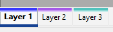
To select a layer from the Layer bar:
Click the corresponding tab at the bottom of the Experiment Environment window.
The layer is displayed with its instrument windows.
or
Press Alt + Shift + > (use greater-than sign) to change one layer to the right or Alt + < (use less-than sign) to change one layer to the left.
or
On the Layer bar, right-click.
The context menu opens.
Select the desired layer.
To change the tab color of the layer:
Right-click on the Layers bar to open the context menu.
A color palette window opens.
Select the desired color.
The layer tab is colored at the top.
or
Click
 .
.The Variable Selection dialog opens on the Display Configuration tab.
On the Display Configuration pane, select a layer.
The properties of the elements contained in the experiment are displayed.
On the Experiment pane, double-click the value field of the Tab Color.
Select the desired color.
Set Show Tab Color to Yes.
Click OK.
Note |
You can also change layers during active measurement. The measure and calibration windows of all layers are updated during measurement. |
See also
Copying Window to Another Layer