Trigger Editor Window
To open the Trigger Editor window, in the Experiment Environment click  > Triggers tab >Trigger on >
  .
.
This window contains the following components:
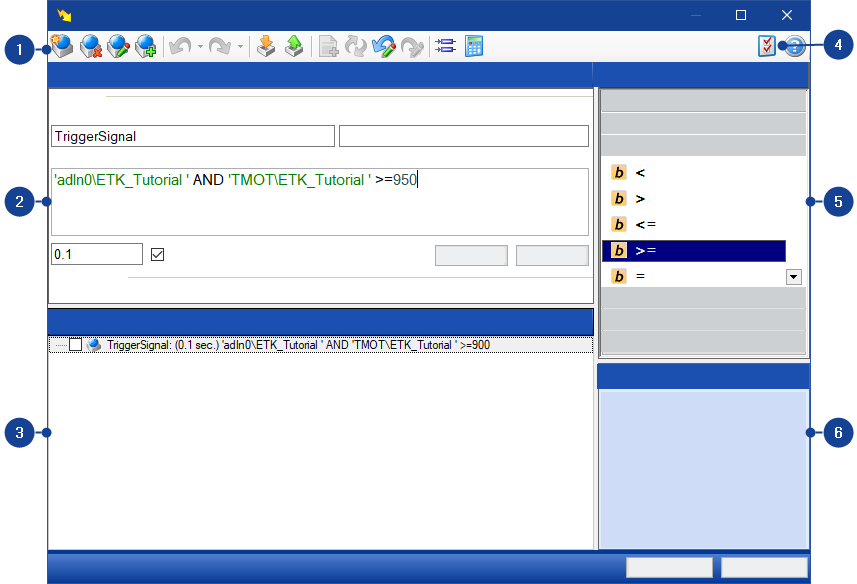
 1 Toolbar
| Creates a new, empty trigger condition. |
| Clears the trigger condition selected in the window area Defined Triggers. |
| Opens the selected trigger condition for editing in the window area Formula. |
| Adds one or more selected trigger conditions to the current formula to be added. |
| Shows a list of last actions which you can undo. |
| Shows a list of last actions which you have undone and can now redo. |
| Imports trigger conditions from an xml file. Opens a dialog window in which the required xml file can be selected. The imported trigger condition is displayed in the window area Defined Triggers. |
| Exports all selected trigger conditions to an XML file. A dialog window opens in which the file name and the storage location can be specified. |
| Adds the selected trigger condition of the formula being edited as an item. |
| Opens the variable selection dialog to replace the selected variable in the formula with an AND variable. |
| Undos the last change in the formula. |
| Restores the previously undone change to the formula definition. |
| Opens the variable selection dialog in order to add variables to the formula. |
| Opens the Calculator. The most frequently used operations for the trigger definitions can be found here. |
| Opens the Trigger Editor Preferences dialog box. |


 2 Trigger Definition Pane
This window pane contains the following fields:
Name | Contains the name of the trigger condition to be edited. If you create a new trigger condition and do not assign a name of your own, the name TriggerSignaln is assigned automatically. |
Description | You can enter an (optional) brief description of the trigger condition in this area. |
Formula | This area contains the formula definition of the trigger condition selected for editing. To open the context menu Trigger Definition Context Menu, right-click. |
Apply Minimum Duration (seconds) | The minimum signal duration required for starting a measurement is defined here. This prevents irrelevant signal peaks from triggering a measurement. |
Formula State | Shows the Parser Message relating to syntactic correctness. |
Context MenuTo open the context menu for Trigger Definitions, right-click in the Trigger Definition pane.
Insert Variables
Use this command to add variables already used in your experiment to your trigger definition. The variable selection dialog opens.
Undo
Use this command to undo your last action.
Redo
Use this command to execute the action you have previously undone.
Cut
Removes the marked components and saves them to the clipboard for later use.
Copy
Copies the marked components and saves them to the clipboard for later use.
Paste
Pastes the contents of the clipboard at the current cursor position.
Replace Variable
Opens the variable selection dialog box. Here you can select the new variable that should replace the selected variable in the formula definition (see also Editing Trigger Conditions).
Add to "Snippets"
Saves the components (variables and /or operators) selected in the Trigger definition window area to Snippets. These components can then be used as Snippets for creating other trigger conditions.
Select All
Marks all components in the window area Trigger definition.
3 Defined Triggers PaneThe available trigger conditions are shown in this window area. You can activate, edit, export and delete the trigger conditions listed here.
An independent trigger condition can be a component part of one or more other trigger conditions. In this case, the linked trigger conditions are shown in hierarchical order.
Context MenuTo open the context menu for Defined Triggers, right-click in the Defined Trigger pane.
Create new trigger
Creates a new trigger condition.
Delete trigger(s)
Deletes the marked trigger conditions.
Edit trigger
Opens a trigger condition for editing in the window area Trigger definition.
Add to current formula
Adds the selected trigger condition to the formula in the window Trigger definition at the cursor position.
Export all triggers
Exports all existing trigger conditions to an xml file.
Export selected
Exports the marked trigger conditions to an xml file.
Import Trigger(s)
Imports trigger conditions from an xml file.
Undo
Undos the last change in the formula.
Redo
Restores the previously undone change to the formula definition.
Apply advanced formatting to these parameters
The dialog window Advanced Formatting is opened.
Apply AND formatting to these parameters
All inserted variables are interlinked with AND operators.
Apply OR formatting to these parameters
All inserted variables are interlinked with OR operators.
4 PreferencesIn this window area, you can change the presets of the Trigger Editor.
Window area Intellisense
In this window pane you can select the following options:
- Activation and deactivation of Autocomplete Function in Formula Editor
- Activation and deactivation of parenthesis view in Formula Editor
Error Reporting window pane
In this window pane you can select the following options:
- Activation and deactivation of error mark
- The display type of the error mark
5 Toolbox PaneIn this window area, the available operands are shown sorted by category.
6 Toolbox Help PaneThe definition and an explanatory description of each operand selected in the window area Toolbox are shown in this window area.
See video
Find more information in the following video which you can open from the Video Tutorials:
 INCA Recorder Manager: Recorder Configuration: Assigning Recording Duration and Triggers