Solution: Install device driver and firmware
It is likely that either the USB device driver is not installed and/or that there is a firmware version mismatch.
To solve the problem:
- Close INCA.
Install the USB device driver on your PC and make a firmware update:
ETAS hardware:
Use the Hardware Service Pack (HSP) Update Tool to install the device driver and the firmware.
You can download the latest HSP version from the ETAS Download Center.
ES581.3:
The firmware of this device is checked automatically. If the firmware is not compatible with the PC software, the firmware update is installed automatically.
The device driver is provided with HSP; it must be installed manually.
Hardware from 3rd party manufacturers:
- Device driver: The driver is usually provided together with the hardware by the hardware manufacturer.
- Firmware: Check with your supplier whether a firmware update is available.
Restart INCA.
If requested by the driver installation, you may have to restart the PC.
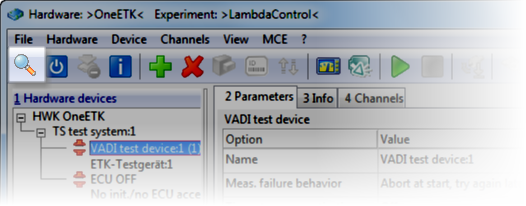
Do another search for hardware (e.g. by opening the Hardware Configuration Editor and clicking in the toolbar).
Is the problem solved?