Add FMU-based signals
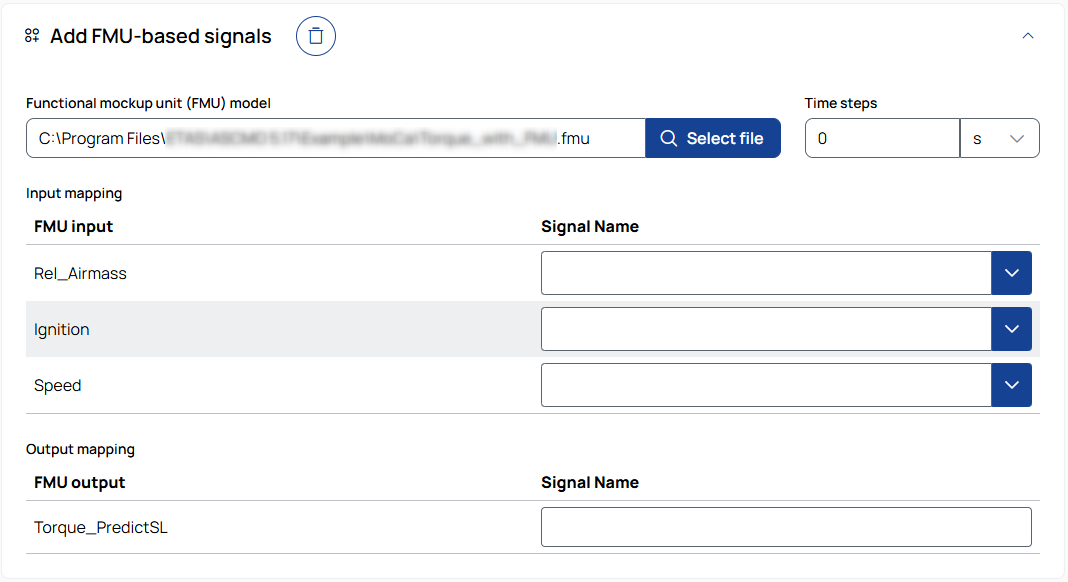
Functional mockup unit (FMU) model
Enter the path to the FMU file or select it using  .
.
After selecting a valid FMU file, the FMU inputs and outputs are automatically detected and displayed.
Time steps
Enter a positive value to define the time interval at which the FMU is executed to calculate output signals.
To select the unit, use the drop-down list.
Input mapping
FMU input: Displays the input variables defined in the FMU model
Signal name: Select the measurement signal that is used as input for the corresponding FMU variable. The available signals are based on the selected signal sources. See, Signal source.
Output mapping
FMU output: Displays the output variables defined in the FMU model.
Signal name: Enter the name of the signal to be created.
|
Note |
|---|
|
FMU-based signals may replace existing signals with the same name. Changing the FMU file resets all input and output mappings. |

To remove the operation from the job, click the trash can button.

To move the operation up or down in the job sequence, use the arrow buttons next to the trash can icon.
 /
/
To expand or collapse the operation, click the arrow in the top-right corner of the operation panel.