Step 2: Constraints
In this step, constraints of the measurement range can be made for a variable as a function of one or two other variables.
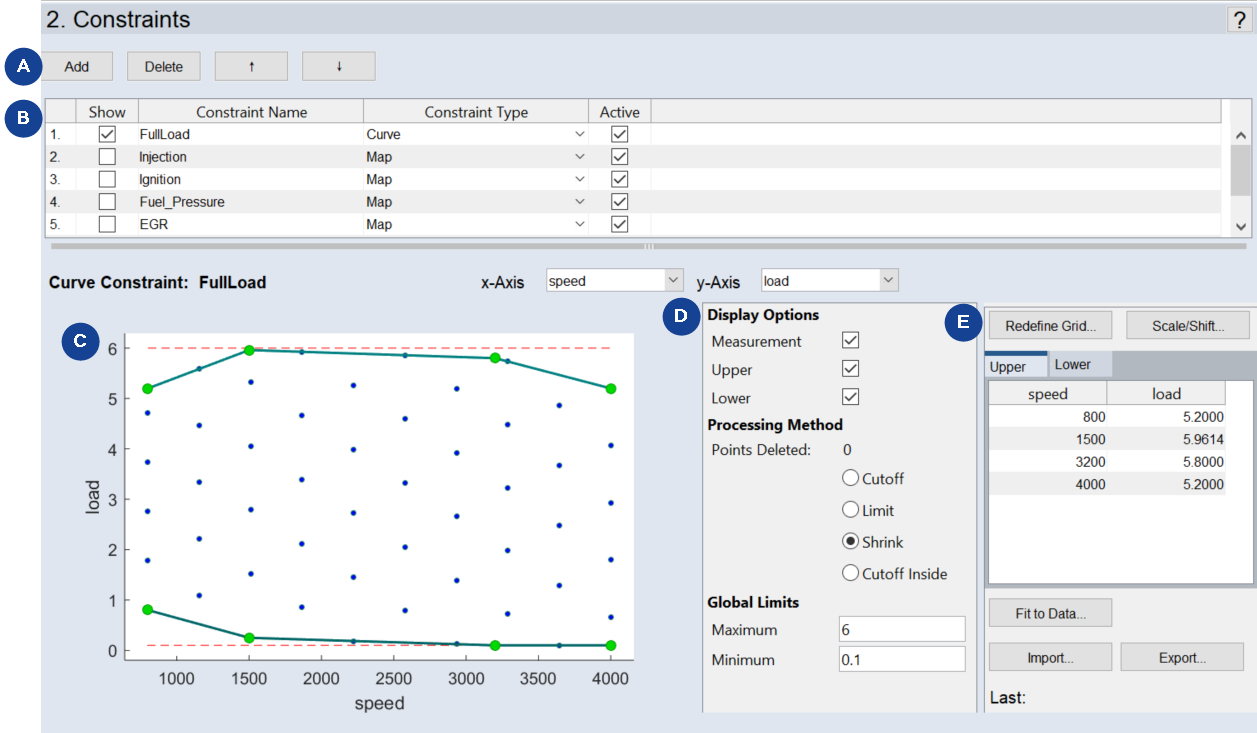
Fig. 14: ASCMO-STATIC ExpeDes Step 2: Constraints (Type "Curve")
These constraints can be added (also imported), visualized, configured and deleted again.
Adding, deleting, and managing constraints
-
Click Add to create a new constraint (see A in ASCMO-STATIC ExpeDes Step 2: Constraints (Type "Curve")).
The new constraint is added to the end of the list.
- Click in a cell in the Constraint Name column and enter a name for the constraint.
-
Click in a cell in the Constraint Type column and select the constraint type from the drop-down list.
The following types are available: Map, Curve, Formula, Hull on imported Data, and Classifier.
See sections Constraint Types "Map" and "Curve" and Constraint Type "Formula" for further information.
- In the Active column, activate the checkbox for each constraint you want to use.
-
Use the h and i buttons to move a constraint to another position in the list.
- Click Delete to remove a selected constraint.
Configuring a constraint of type Curve or Map is described in Constraint Types "Map" and "Curve" .
Configuring a constraint of type Formula is described in Constraint Type "Formula"
What is shown in the bottom part of the window (regions C, D, E in Fig. 14) depends on the Constraint Type.