Constraint Type "Formula"
In the case of inputs that functionally depend on each other, you must ensure that no-settable states of the system to be measured are not addressed. This can be achieved using formula-based constraints.
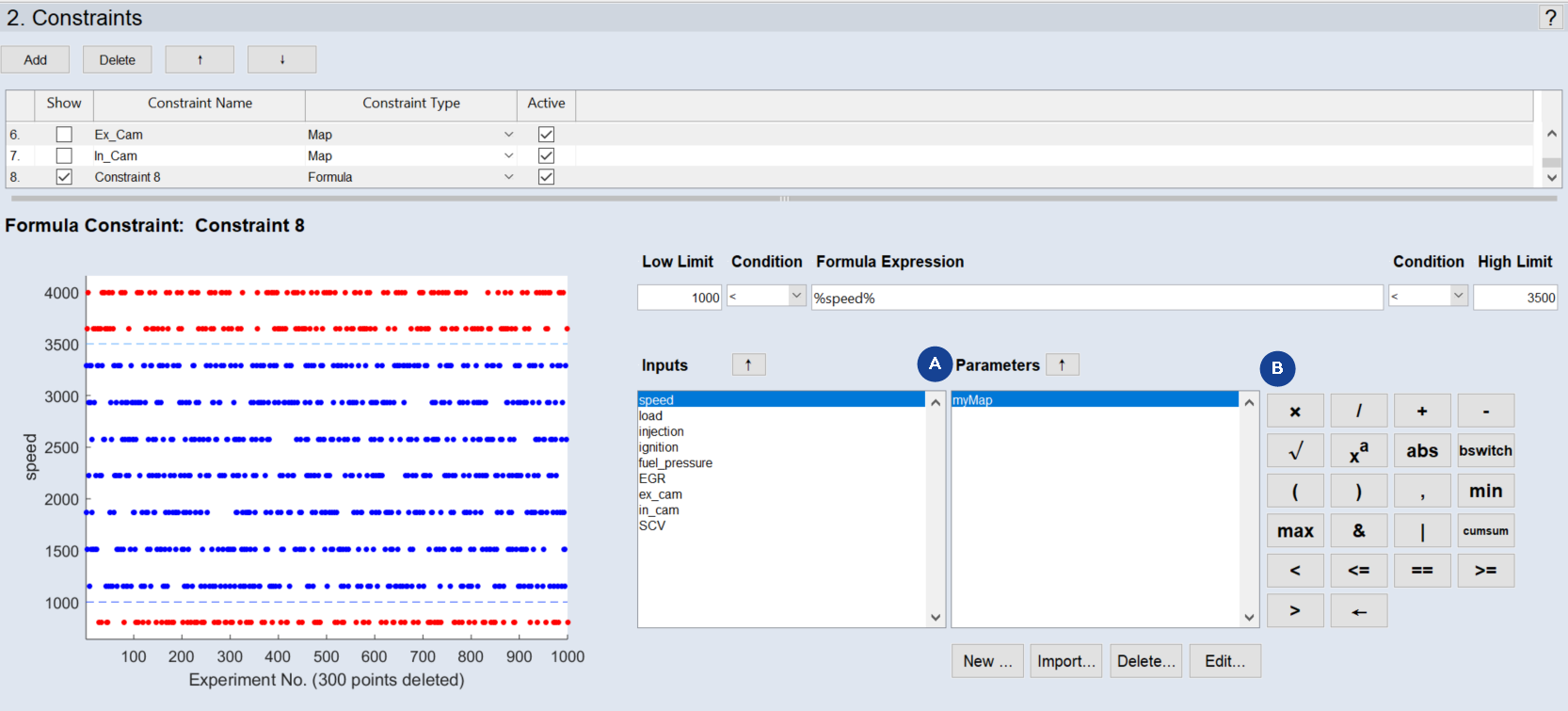
Fig. 15: ASCMO-STATIC ExpeDes Step 2: Constraints (Type "Formula")
Formula Definition
Use the Low Limit and High Limit fields to specify lower and upper limits for the formula. The fields require scalar numerical inputs.
Use the Condition drop-down lists to select comparison operators. Available operators are none (if you want to specify no lower or upper limit), < (less than) and <= (less or equal).
Use the Formula Expression field to enter the formula. Any Matlab relational expression can be entered here. If the expression is violated, the corresponding measurement points are rejected. Variables can be either inputs or curves/maps (1D or 2D) that are selected and managed in the Inputs area and the Parameters area. Operators are entered directly or via the button area (B in ASCMO-STATIC ExpeDes Step 2: Constraints (Type "Formula")).
Example
In the case of a multi-point injection in which the injection times T_1 and T_2 are to be measured, you must ensure that, for an injection period Delta_T, the following condition is adhered to:
T_1 + Delta_T < T_2
In addition to the inputs T_1 and T_2, Delta_T can be defined as a map that is a function of other inputs (or even of existing maps).
"Inputs" and "Parameters" Lists
-
Inputs: The Inputs list shows all inputs of the experiment plan that can be inserted in the Formula Expression field, either by typing their names or via the
 button.
 -
Parameters: The Parameters list shows all maps of the experiment plan that can be inserted in the Formula Expression field, either by typing their names or via the
button. The buttons below the Parameters list can be used to create, import, delete, and edit a selected map.