Defining the Operating Points to be Optimized and their Weighting
The operating points to be optimized can be entered manually, but they can also be read in from a file (that can also already contain the weighting of the relevant operating point, see Defining the weighting of the operating points).
|
Note |
|---|
|
The Calibration menu is only available, if operating point axes have been selected during data import (see Assign Inputs and Outputs). You can set the operating point axes afterwards in the menu In/Outputs > Set Operating Point Axes. |
Defining the operating points for optimization
-
Select Calibration > Operating Points.
The Operating Points Manager window opens.
- If necessary, click Show OP List to display the operating points lists.
- To load a list of predefined operating points, select File > Import.
- In the file selection window, select the file
<installation>\Example\AscmoStatic\
Example_Diesel_Engine_OP_List.xls. -
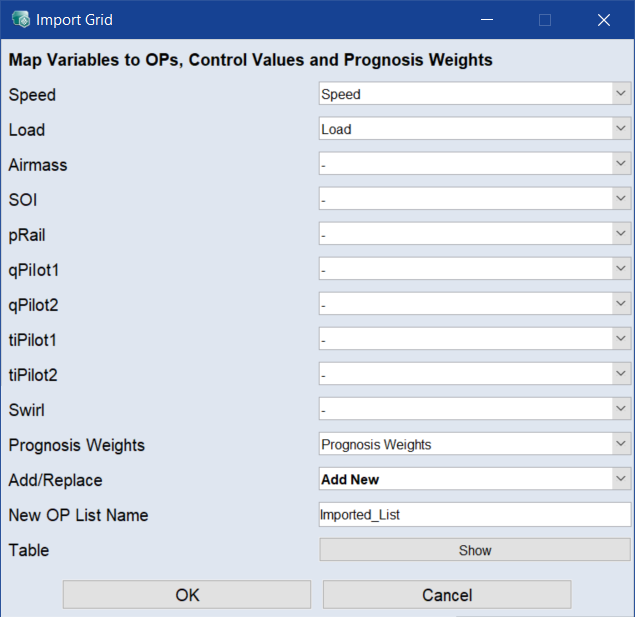
In the Import Grid window, make the following assignments:
-
Click OK.
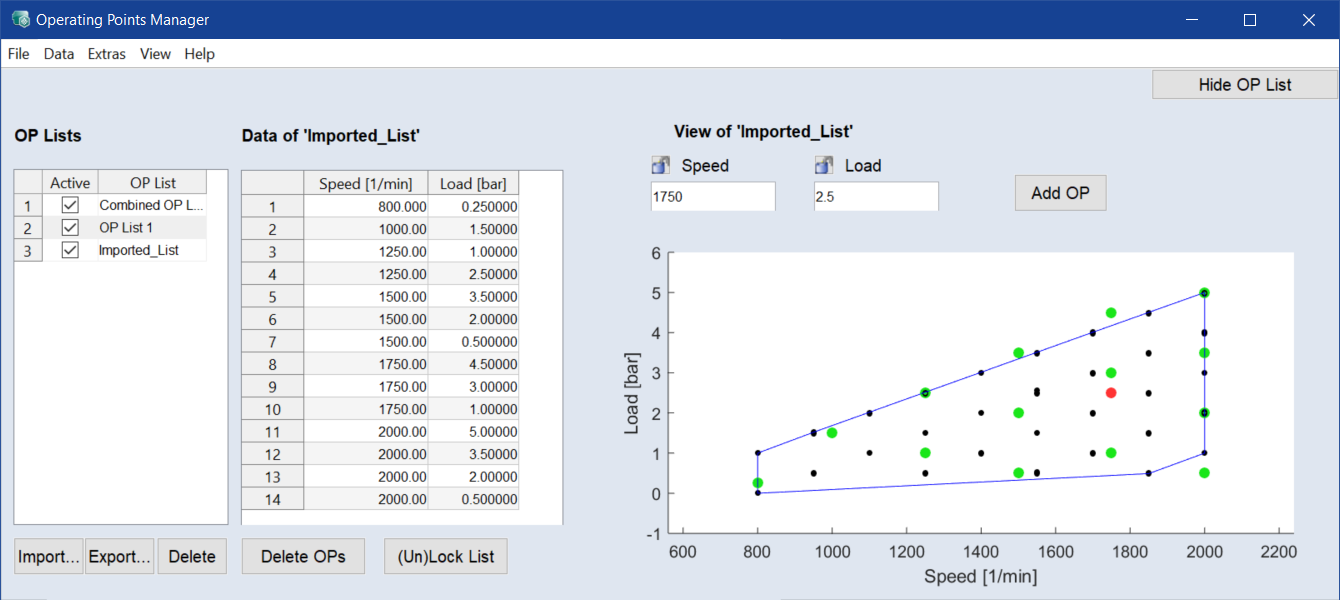
The list is imported. It is displayed in the Data of ’<list name>’ table and the View of ’<list name>’ plot. Existing lists are kept; the Combined OP List contains the merged content of all lists.
- Alternatively, you can create an operating point grid using Data > Add New List > *.
Defining the weighting of the operating points
The weighting of the operating points can be done manually (just like the definition of the operating points themselves) or by reading in the values from a file.
-
Select Calibration > Prognosis > Weights.
The Prognosis OP-Weights window opens.
-
Go to the tab with the list you want to edit.
In this tutorial, you will edit Imported_List.
-
In the Prognosis Weights column, enter the required values.
Or
- Select File > Import.
-
Select the file
Example_Diesel_Engine_OP_Weights.xls.The Operating Point Prognosis Weights Import window opens.
-
Click OK to accept the preselected settings.
-
The information is read in from the file.
The weighting of the operating points can also be calculated by measuring a trajectory (Data > Assign OP Weights using a Driving Cycle in the Driving Cycle Manager). This involves every time step in the measurement being assigned to an operating point, and then totaled, which results in the weighting for each of the operating points defined previously. For more information on how to use driving cycle traces for the definition of the calculation rules, see Driving Cycle Forecast .
Using several lists of operating points
To work with different sets of operating points, several lists can be set up.
-
Select Calibration > Operating Points.
The Operating Points Manager window opens.
- If necessary, display the operating points lists.
-
To set up an additional list, select Data > Add New List > Define Grid.
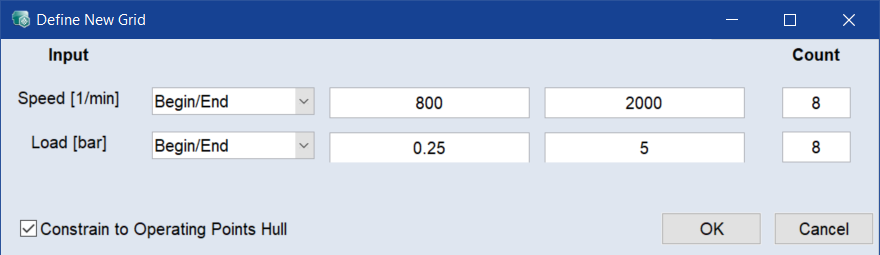
The Define New Grid window opens.
-
Enter the number of operating points per axis.
For further information, see the online help <F1>.
-
Click OK.
-
A new list is set up and shown in the operating points manager (see below) and in a separate window. The list is selectable separately or in combination with other lists.
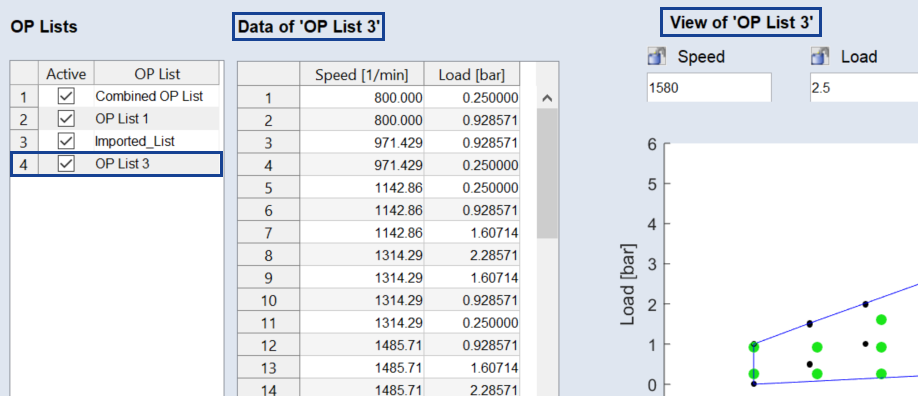
If several lists are available, these can be used for cycle forecast hereafter.