Data Based Modelling Step
|
Note |
|---|
|
To use this step you need an ASCMO-DYNAMIC license. |
The Modelling step contains the following elements:
Model table
Lists the names and modelling methods of the models.
To select the modelling method, use the drop-down list in the Modelling Method column.
 Add Model
Adds a new entry to the model table.
Rename
Opens a window, where you can rename the selected model.
Delete Models
Deletes selected models selected in the table from the project. You can use the standard Ctrl/Shift selection functions in the table
Export
Contains menu options for exporting the model to various formats.
|
Matlab |
Exports model to MATLAB*.mfile . |
||
|
Python |
Exports the model to python script (*.py). See alsoModel Export to Python Script. |
||
|
Simulink |
Exports model to Simulink model (*.mdl or *.slx); see also Model Export to Simulink® Model
|
||
|
Simulink Script |
Exports model to a MATLAB script (*.m) that can later be used to create a Simulink model; see also Model Export to Simulink® Script
|
||
|
INCA/MDA |
Exports model to perl modules (*.pm) for use with INCA/MDA; see also Model Export to INCA/MDA | ||
|
C Code |
Exports model to C code (*.c); see also Model Export to C Code | ||
|
GT-SUITE |
Exports model to C code usable in GT-SUITE (*.c); see also Model Export to GT-SUITE | ||
|
FMI |
Exports model to a *.fmu file; see also Model Export to FMI | ||
|
Exports the model as a JSON file for use in ETAS Embedded AI Coder. See Model Export to Embedded AI Coder. |
|||
|
Bosch AMU |
Exports model as *.dcm/*.cdfx for Bosch AMU. |
||
|
Bosch Flatbuffers |
Exports model as *.dcm for Bosch Flatbuffers (file name: <output>_LSTM_Blobs). Only Outputs with RNN Modeling Method and LSTM Cell as Cell Type can be exported. |
To set the properties of a model, select it from the table, select the modeling method, and make the settings in the bottom section. Depending on the modelling method selected, you can set different Model Properties.
Inputs
You must select at least one input.
To select inputs for the model, click the Select Inputs button.
In the opened window. select the desired inputs from the list and confirm with OK.
You can use the standard Ctrl/Shift selection functions in the table
Output
You must select one output.
To select an output for the model, click the Select Output button.
In the opened window. select the desired output from the list and confirm with OK.
Training Datasets
You must select at least one training dataset.
To select training datasets for the model, click the Select Training Datasets button.
In the opened window. select the desired datasets as training datasets from the list and confirm with OK.
You can use the standard Ctrl/Shift selection functions in the table
Validation Datasets (Optional)
Selecting a validation dataset is optional.
To select training datasets for the model, click the Select Training Datasets button.
In the opened window. select the desired datasets as training datasets from the list and confirm with OK.
You can use the standard Ctrl/Shift selection functions in the table
To clear the list of validation datasets, use the Clear button.
 NARX Structure
Model Type
Select the model type you want to use.
See NARX Model Types for further information on the model types and their settings.
Model Properties
The Edit button opens the <output> Parameters window for the selected model type.
See NARX Model Types for more information about the model properties.
-
Min/Max Time Lag
Enter the minimum and maximum time lag for all inputs and outputs to be considered within the NARX structure. The feedback values are also called features.
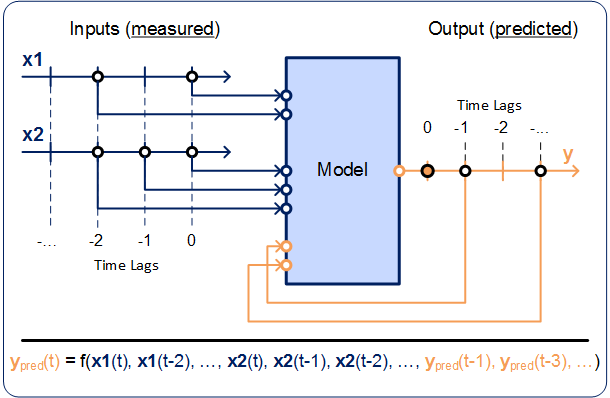
The results of the IACF analysis (see Phase Plot and ACF/IACF Outputs) usually serve as a good starting point.
-
Initial States
Opens the Initial State of NARX Values window, where you can make settings for the initial states of NARX values. For more information on initial NARX values, see Initial NARX Values.
Inputs/Output
The Inputs table contains one row per input. The Output table contains one row for the output you are currently working on.
Each table contains one column for each possible time lag. An activated checkbox in a table cell means that the respective feature is selected.
Recurrent Neural Network (RNN)
Training Labels
Assign the labels you want to train the model on. If you use multiple labels, all data associated with at least one of the labels is used.
Assign a label by double-clicking the field and typing the name. Select the dataset from the list of suggestions.
Use the x on the label or Del to remove the label.
Validation Labels
Assign the labels of the data you want to use as validation data. If you use multiple labels, all data associated with at least one of the labels is used.
Assign a label by double-clicking the field and typing the name. Select the dataset from the list of suggestions.
Use the x on the label or Del to remove the label.
|
Note |
|---|
|
If the validation labels are not assigned to any data, the model is trained without validation. A message appears in the log window. You can assign labels to data in the Manage Datasets window. |
Network Layout
Number of Layers
Enter the number of layers.
Cell Memory Size
Enter the cell memory size per node of the neural network. Typical value range is [5, 20]. The actual memory size depends on the cell type.
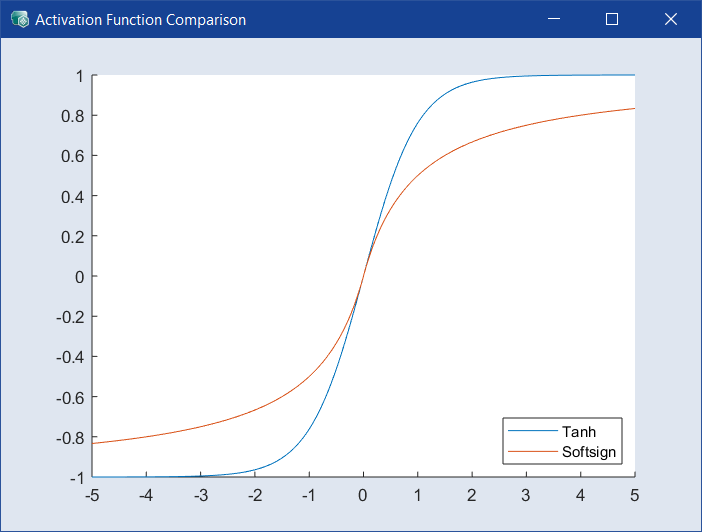
Select the activation function for all layers. Default is Tanh, a different function may be less accurate but more efficient to calculate. Click  to the right of the drop-down to open the Activation Function Comparison window.
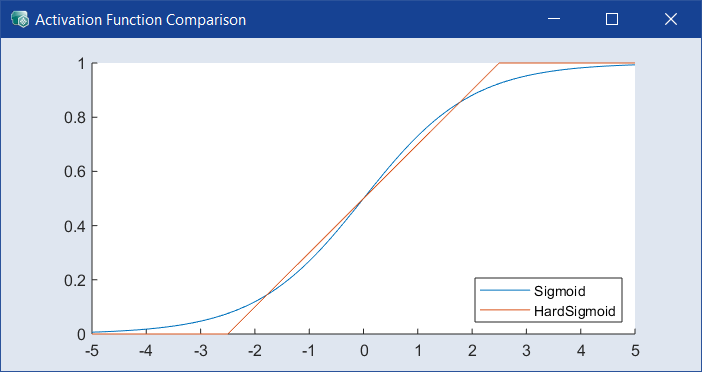
Select the recurrent activation function for all layers. Default is Sigmoid, a different function my be less accurate but more efficient to calculate. Click to the right of the drop-down to open the Activation Function Comparison window.
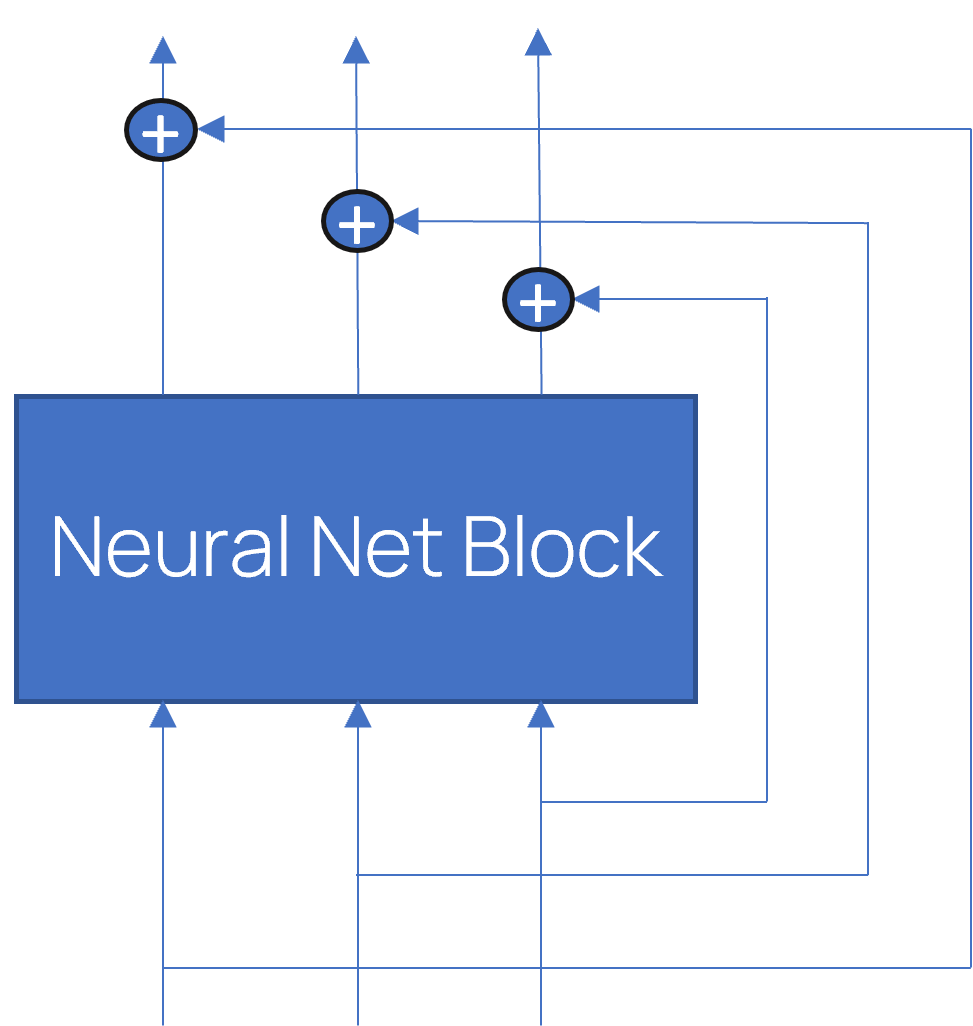
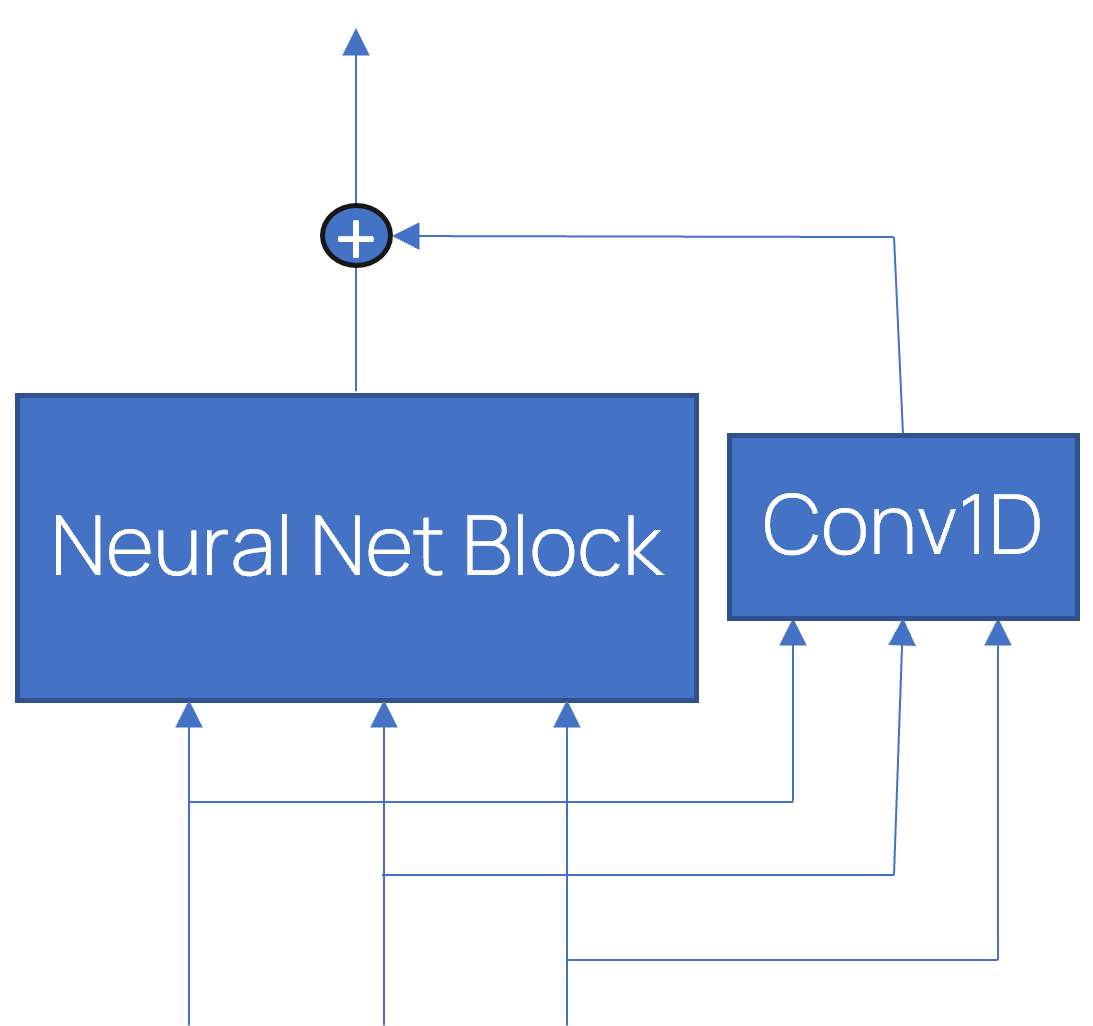
Use Skip Connections
Activate to add the input of the layer to its output.
If the input and output sizes do not match, the input is processed by an additional convolutional layer before being added to the output. Skip connections have been shown to simplify training and improve network performance by allowing the flow of information to skip selected layers.
Number of Network Parameters
Dynamically shows the number of parameters used by the model training for current settings
Output Properties
Output Transformation
Select the transformation type of the output. Using a transformation can improve the model prediction. Not all transformations are available if the training data has negative or zero values.
You can select from the following choices:
- none: no transformation
- log(y): logarithm
-
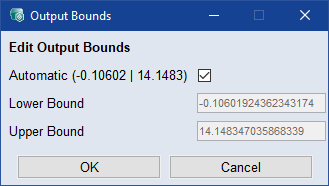
Bounded: limited to lower and upper bound
Click
Edit to view the automatically selected bounds or to define the lower and upper bounds manually. To define them manually, deactivate the Automatic checkbox. The bounds must be in the range of the training data. -
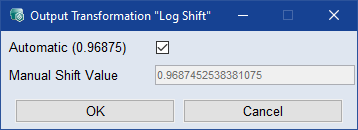
log(y+c): logarithm plus constant
Edit to view the automatically selected log shift or to define a manual shift value. To define it manually, deactivate the Automatic checkbox.
Training Properties
Continue Training
Activate the checkbox to continue with existing model training and iterations, if possible, instead of starting a new training. You can change the training properties and continue.
Number of Multistarts
Enter the number of training repetitions with different starting values. A higher value can improve the model quality, but the model training then takes more time. The default value is 3.
Enter the number of iterations to be performed during model training. If the model performance does not improve within 10 iterations on the validation data, the training will be aborted. In deep learning this is often referred to as number of epochs.
Training Loss
Select the type of training loss. Training loss is the criterion that is minimized during model training.
Absolute equals the RMSE calculation:

Relative puts this in relation to the measured value:

Transformed behaves like Absolute, but performs the loss calculation in the transformed space, i.e. it depends on the output transformation.
Enter the size of sequences into which the data is segmented. The underlying optimizer then gets batches with sequences of this fixed length. The default value is 100.
If the length of the present data is about this number of steps, or less, it is recommended that you reduce the lookback length, even though an optimization with Lookback Length=100 is possible. A smaller value trains faster.
Enter a value between 0 and 0.9 as a percentage of neurons to be randomly deactivated during training. That means the weight of the neurons is set to 0 temporarily. This avoids overfitting. The entered value 0 means not activated, 0.1 means 10% of the neurons are set to 0 temporarily. The typical value range is [0, 0.2].
Enter a value between 0 and 0.9 as a percentage of recurrent state neurons to be deactivated during training. That means the weight of the neurons is set to 0 temporarily. This avoids overfitting. The entered value 0 means not activated, 0.1 means 10% of the neurons are set to 0 temporarily. The typical value range is [0, 0.2].
Enter a value between 0 and 0.9 as a percentage of recurrent state neurons to be deactivated during training. That means the weight of the neurons is set to 0 temporarily. This avoids overfitting. The entered value 0 means not activated, 0.1 means 10% of the neurons are set to 0 temporarily. The typical value range is [0, 0.2].
Learn Initial States
If this checkbox is activated, the initial state of RNN model is learned based on the input and output values of the first time step, so the initial prediction matches the given output.
When the model is exported, you can define a value as desired initial output.
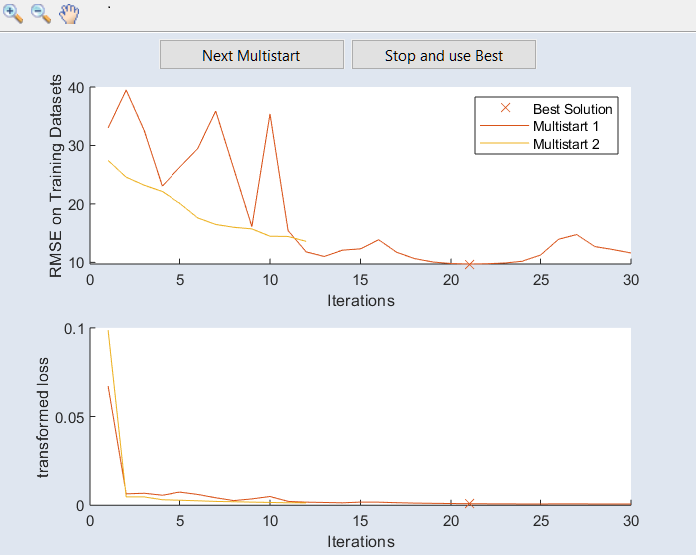
Plot RMSE during Training
Activate if you want the RMSE values for training data and validation data to be displayed during model training.
Activate Detailed Training Settings
Activate the checkbox to display the Detailed Training Settings section.
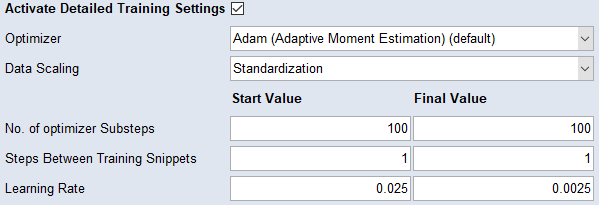
 scaled to an interval of length one contained in [-1, 1].
 Convolutional Neural Network (CNN)
Network Layout
Number of Layers
Enter the number of layers.
Number of Filters
Specify the number of filters for each layer separately.
Kernel Size
Specify the kernel size for each layer separately.
|
Note |
|---|
|
The kernel size and dilation rate settings determine the length of the model's receptive field, i.e., how far into the past the model can look to compute the prediction for the current time step. See also, Model Prediction with Convolutional Neural Network (CNN). |
Dilation Rate
Specify the dilation rate for each layer. Each temporal convolutional layer uses dilated Conv1d layers with dilation rate r (i.e., every rth element of the input is used for convolution). For example, if you want to use the entire input sequence, you can use r=bi-1 for the ith layer, where b is a natural number ≥ 2. The default is r=1 for each layer.
|
Note |
|---|
|
The kernel sizes and dilation rates settings determine the length of the model's receptive field, i.e., how far into the past the model can look to compute the prediction for the current time step. See also, Model Prediction with Convolutional Neural Network (CNN). |
Leaky ReLU Slope
Specify the Leaky ReLU activation function of the CNN layers. The slope for negative inputs can be set in the interval from 0 (corresponding to ReLU activation) to 1 (corresponding to linear activation).
 Opens a plot of the activation function with the current slope values. If different values are entered in the fields, one function is plotted for each different value.
Enter a value between 0 and 0.9 as a percentage of neurons to be randomly deactivated during training. That means the weight of the neurons is set to 0 temporarily. This avoids overfitting. The entered value 0 means not activated, 0.1 means 10% of the neurons are set to 0 temporarily. The typical value range is [0, 0.2].
Use Skip Connections
Activate to add the input of the layer to its output.
If the input and output sizes do not match, the input is processed by an additional convolutional layer before being added to the output. Skip connections have been shown to simplify training and improve network performance by allowing the flow of information to skip selected layers.
Receptive Field
Displays the number of past time steps considered by the model. The value is displayed dynamically depending on the values for kernel sizes and dilation rates. A value k means that inputs from the interval [t-(k-1),t] (and possibly not all of them) are used to compute the output at time step t.
Opens a schematic representation of the receptive field generated for the specified kernel size and dilation rate.
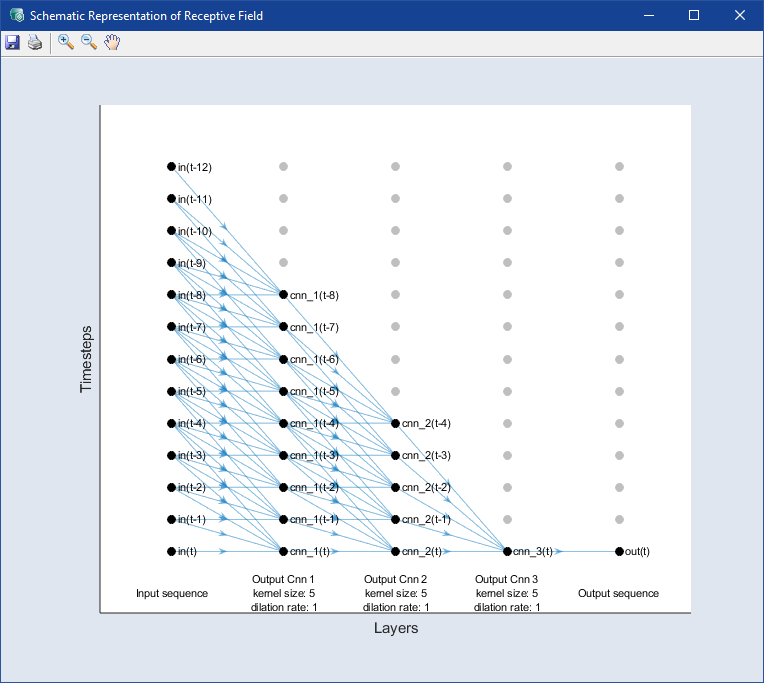
Number of Network Parameters
Dynamically shows the number of parameters used by the model training for current settings
Output Properties
Output Transformation
Select the transformation type of the output. Using a transformation can improve the model prediction. Not all transformations are available if the training data has negative or zero values.
You can select from the following choices:
- none: no transformation
- log(y): logarithm
-
Bounded: limited to lower and upper bound
Click
Edit to view the automatically selected bounds or to define the lower and upper bounds manually. To define them manually, deactivate the Automatic checkbox. The bounds must be in the range of the training data. -
log(y+c): logarithm plus constant
Edit to view the automatically selected log shift or to define a manual shift value. To define it manually, deactivate the Automatic checkbox.
Training Properties
Continue Training
Activate the checkbox to continue with existing model training and iterations, if possible, instead of starting a new training. You can change the training properties and continue.
Number of Multistarts
Enter the number of training repetitions with different starting values. A higher value can improve the model quality, but the model training then takes more time. The default value is 3.
Enter the number of iterations to be performed during model training. If the model performance does not improve within 10 iterations on the validation data, the training will be aborted. In deep learning this is often referred to as number of epochs.
Training Loss
Select the type of training loss. Training loss is the criterion that is minimized during model training.
Absolute equals the RMSE calculation:
Relative puts this in relation to the measured value:
Transformed behaves like Absolute, but performs the loss calculation in the transformed space, i.e. it depends on the output transformation.
Snippet Length
Enter the size of the sequences into which the data is segmented. The underlying optimizer then gets batches with sequences of this fixed length, calculated as the sum of the entered value and the length of the receptive field. The default value for the snippet length is 50.
If the length of the current data is about this number of steps or less, it is recommended that you reduce the snippet length, although an optimization with "Snippet Length" = 50 is possible. A smaller value trains faster.
Plot RMSE during Training
Activate if you want the RMSE values for training data and validation data to be displayed during model training.
Activate Detailed Training Settings
Activate the checkbox to display the Detailed Training Settings section.
Static Model
Static Model Type
Select the Static model type you want to use.
See Static Model Types for more information about the model types.
Model Properties Edit
Click to edit the parameters of the model.
See NARX Model Types for more information about the model properties.
Start Training
Click to start model training with the current settings.
The icon on the right indicates the state of the model training.
 : Model has not been trained jet.
 : Model is trained and up to date.
 : Model is trained but data is outdated. Configuration and/or training/validation data has changed.
Meta Data
Shows the RMSE (Root Mean Square Error) and R² (coefficient of determination) for both the Training and Validation datasets, giving a quick view of model accuracy and fit.
Measured vs. Predicted
Opens a Measured vs. Predicted visualization. Use the drop-down menu to select which dataset to display (All, Training, Validation, or Test).
Scope View
Opens the Scope View visualization. Use the drop-down menu to select which dataset to display (All, Training, Validation, or Test).
Open in ASCMO-DYNAMIC
Opens the model configuration in a new ASCMO-DYNAMIC instance, where you can save or export the model.
See also