Editing Junctions
In contrast to states, you cannot assign actions to a junction. You can only move it and change the size and color.
To move junctions, simply drag them to the position you want in the drawing area.
When you move a junction, the connection lines attached to it automatically follow and reroute as necessary.
If a junction and a state, or two junctions, overlap, the borders of both turn red. A warning (WSm15) is issued during code generation.
Pull one of the objects so that they are placed side by side.
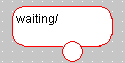
- To change the size of a junction, click it.
- Drag the handles until the symbol has the desired size.
- You can cut, copy and paste junctions just like other diagram elements using the clipboard.
To change the color of the junction, right-click the junction and select Edit Color from the context menu.
A selection box opens containing the possible colors.
Select a color.
The junction is shown in the selected color.
See also