Exporting a Block Diagram
To export a block diagram into a graphic file, proceed as follows:
Determine the export area for the graphic:
- Open the ASCET Options window in the Interfaces\Export\Graphic node.
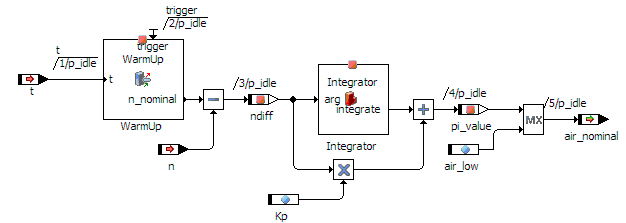
- Activate Reduce Export Area for Graphic to cut off empty space (
 example) on the top and left of the diagram.
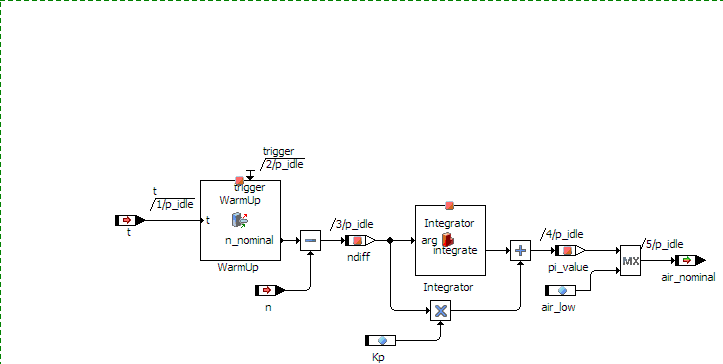
 - Deactivate Reduce Export Area for Graphic to include empty space (example) on the top and left of the diagram.
- Close the ASCET Options window.
- To exclude page borders, water marks and page numbers from the export, deactivate the respective options in the Block Diagram node of the ASCET Options window.
- Open the component and load the block diagram you want to export as graphic.
Open the File menu, then open the Export submenu, then open the Graphic submenu and select <file format>
.A file selection window opens. The extension of the selected file format is preselected.
Enter name and path of the export file and click Save.
The export file is created according to your settings in the ASCET Options window.
See also