Imported Elements
An imported element derives its attributes (volatile/non-volatile etc., see Properties Editor for Basic Elements – Attributes) from the exported counterpart. Therefore, the Attributes area in the properties editor is deactivated for imported elements.
The properties editor offers a button to synchronize the properties of an imported element with the corresponding exported element in the current project context. However, since imported and exported elements are mapped only via their instance names, synchronization will fail in the following cases:
- The kind of the exported element is not supported in the component that contains the imported element (e.g., when you try to synchronize an imported element of a class with an exported message).
- The exported element has a different dimension than the imported element (e.g., when you try to synchronize a scalar imported element with an exported array, matrix or characteristic line/map).
- The exported element is a complex element while the imported element is a basic element (or vice versa).
In these cases, a message window with a description of the failure opens.
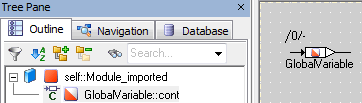
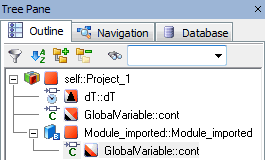
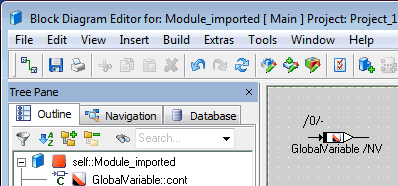
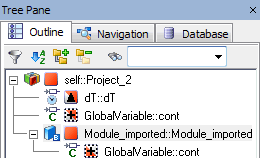
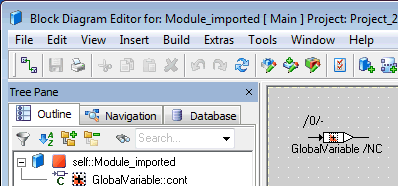
When you create an imported element, none of the attributes are set. In the context of a project, an imported element shows the attributes of the exported counterpart in the properties editor and in the graphical representation. This means that the graphical representation of a particular imported element will differ.
 EXAMPLE EXAMPLE |
|---|
See also