Context Menu – Outline Tab
Note |
|---|
Most options in this context menu do not work for elements in included components. Those options appear are deactivated if you right-click an element in an included component. |
The following context menu options are available in the Outline tab:
Cut (<Ctrl> + <x>)
Moves a selected element to the ASCET clipboard.
Copy (<Ctrl> + <c>)
Copies a selected included component or element to the ASCET clipboard.
Paste (<Ctrl> + <v>)
Pastes a component or element to the list.
Delete (<Del>)
Deletes a selected included component or element.
Rename (<F2>)
Renames a selected included component or element.
Replace Component
Replaces a component with another included component. The name of the old component remains.
Open Component
Opens the specification editor for a selected included component.
Notes
Opens the notes editor for a selected included component – you can make notes about the included component here.
Properties (<Ctrl> + <Shift> + <p>)
Opens the Properties editor for a selected included component or element.
Data (<Ctrl> + <Shift> + <d>)
Opens the data editor for a selected included component or element.
Implementation (<Ctrl> + <Shift> + <i>)
Opens the implementation editor for a selected included component or element. Search of component implementations is possible.
Show Path
Shows the path of an element or included component.
Show Occurrences (<Ctrl> + <Shift> + <o>)
Shows the occurrence of an element or component in a diagram.
Show Referencing Element
Note |
|---|
Only available for elements on project level. |
Displays all elements on project level that reference the selected element. See also Searching Elements that Refer a Selected Element.
Copy Path to Clipboard
Copies the path of an selected included component to the clipboard.
Model Path | Model Path. |
Model asd:// Link | Path in ASCET protocol format that allows operating/referencing an ASCET component in a model as hyperlink. |
Database Path | Database/Workspace Path. |
Database asd:// Link | Path in ASCET protocol format that allows operating/referencing an ASCET component in the database/workspace as hyperlink. |
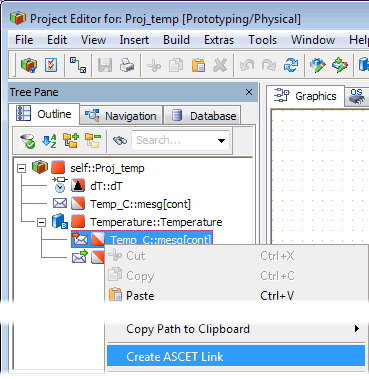
Create ASCET Link
Creates an ASCET link for the selected element.
When you used Create ASCET Link on a project element or an included component, the link opens the project in the project editor and (except for the self element, i.e. the root of the element tree) highlights the element in the Outline tab.
When you used Create ASCET Link on the element of an included component (see an  example), the link opens the component (instead of the parent project) and highlights the element in the component editor's Outline tab.
Import
Data
For Selected Element | Imports data for a selected element. |
Export
See also Exporting a Folder or Database/Workspace Item.
Component (<Ctrl> + <e>) | Exports the current | |
Generated Code Saves the generated code in the file system. | Flat | For the edited |
Recursive | For the edited | |
Generic | Generic C code for processing at a later point using external tools, e.g. an external Make/Build process. | |
Data | For Component | Exports |
For selected Element | Exports data for the selected elements. | |
Graphic | Postscript | Saves the diagram as Postscript file. |
BMP | Saves the diagram as Bitmap graphic file. | |
GIF | Saves the diagram as .gif (Graphics Interchange Format) file. | |
RTF | Saves the diagram as .rtf (Rich Text Format) file. |
Insert Component
Inserts a component in the editor.