Search Results View
The Search Results view can appear in several versions.
version name | opened via | ||
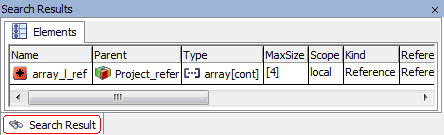
Search Result | Show Unused Elements option in the Extras menu
| ||
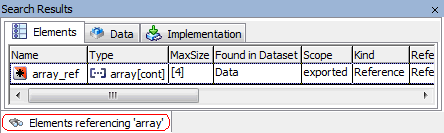
Elements referencing '<element>' | Show Referencing Elements option
|
Each version contains the following elements:
Elements tab
This tab corresponds largely to the element view of the Component Manager.
The Search Results version has an additional column, Parent, which lists the origins of unused elements in included (directly or indirectly) components.
 EXAMPLE
The Elements Referencing * version has an additional column, Found in Dataset. If applicable, this column contains the name(s) of the dataset(s) where the referenced element was found.
EXAMPLE
Data tab
This tab corresponds to the data view of the Component Manager.
Implementation tab
This tab corresponds to the implementation view of the Component Manager.
context menu
The context menu of the Search Results view contains largely the same context menu options as the tabs in the Browse view. However, some context menu options are added here, and others have a special meaning:
Edit and Rename
These context menu options are only available for elements on project level. You cannot edit or rename elements in included components.
Delete
Deletes the element from its parent component.
NOTICE
Component functionality may be damaged
You cannot determine, from the project editor, whether the element of an included component is potentially used in another variant of its parent component.
Deleting an element that is unused in the component variant included in the project, but used in other variants, will probably damage the functionality of the other variants.
To avoid this damage, check the variants of the affected included component before you delete the element.
Go To
The effect of this context menu option depends on whether the element has the parent Project or the parent <included component>.
Parent
effect of Go To
Project
Selects the element in the Outline tab of the project editor. If the element is an included component, its sub-tree is expanded.
<included component>
Opens the parent component of the unused element and selects the element in the Outline tab.
Get Lock
Note
Only available when the element's parent component is under version control and ASCET-SCM is installed.
Gets a lock on the parent component.
Create ASCET Link
Creates an ASCET link that opens the unused or referenced element's direct parent component and selects the element.
See also
Searching/Deleting Unused Elements