Importing a Directory Content
To allow an easy import of all export files in a given directory, the Import directory option is provided in the File menu.
Note |
|---|
This mechanism should not be used for directories that contain export files of more than one type. In addition, it should not be used for directories that contain AMD or AXL files, even if that is the only export file type in the directory. It is highly likely that objects get overwritten when importing a complete directory with mixed contents or with AMD/AXL files, which may result in several unexpected problems. Instead, use the procedure described in Importing from AMD/AXL Files. |
- In the Component Manager, open the target database or workspace for the import.
Start the import with one of the following actions.
- In the File menu, select Import Directory.
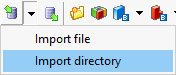
In the
 import type selection menu next to the Import button, select Import directory.
- Press <Ctrl> + <Shift> + <i>.
The Select Import Directory window opens.
In the Import Folder field, enter the path of the directory you want to import, either manually or via the
 button.
The OK button is now available.
Click Options if you want to select an import format or adjust other import options.
The Select Import Directory window displays an additional Options field. It contains the same options as the Import node in the ASCET options window. It is recommended that you select ASCET Export files or ASAP2 files.
Set the import options.
Click OK to start the import.
For the first import file, an Import or Items available for import window opens that lists the content of the file. If one of the objects already exists in the database (identical object ID), the window shows the item to be overwritten.
Select all items to be imported and click OK.
If you are importing existing objects, you are asked to confirm the overwriting of the existing database items.
Confirm the message with OK.
The selected items are now imported.
After all imports, the imported items are listed in the Imported Items window.
See also
Importing from Binary Export Files
Importing from ARXML or A2L Files