Setting up an ASCET-Subversion Connection
Proceed as follows to connect the ASCET database or workspace to Subversion:
In the SCM menu, select Configure Source Control.
The Driver Selection dialog box is displayed.
In this dialog box, select the driver for the SCM
 tool you want to use.
 For instance, select the Subversion driver.
Click Configure Selection.
The configuration dialog box for the selected SCM driver is shown. For instance, if you selected the Subversion driver, the Subversion Settings dialog box is shown.
Enter or select the appropriate settings in this dialog box.
For instance, select or enter the path name of an existing repository. Update the applied user name and working copy path if necessary. Then click OK to return to the Driver Selection dialog box.
In this dialog box, click OK to apply your settings and to establish the connection between ASCET and Subversion.
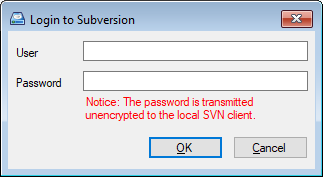
When you are using the built-in SVN driver without a previous login at the SVN Server with an up-to-date password, you are prompted for user name and password in the Login to Subversion dialog window.
NOTICE |
|---|
Without previous login at the server, the Subversion password is transferred unencrypted to the SVN client. To avoid this, sign in directly in the SVN client. |
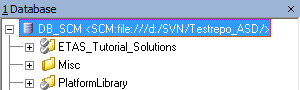
Following this step, the SCM menu contains the full range of all operations possible for the ASCET-Subversion connection. The repository path is displayed next to the database/workspace name in the "Database" / "Workspace" list.
Note |
|---|
To change the repository and working copy path later, the current source control bindings have to be removed first. |
See also
Connection between ASCET and the Software Version Control System