Using Bounds
You can use a bound to define a region in the scatter plot. A bound can either be an extrapolated line or closed to a polygon depending on how you set the endpoints of the bound.
|
Extrapolated bound: |
Closed bound: |
|
|
|
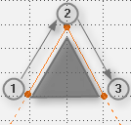
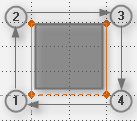
You can perform the following actions:
To add a bound, you must have assigned signals to the scatter plot first.
- Click
 .
. -
Select Add Bound from the drop-down menu.
A hand symbol with a cross-hair appears.
-
Move the cross-hair to the first endpoint of the bound and click.
The endpoint is fixed.
-
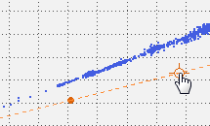
Move the cross-hair to the next endpoint.
As a preview, a connection line between the fixed and the current endpoint is shown.
-
If the position is correct, click.
The endpoint and the connection line are fixed.
-
Repeat the steps 4 and 5 until you have defined all endpoints.
Note that you cannot create a bound with intersected lines.
- To correct the last fixed endpoint, press Backspace and move the cross-hair to a new endpoint.
- To delete the complete preview with all fixed endpoints, press Esc.
- To complete the bound, do one of the following:
Press Return.
The ends of the bound are extrapolated to infinity. If these extrapolated lines are intersected, the bound is automatically closed to a polygon.
Add the last endpoint onto the coordinate of the first endpoint.
The bound is closed to a polygon.
To close or extrapolate a bound
- To change a closed bound into a extrapolated bound or vice versa, right-click the connection line of the bound.
- Do one of the following:
- For a closed bound, select Extrapolate Bound.
- For an extrapolated bound, select Close Bound.
- Click the connection line of the bound.
- Click .
-
Select Delete Bound from the drop-down menu.
Alternatively, press Del.
- Click .
- Select Delete All Bounds from the drop-down menu.