Using Strips
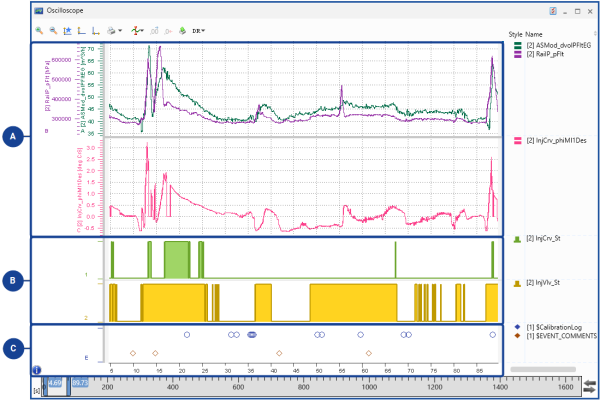
The signals in the oscilloscope can be distributed onto analog and Boolean strips Part within an oscilloscope which its own y axes and signal assignment. All strips of an oscilloscope share the same x axis. for a better overview. After the signal selection, an analog strip, the required number of Boolean strips, and optionally one Event strip are added in an oscilloscope corresponding to the selected signals.
|
No. |
Signal Type |
Position |
No. of Strips |
Height |
Axes |
Signal Configuration |
|---|---|---|---|---|---|---|
|
|
Analog |
at the top |
any |
customizible per strip |
scalable |
color, line width, marker, connection type |
|
|
Boolean |
in the middle |
any |
customizible but for all Booleans the same |
fix |
color, marker, connection only steps |
|
|
Event |
at the bottom |
one |
customizible |
none |
color, marker, connection only samples |


 Oscilloscope - Defining Strips and Signal List.
You can perform the following actions:
- To add another strip
- To reorder strips
- To move analog signals to a common or individual strip
- To delete a strip
- Open the context menu of an existing strip.
-
Select Add Strip.
Depending from the strip the action was triggered, an analog or a Boolean strip is added. The new strip is displayed below the current strip.
This is not the case for the Event strip, as only one Event strip is available for all events.
When you add signals to the oscilloscope, the selection wheel appears, which allows to create a new strip for the signals. For more information, see To assign signals using the selection wheel.
-
Click the strip.
A blue bar occurs on the left and right edge of the strip.
-
To move the selected strip, do one of the following:
-
To move the strip up, press Alt+Page Up.
To move the strip down, press Alt+Page Down.
or
-
Click one of those bars and pull it up or down to the desired position.
The new position of the floating strip is indicated by a small blue rectangle.
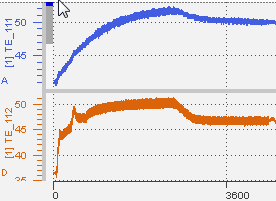
This action is not possible for the Event strip, as there is only one event strip always located at the bottom of the strip area.
-
To move analog signals to a common or individual strip
To use the selection wheel Circle with different segments, which appears in drag and drop situations and allows to select one of various options, for example axis assignments when dropping signals in the oscilloscope. for this operation, see To assign signals using the selection wheel.
Alternatively, use the context menu as follows:
- To merge signals to one strip, right-click the desired signals from different strips.
-
Click Move to New Strip.
or
- To move signals to separate strips, right-click the desired signals from one strip or different strips.
-
Click Move to Individual Strip(s).
- Open the context menu of the strip that you want to delete.
- Select Delete Strip.
Note that a strip is also deleted when the last signal of a strip is deleted.