Array Viewer
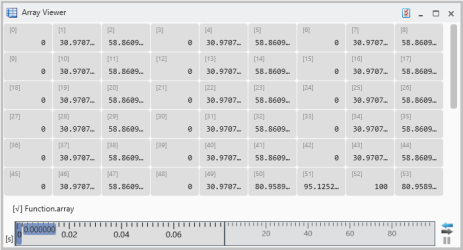
The Array Viewer provides a direct, comprehensive view into the individual elements of an array signal. This instrument extracts and visualizes all elements from an array data type within a single, unified window. It displays all extracted array values corresponding to a single, selected time stamp. The visualization of both signals of array type and calculated signals of type array is supported.
In the center, the actual display is shown in a table. In each cell the (phys) value of the element is shown. The elements are sorted by ID from the left to the right, and continued in the next row. At the bottom, a field for the array name exists.
If one element is selected in the table, the element ID, the value and the unit are shown. The instrument has the usual instrument properties, and optionally in the future some instrument specific ones.
You can perform the following actions:
- To add signals
- To replace signals
- To remove signals
- To move or copy signals
- To assign signals to a new instrument
- Drag and drop each of the input signals individually into the table above the diagram.
- Ensure that the signals are assigned correctly in view of physical quantities and phases.
To replace an already assigned signal
- drag and drop another one into the cell in the table.
Signals can only be removed via the Configuration Manager.
- Expand the view for the respective Array Viewer to see the assigned signals.
- Select the signal(s) to be deleted and remove these by means of the entry in the context menu.
To move or copy a signal from the Array Viewer instrument to another Instrument,
-
Select the signal from which you want to move or copy the signals to another instrument.
- Do one of the following:
To move or copy signals from one instrument to another instrument.
To copy the signals press the Ctrl key first before dropping the selected signals onto another instrument.
The same operations are also supported in the Configuration Manager.
If the target instrument is located on another layer, use the layer tabs to navigate to the desired layer.
To create a new instrument, drag and drop the selected signals onto an empty space of the layer or onto the layer tab.
When you move or copy a signal, MDA checks whether the target instrument supports the current data representation. If this is not the case, the physical data representation is used instead.
To assign signals to a new instrument
 Selecting Signals.