Displaying Previews
The preview allows you to quickly navigate through your configuration Item that combines data from a data source, meta data (descriptions and comments) and visualization (layers, instruments, variable selection, property settings). and display the instrument Widget used for visualizing or editing data (e.g. oscilloscope or table). that is relevant for you. If the display in an instrument is currently scrolling, the preview shows this movement as well. Constraints of your graphics card can have an impact on the performance of this behavior.
You can perform the following actions:
To display the preview via the layer taskbar
In the layer taskbar at the bottom of the layer Tabs used for displaying instruments., all available instruments of the same type are represented by one icon for the type. Only instruments on the currently selected layer are displayed.
- If the layer taskbar is currently hidden, unhide it. For more information, see To hide and unhide the layer taskbar.
-
On the layer taskbar, hover over the icon of one of the instrument types.
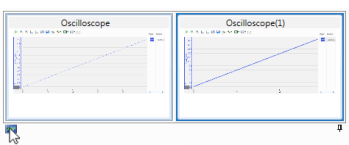
For all instruments of this instrument type, a small preview is displayed. If more instruments exist than can be displayed in the small preview, arrows at the left and the right border appear which allow you to navigate to the relevant instrument. The mouse wheel can be used for navigation as well.
-
Hover the cursor over the preview of one of the instruments.
A large preview is shown in actual size above the small preview.
- To move the instrument into the foreground of the configuration, click its small or enlarged preview.
To hide and unhide the layer taskbar
-
At the bottom of the configuration window, click
 .
.For all layers of the configuration, the layer taskbar is set to auto-hide mode.
- To unhide the layer taskbar, hover over the gray line and click
 .
.