License server setup – Windows as server
Prerequisites
For the setup, you need to download the ETAS License Server package.
-
Open the ETAS license and download portal using this link.
-
Click the following file: ETAS License Server V11.19.10.
The file details opens.
-
To download the package, click Download.
The package is downloaded and saved to the configured download folder.
Additional files
License file
The license file is the file to be read by the ETAS License Server and it contains the reserved word SERVER and VENDOR ETAS, together with the IP address of the server, the MAC address of the server, and a free TCP/IP port number which is required by the server to listen for license requests, in the example below 28127.
|
Note |
|---|
|
Firewall rules should not apply to this port. |
The information regarding features depends on the particular license and it is generated automatically in the ETAS license and download portal. You don't have impact on this and you cannot edit this part.
To fill in the required information into the license file
-
Find the MAC address of the server that will host the licenses.
-
Open the ETAS License & Download Portal and sign in with your credentials. For more information, see Access to the ETAS License and Download Portal.
-
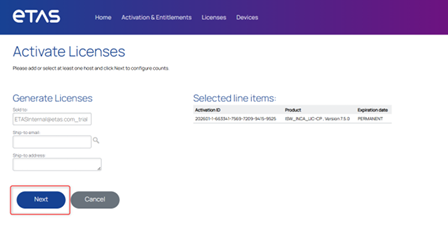
In the Activations & Entitlements tab, select the Activation ID and click Activate.
-
Click Next.
-
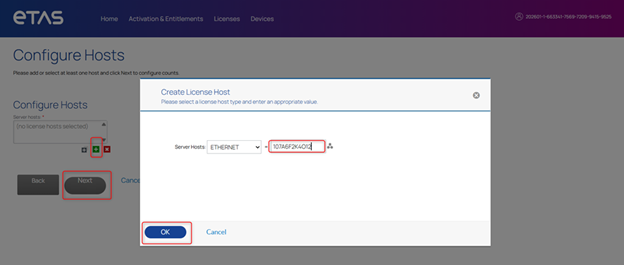
Click the + icon.
-
Fill in the Server Mac address.
-
Click OK.
-
Click Next.
-
-
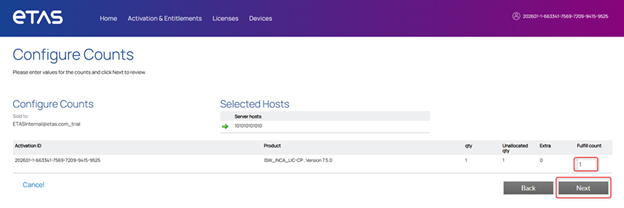
Enter the fulfillment count.
-
Click Next.
-
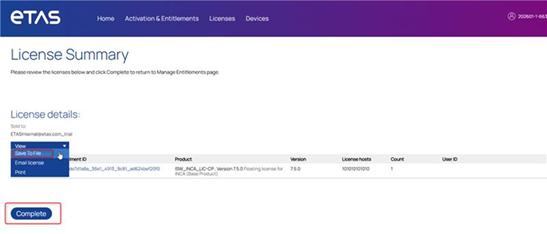
Select the fulfillment and
-
to download the license file, click Save To File.
-
Click Complete.
-
Place the license file in the folder.
-
Open the downloaded license file. It already contains your server's MAC address.
-
Add the Server_Host and the TCP/IP port.
Your file looks like the following:
SERVER 10.165.235.72 00505686d0ca 28127
VENDOR ETAS INCREMENT INCA ETAS 7.2 permanent 100 VENDOR_STRING="ETAS Evaluation" \ ISSUED=29-mar-2007 BORROW=12752 SIGN="1529 927F 605B 6A35 540D \ A047 0F01 1CE3 9257 6A9C E0A7 DCA2 E2FF E7F0 362B 068D 81C4 \ 51E8 A905 601D 2FBC 7766 48B2 4D62 15C9 A755 DB91 1355 5DB6 \ 2D46"
-
Save your changes.
serverpointer.lic
For a client machine to obtain a floating license from the server, it must know where to find the license server on the network. This information is stored in the serverpointer.lic file on the client system. It is be read by the ETAS License Manager in client.
This file contains IP address, MAC address of the server and port number with which the license server features can be accessed.
|
EXAMPLE SERVER 10.165.235.72 00505686d0ca 28127 USE_SERVER |
Options file (etas.opt)
The etas.opt is a plain text file that gives the license administrator full control over how floating licenses are distributed. It allows you to:
-
Restrict access: Define which users, hosts (computers), or groups can use a license.
-
Reserve licenses: Guarantee that critical users or teams always have access to a specific license feature.
-
Limit usage: Set up a maximum number of licenses that a certain user, host, or group can check out.
The below example shows, how the file works.
After opening the file, you can see the following:
The Users added to the GROUP ETAS_ALL_USERS have access to all the features that are available in the license.lic file.
The second block starting with INCLUDE <feature_name> GROUP ETAS_ALL_USERS grants the ETAS_ALL_USERS group permission to use the named feature
Executable files
lmgrd.exe
lmgrd.exe is a legitimate license manager daemon which handles initial client connection requests, starts vendor-specific daemons, and serves as the central component of a network license server.
ETAS.exe
Etas vendor daemon is a background program that manages software licenses for products. These daemons track the usage and availability of licenses for a software product, ensuring that a user is only using a license if they are authorized to do so and if a license is available.
lmtools.exe
lmtools.exe is a graphical utility that allows you to administer the license server. It provides a user-friendly interface for common administrative tasks, including:
-
Starting, stopping, and rereading license files
-
Viewing the server's status
-
Configuring the license server as a Windows service
Setup
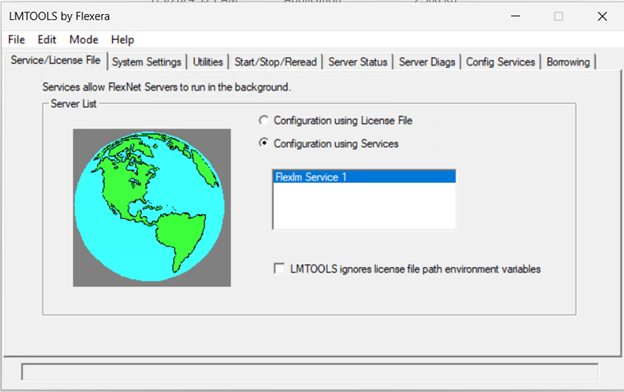
Starting lmtools.exe
-
Start the exe by double-clicking it.
System settings
-
Navigate to the System Settings tab.
-
Check the IP and MAC address.
The IP and MAC address needs to the same as in the license file and in the server pointer file.
Config service
-
To start the configuration of the license server, click the Config Service tab.
-
Set the path of the lmgrd.exe, the license file, and the etas.log file.
-
To save the log of the license server, create the etas.log file and set the path of etas.log file.
-
Activate the Use Services check box.
This configures the license manager to run as a background service in Windows.
-
Activate the Start Server at Power Up check box.
This makes the service start automatically every time Windows boots up.
-
Click the Save Service button.
-
You can start your license service as a windows service and start it at Power Up by checking on the Start Server at Power up option.
Start/Stop/Reread
-
Navigate to the Start/Stop/Reread tab.
-
To start the service, click the Start server button.
-
After adding and signing a new feature in the license file, click the Reread License File button.
This ensures the service reads the file again and makes the new features available.
-
Activate the Force Server Shutdown check box and then click the Stop Server button. This action forcefully stops the license server.
Server status
To confirm that the license server is running correctly, follow these steps:
-
Navigate to the Server Status tab.
-
In the Individual Daemon text box, type ETAS.
-
Click the Perform Status Enquiry button.
If the server is operational, a status report similar to the example below is displayed. This output confirms that your license server is up and ready to use.
The status report also provides a detailed breakdown for each licensed feature, including the following information:
-
The feature name
-
The total number of licenses issued for that feature
-
The total number of licenses currently in use
Server diagnosis
-
To investigate why a user might be unable to check out a license, navigate to the Server Diags tab.
-
Enter the name of the feature into the Feature Name box.
-
Click the Perform Diagnostics button.
After running the diagnostics, the system displays all details for that feature as they are recorded in the license file.