License server setup – Linux as server
Download of installation package
For the setup, you need to download the ETAS License Server package.
-
Open the ETAS license and download portal using this link.
-
Click the following file: ETAS License Server V11.19.10.
The file details opens.
-
To download the package, click Download.
The package is downloaded and saved to the configured download folder.
Setup
-
To setup a Linux license server, create a designated folder and store all the required files in it.
- Create a directory named License_setup using the following command:
mkdir License_setup -
To check if files are in the folder, use the following command:
ls
Additional files
You need to create further files as they are not part of the server files installation package. Follow the steps below.
You need to create the following files:
-
license.lic
-
flexlm.log
-
etas.opt
License file
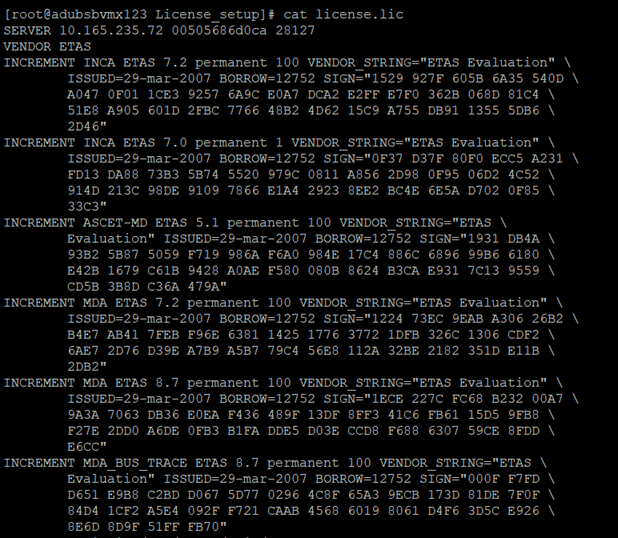
The license file is the file to be read by the ETAS License Server and it contains the reserved word SERVER and VENDOR ETAS, together with the IP address of the server, the MAC address of the server, and a free TCP/IP port number which is required by the server to listen for license requests, in the example below 28127.
|
Note |
|---|
|
Firewall rules should not apply to this port. |
The information regarding features depends on the particular license and it is generated automatically in the ETAS license and download portal. You don't have impact on this and you cannot edit this part.
To fill in the required information into the license file
-
Find the MAC address of the server that will host the licenses.
-
Open the ETAS License & Download Portal and sign in with your credentials. For more information, see Access to the ETAS License and Download Portal.
-
In the Activations & Entitlements tab, select the Activation ID and click Activate.
-
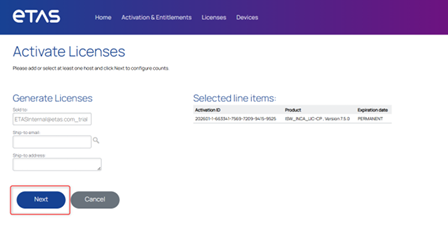
Click Next.
-
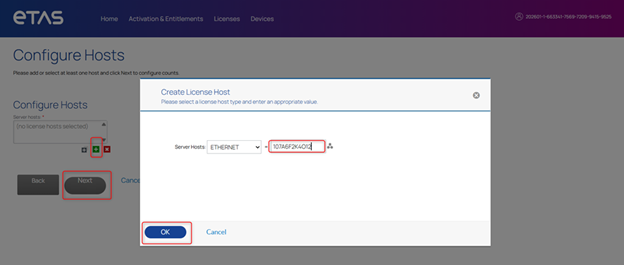
Click the + icon.
-
Fill in the Server Mac address.
-
Click OK.
-
Click Next.
-
-
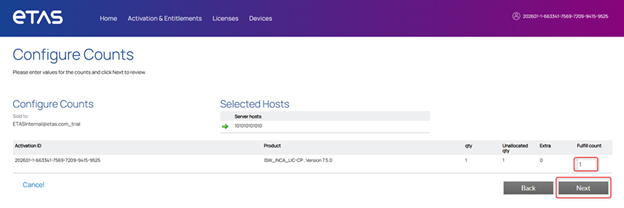
Enter the fulfillment count.
-
Click Next.
-
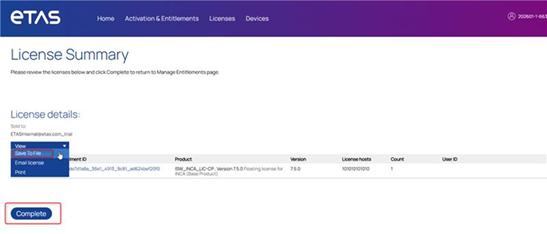
Select the fulfillment and
-
to download the license file, click Save To File.
-
Click Complete.
-
Place the license file in the folder.
-
Open the downloaded license file. It already contains your server's MAC address.
-
Add the Server_Host and the TCP/IP port.
Your file looks like the following:
SERVER 10.165.235.72 00505686d0ca 28127
VENDOR ETAS INCREMENT INCA ETAS 7.2 permanent 100 VENDOR_STRING="ETAS Evaluation" \ ISSUED=29-mar-2007 BORROW=12752 SIGN="1529 927F 605B 6A35 540D \ A047 0F01 1CE3 9257 6A9C E0A7 DCA2 E2FF E7F0 362B 068D 81C4 \ 51E8 A905 601D 2FBC 7766 48B2 4D62 15C9 A755 DB91 1355 5DB6 \ 2D46"
-
Save your changes.
Log file (flexlm.log)
This writes the log for each action that you.
To create the log file
-
Create the log file using the following command:
vi flexlm.log
Options file (etas.opt)
The etas.opt is a plain text file that gives the license administrator full control over how floating licenses are distributed. It allows you to:
-
Restrict access: Define which users, hosts (computers), or groups can use a license.
-
Reserve licenses: Guarantee that critical users or teams always have access to a specific license feature.
-
Limit usage: Set up a maximum number of licenses that a certain user, host, or group can check out.
The below example shows, how the file works.
After opening the file, you can see the following:
The Users added to the GROUP ETAS_ALL_USERS have access to all the features that are available in the license.lic file.
The second block starting with INCLUDE <feature_name> GROUP ETAS_ALL_USERS grants the ETAS_ALL_USERS group permission to use the named feature
Starting the license server
When you completed all the steps above, you can start the license server.
To start the license server
-
Change the the mode of the license.lic to executable with chmod 311 using the following command:
sudo chmod 311 lmgrd
It looks like the following:

-
Start the license server using the following command:
./lmgrd -c license.lic -l flexlm.log
-
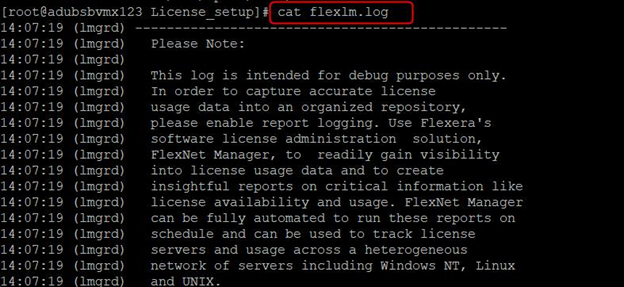
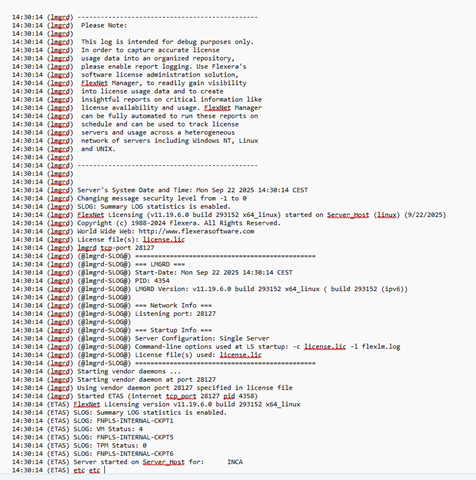
If you want to view the server log, use the following command:
-
cat flexlm.log
-
Checking the server status and rereading files
After starting the license server, you can check the status.
To check the server status and rereading files
-
Check the server status using the following command:
./lmutil lmstat -a -c license.lic
This displays the license server status, the Vendor daemon status, and the feature details. It ensures that the license server is up and running.
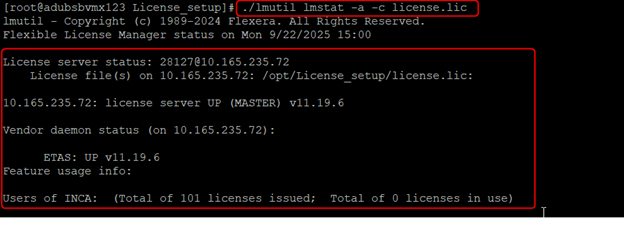
Every feature has a block.
Every time you make a change in the above files, reread the files so that it can be reflected in the license server.
-
Reread the files using the following command:
sudo ./lmutil lmreread -vendor ETAS -c license.lic
After executing the command, the lmreread successful message is displayed.

-
Confirm the change using the following command:
./lmutil lmstat -a -c license.lic
All the feature details are as mentioned below.
Shutting down the license server
To shut down the license server
-
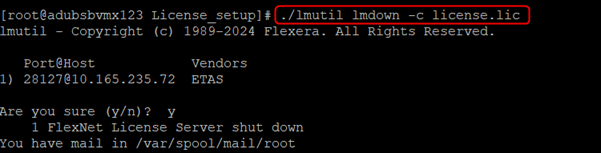
Shut down the license server using the following command:
./lmutil lmdown -c license.lic