UI for remote license management
Remote activation allows you to activate licenses directly on a remote target device without having to run the activation software locally on that machine.
The activation process is divided into two sequential phases:
-
Establishing a connection to the target device
-
Transferring and activating the license
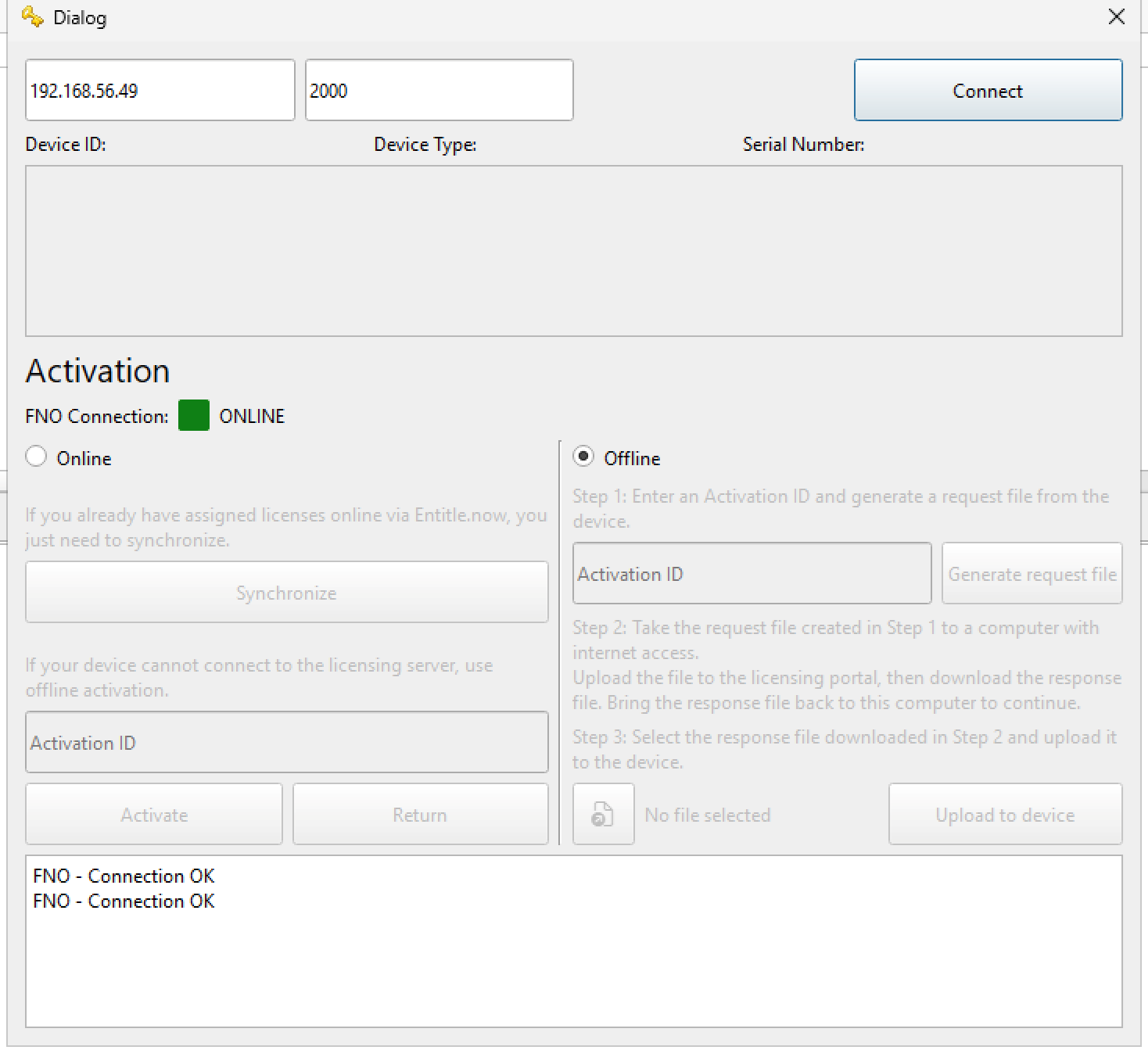
Before you can perform any activation, you must establish an active connection to your target device.
-
Enter the IP Address: Type the IP address of the remote target device into the input field in the top section.
-
Specify the Port: Enter the corresponding port required for the connection.
-
Establish Connection: Click the Connect button.
Performing the remote activation
Once connected, you can choose between Online or Offline Activation. These workflows function exactly like regular local activations, except that the final license is automatically sent to and applied on the connected remote device.
Online activation
To activate the license directly through the licensing server, select Online.
Synchronize: Synchronizes licenses that have already been assigned to the device.
Activation ID: Enter the activation ID provided with your license.
Activate: Activates the license using the entered activation ID.
Return: Returns the current license to the licensing server so that it can be activated on another device.
Offline activation
To activate a license offline:
-
Select Offline.
-
Enter the Activation ID.
-
Select Generate request file.
-
Transfer the request file to a computer with internet access.
-
Upload the request file to the licensing portal and download the response file.
-
Transfer the response file back to the offline device.
-
Select the response file and upload it.
-
To complete the activation, select Upload to device.
Connection status
The connection indicator shows the connection status to the licensing server.
ONLINE:The device is connected to the licensing server.
OFFLINE: The device is not connected to the licensing server. To activate a license without an internet connection, use the offline activation procedure.