Parameters for ES930: Digital In Tab
The ES930 can acquire digital signals at the four digital input channels and evaluate them using various measuring capabilities (state, counter, timer).
The settings for the digital input signals can be configured in the Digital In tab.
 Digital In tabNo.
Shows a consecutive number for each entry in the hardware configuration table.
You cannot edit this field.
Sel.Use this checkbox to enable or disable this signal for further configuration steps.
Disabled signals will not be available in the Experiment Environment.
You can also use the context menu commands Enable All Channels and Disable All Channels to enable or disable all channels at once that are displayed on the selected tab.
ModeShows the digital input mode of this channel (state, counter or timer).
You cannot edit this field.
HW ChannelThis column shows the name of the hardware channel.
Note |
The hardware channel name cannot be edited. |
NameShows the name of the measurement variable assigned to this channel. The name can be edited. It must be unique for the whole configuration.
RateDefines the default acquisition rate necessary for your measurement task.
The acquisition rate can be selected separately for each channel of a device. It is used as default rate within the measuring environment (e.g. INCA Experiment Environment), but you can overwrite it (e.g. in INCA's Configure Variables dialog). Some signals of a channel require the same acquisition rate for all signals to ensure consistency of the measure data, e.g. active time and inactive time when measuring in the mode PWM Out.
Note |
A large number of channels with high acquisition rate can push your system to its performance limits. If an event raster is defined in the Events tab, the event raster (e.g. BEvent) for the corresponding channel is also available in this field. |
UnitsEnter the unit according to the signal to be measured.
The selected unit appears in the corresponding measure windows.
Active StateSelect the active state of the signal.
High
Normal logic is applied, i.e. HIGH is interpreted as active state.
Low
Inverse logic is applied, i.e. LOW is interpreted as active and HIGH as inactive state.
Relevant Edge/CountsDefine what items are to be counted. The setting can only be edited for counter signals.
Active-Inactive
Counts all active-inactive edges.
Inactive-Active
Counts all inactive-active edges.
Both
Counts all active-inactive and inactive-active edges.
Cycle
Counts all cycles.
Relevant PeriodDefine how the relevant measurement period is determined. The setting applies to the signals "active time" and "inactive time" of a hardware channel.
Absolute
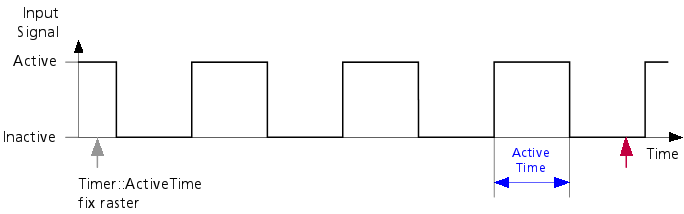
The measurement goes from the beginning of the measurement to the current sample point, i.e. the timer value continuously increases unless the reset configuration applies.
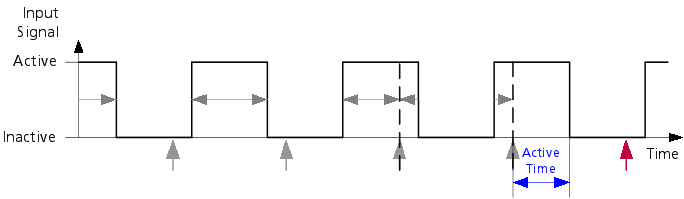
Pulse
The time measurement starts with a pulse and includes an active and inactive state in arbitrary order, i.e. the duration of the last complete pulse gets measured.
Note
If the time measurement starts with a pulse, the sum of the duration of the active and the inactive state does not necessarily equal the duration of the period because they can belong to different periods. The sum only equals the period if the pulse that is the starting point of the time measurement is also the starting point of the period.
Period
The time measurement starts at the beginning of a period, i.e. the duration of the last complete period gets measured.
Cycle
The time measurement starts at the beginning of a cycle, i.e. the duration of the last complete cycle gets measured.
ResetThis setting can be edited for Counter and Timer signals.
For counters, it defines when the counter will be reset in order to restart counting.
For timers, it defines when the timer will be reset to measure the next time period. The setting applies to all of the active time and inactive time of a hardware channel. It can only be edited if the value Absolute is selected in the Relevant Period column.
Off (free running)
The count / time measurement goes from the absolute beginning of the measurement to each sample point, i.e. the value continuously increases. Please note that depending on the length of the measurement, overflow can occur in this mode.
sample point
The counter / timer is reset each time a new sample is generated by the measurement module.
For rapid prototyping use cases, the option "Sample point" should be selected.
Starting Edge of a Period/CycleSelect whether a PWM period starts with an active-inactive or an active-inactive edge of the signal.
Active-Inactive
The PWM period starts with an active-inactive edge. It consists of a sequence of an inactive pulse with a subsequent active pulse, i.e. a LOW value is followed by a HIGH value in normal logic.
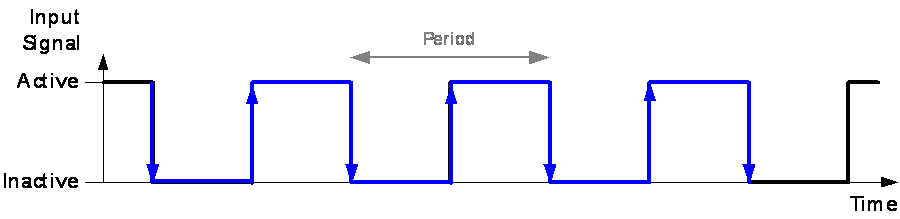
Inactive-Active
The PWM period starts with an inactive-active edge. It consists of a sequence of an active pulse with a subsequent inactive pulse, i.e. a HIGH value is followed by a LOW value in normal logic.
No. of Periods per CycleEnter the number of periods that each cycle consists of.
You can enter any number between 1 and 4095.
Note |
The number of periods per cycle influences value and precision of the following signal types: active timer, counter. |
Allowed TimeoutDetermine whether timeout control is to be enabled or disabled.
On
Timeout control is enabled. You can now set in the Timeout [s] column the time after which a timeout shall occur.
Off
Timeout control is disabled.
Note |
The ES930 offers diagnosis signals for timeouts, i.e. when you enable the corresponding signal in the Diagnosis tab, you can also acquire the occurrence of timeouts. |
Timeout [s]Set the period in seconds after which a timeout shall be detected.
You can enter any time between 0 and 64.4 s. A timeout of 0 s means that timeout is disabled.
If there is no signal transition within the defined duration for the timeout, the (in-) active time provides the last measured value. Moreover, the corresponding diagnosis signal will get the value TRUE.
Note |
Before you can set the value for the timeout, you need to enable the timeout control in the Allowed Timeout column. |
Allowed Glitch FilterDetermine whether a glitch filter is to be used on the input stage of the hardware channel. If enabled, it will be used for simple de-bouncing and elimination of unwanted spikes.
Note |
The glitch filter removes any glitches of a maximal length of 3000 ns; at first, this causes a time delay in the hardware channel signal because the input stage has to wait for the specified filter time until it is able to decide if edges have to be accepted or discarded. These time delay effects are automatically compensated by the device. |
On
The glitch filter is enabled. You can now set in the Glitch Filter Time [ns] column the minimum duration of a pulse. Smaller pulses are ignored, only larger pulses are considered.
Off
The glitch filter is disabled.
Glitch Filter Time [ns]Set the period in nano-seconds that determines whether a spike is to be regarded as unwanted and therefore filtered out by the glitch filter.
You can enter any value between 120 and 3000 ns; the resolution is 15 ns.
A value of 0 ns means that the glitch filter is disabled.
Note |
Before you can set the value for the glitch filter time, you need to enable the glitch filter in the Allowed Glitch Filter column. |
Phys bottomEnter the lower physical value according to the sensor used.
You can find this value in the datasheet of your sensor.
Note |
You can only enter a value if the formula used has the type "Identity" (Sensor = phys) or "Linear", i.e. the sensor connected to this channel is subject to linear calibration. However, if you use a special conversion formula, this field is empty. |
Phys topEnter the upper physical value according to the sensor used.
You can find this value in the datasheet of your sensor.
Note |
You can only enter a value if the formula used has the type "Identity" (Sensor = phys) or "Linear", i.e. the sensor connected to this channel is subject to linear calibration. However, if you use a special conversion formula, this field is empty. |
Sensor bottomEnter the value of the lower sensor signal according to the lower physical value.
Note |
You can only enter a value if the formula used has the type "Identity" (Sensor = phys) or "Linear", i.e. the sensor connected to this channel is subject to linear calibration. However, if you use a special conversion formula, this field is empty. |
Sensor topEnter the value of the upper sensor signal according to the upper physical value.
Note |
You can only enter a value if the formula used has the type "Identity" (Sensor = phys) or "Linear", i.e. the sensor connected to this channel is subject to linear calibration. However, if you use a special conversion formula, this field is empty. |
FormulaWhen you click into this field, an editor opens where you can create special conversion formulae.
Note |
If you use a special conversion formula, the fields of
the Phys bottom, Phys top,
Sensor bottom and Sensor top
parameters are empty. |
Range min.Enter the lower limit of the expected physical measurement range.
This value is used together with the values of the Phys bottom, Sensor bottom and Formula parameters to calculate the amplification factor.
The highest amplification factor possible is selected to ensure that none of the connected channels is overloaded.
Range max.Enter the upper limit of the expected physical measurement range.
This value is used together with the values of the Phys top, Sensor top and Formula parameters to calculate the amplification factor.
The highest amplification factor possible is selected to ensure that none of the connected channels is overloaded.
Real range min.Shows the lower physical limit of the measurement range actually possible for this channel.
This value is determined by the values of the Phys bottom, Sensor bottom and Formula parameters as well as by the actual measurement range of the module.
You cannot edit this field.
Real range max.Shows the upper physical limit of the measurement range actually possible for this channel.
This value is determined by the values of the Phys top, Sensor top and Formula parameters as well as by the actual measurement range of the module.
You cannot edit this field.
CommentEnter any comment for that signal. The comment may be displayed along with the signal in some dialogs in the rapid prototyping or measurement and calibration tool used.
Note |
You can only enter a comment for signals that are selected in the Sel. column. |
See also