Showing and Hiding Columns
You can hide individual columns from the view to get a clearer overview. This is especially useful for devices with a large number of configuration parameters.
Columns required for identifying the corresponding item can not be hidden.
To hide or show individual columns in a tab:
Right-click anywhere in the column header area of the tab where you want to show or hide individual columns.
A context menu opens which lists all available columns that can be hidden from the view. A tick in front of the column name indicates whether the column is shown or not.
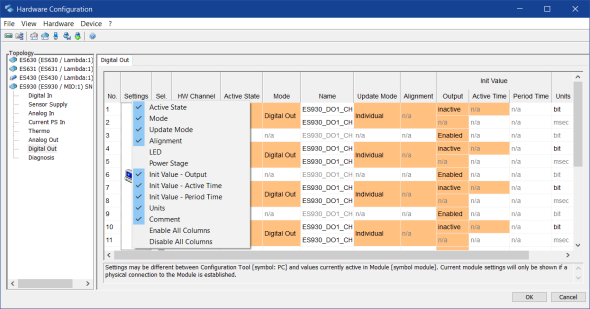
To show a hidden column or to hide a visible column, simply click the column name in the context menu.
Clicking the column name applies to the corresponding column only.
To hide or show all optional columns in a tab:
Right-click anywhere in the column header area of the tab where you want to show or hide all optional columns.
A context menu opens.
To show all columns in this tab, select Enable All Columns. To hide all optional columns in this tab, select Disable All Columns.
These commands apply to the columns in the selected tab only.
To show all available columns: