UI Developer Window
This window contains the following components:
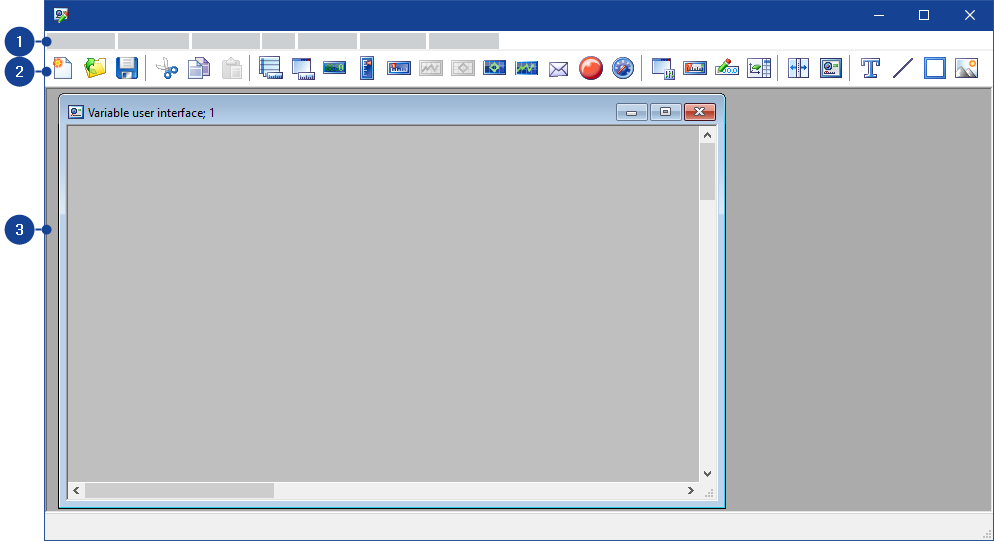
 1 MenubarFile menu
This menu contains the following functions:
New Layout
Opens a new window: Variable user interface, in which you can create a new variable user interface.
Open Layout
Opens a dialog box which you can select a file containing a variable user interface to be opened.
Save Layout
Saves the current variable user interface to a file.
Save Layout as
Opens a dialog box in which you can specify a file for saving the current variable user interface.
Dependent files
Opens the VUI info dialog box and specifies all files used by the current user interface.
Exit
Exits the user interface developer.
If you have made any changes to variable user interfaces, a message is displayed. You can save or discard your changes or cancel the close.
Edit menuCut
Cuts marked elements from the current variable user interface and copies them to the clipboard.
Copy
Copies marked elements to the clipboard.
Paste
Pastes elements from the clipboard to the current variable user interface.
Delete
Deletes marked elements from the current variable user interface.
Bring to front
Positions marked elements in front of all other elements.
Send to back
Positions marked elements behind all other elements.
Properties
Opens the Properties dialog box, in which you can edit properties of marked elements.
Components menuMeasure table
Inserts a measure table element.
Measure window
Inserts a measure window element.
Numeric display
Inserts a numeric display element.
Vertical bar
Inserts a vertical bar.
Horizontal bar
Inserts a horizontal bar.
YT-Oscilloscope (outdated)
Inserts a YT-oscilloscope (outdated) element.
Note |
This oscilloscope type is only offered if experiment and variable user interface are using the old oscilloscope technology. |
XY-Oscilloscope (outdated)
Inserts an XY-oscilloscope (outdated) element.
Note |
This oscilloscope type is only offered if experiment and variable user interface are using the old oscilloscope technology.. |
YT-Oscilloscope (V7.1)
Inserts a YT oscilloscope element.
Note |
This oscilloscope type is only offered if experiment and variable user interface are using the new oscilloscope technology.. |
XY-Oscilloscope (V7.1)
Inserts an XY-oscilloscope element.
Note |
This oscilloscope type is only offered if experiment and variable user interface are using the new oscilloscope technology.. |
Message box
Inserts an element for messages.
Alert
Inserts an LED element.
Gauge
Inserts a gauge element.
Calibration window
Inserts a calibration window element.
Slider editor
Inserts a slider editor element.
Numeric editor
Inserts a numeric editor element.
Combined editor
Inserts a combined editor element.
Split bar
Inserts a split bar.
Sub VUI
Opens a file selection dialog box in which you can select a variable user interface to embed in the current variable user interface.
Label
Inserts a label element.
Line
Inserts a line.
Rectangle
Inserts a rectangle.
Bitmap
Opens a file selection dialog box for selecting a bitmap.
Organize menuThis menu contains the following functions:
Align left
Left-aligns marked elements to the first marked element.
Align right
Right-aligns marked elements to the first marked element.
Align top
Top-aligns marked elements to the first marked element.
Align bottom
Bottom-aligns marked elements to the first marked element.
Resize width
Adjusts the width of marked elements to the first marked element.
Resize height
Adjusts the heights of marked elements to the first marked element.
View menuThis menu contains the following functions:
Options
Opens the Options dialog box, in which you define settings for the current variable user interface.
Zoom
Sets the zoom factor for the current variable user interface:
Auto Zoom | Automatically sets the zoom factor to fit the window size. |
25 % ... 300 % | Sets a preset zoom factor. |
User-defined | Opens the Zoom dialog box, in which you can define the zoom factor. |
Grid
Opens the Grid options dialog box, in which you can set a grid for the current variable user interface.
Graphics over widgets
Controls whether graphic elements are displayed in front of measure and calibration instruments.
Toolbar
Toggles display of the toolbar.
Selection menuThis menu contains the following functions:
Select all
Marks all elements of the current variable user interface.
element N
Marks the Nth element element.
...
Further elements, analog to the previous entry.
Tab Group menuThis menu contains the following functions:
Define
Combines the selected elements to create a Tab group. An ordinal number is displayed for each element, indicating the sequence in which the elements are selected when using the Tab key. Only one Tab group can currently be defined.
Show
Marks all elements (with handles) belonging to a Tab group and shows the ordinal numbers which specify the sequence in which the elements are selected when using the Tab key.
Note |
Use the ordinal numbers to assign the elements in the specified sequence. In this way, you can ensure that the next element is always activated directly with the Tab key. |
Clear
Removes the grouping of the element group.
Window menuThis menu contains the following functions:
Cascade
Cascades the windows in the user interface developer.
Tile Horizontal
Arranges the windows horizontally in the user interface developer.
Tile Vertical
Arranges the windows vertically in the user interface developer.
Arrange symbols
Arranges the minimized windows (icons) in the user interface developer.
Close all
Closes all windows in the user interface developer.
If you have made any changes and not yet saved them, a message appears. You can save or discard your changes or cancel closing the windows.
Close active window
Closes the active window in the user interface developer.
If you have made any changes and not yet saved them, a message appears. You can save or discard your changes or cancel closing the windows.
N window
Activates the window with the name window.
...
Further windows, analog to the previous entry.
? menuThis menu contains the following functions:
Hotkey Assignment
Opens the Hotkey assignment for dialog box, in which you can view the hotkey assignment for the user interface developer.
Help on Current Window
Opens the help for the User Interface Developer.
Help
Opens the INCA help.
Manuals and Tutorial
Opens the directory containing the INCA manuals.
Video Tutorials
Opens an overview listing all video tutorials for INCA. You can access the videos directly from the overview.
Info
Opens an information box about INCA.
Product Disclaimer
Displays the warning notice about using INCA.
2 ToolbarThe toolbar contains the following icons:
| Opens a new window Variable user interface,
in which you can create a new variable user interface. | ||
| Opens a dialog box in which you can select a file containing
a variable user interface to be opened. | ||
| Saves the current variable user interface. | ||
| Cuts marked elements from the current variable user interface and copies them to the clipboard. | ||
| Copies marked elements to the clipboard. | ||
| Pastes elements from the clipboard to the current variable user interface. | ||
| Inserts a measure table element. | ||
| Inserts a measure window element. | ||
| Inserts a numeric display element. | ||
| Inserts a vertical bar. | ||
| Inserts a horizontal bar. | ||
| Inserts a YT-oscilloscope (outdated) element.
| ||
| Inserts an XY-oscilloscope (outdated) element.
| ||
| Inserts an XY oscilloscope.
| ||
| Inserts a YT oscilloscope.
| ||
| Inserts an element for messages. | ||
| Inserts an LED element. | ||
| Inserts a gauge element. | ||
| Inserts a calibration window element. | ||
| Inserts a slider element. | ||
| Inserts a numeric editor element. | ||
| Inserts a combined editor element. | ||
| Inserts a split bar. | ||
| Opens a file selection dialog box in which you can select a variable user interface to embed in the current variable user interface. | ||
| Inserts a label element. | ||
| Inserts a line. | ||
| Inserts a rectangle. | ||
| Opens a file selection dialog box in which you can select a bitmap. |


 3 UI Developer Window
The workspace of this window contains further windows in which you can process variable user interfaces.