Recorder Event Viewer Window
To open this dialog box, in the Experiment Environment  click
click  >
>  .
.
The Recorder Event Viewer dialog box consists of the following components:
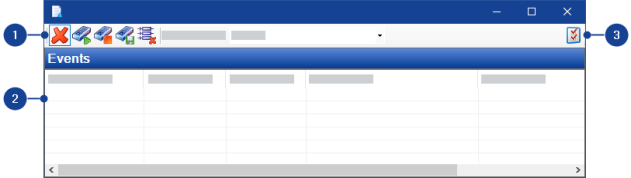
 1 Toolbar
The toolbar provides the following functions:
| Use this command to remove all filters. All events are displayed. |
| Select this filter function to view all started recorders. |
| Select this filter function to view all finished recorders. |
| Select this filter function to view all stored recorders. |
| Use this filter function to view all recorders that use variables which are not available in the experiment. The Recorder Name column displays the recorder which contains the missing variable. The Path column displays the missing variable, the corresponding device and the raster (<Variable Name>\<Device Number> (<Raster>)). |
| Use this filter function to display all events for an individual recorder or for all recorders. You are shown an options list containing all available recorders. |
| This command opens the Recorder Event Viewer Preferences. |


Note |
The filter functions cannot be combined with each other. |
2 Recorder Event ListThe Recorder Event list enables you to find the following information about existing recorders at a glance:
Event
This column displays the event type. You can choose from the following event types:
- Recorder started
- Recorder finished
- Recorder saved
- Variable deleted
Time
This column displays the time at which the event occurred.
Recorder name
This column displays the name of the recorder.
File
This column displays the name of the file in which the measurement results are stored.
Note |
This information is available only for the event type Recorder saved. |
Path
This column displays the path under which the measurement file is saved.
Note |
This information is available only for the event type Recorder saved. |
Context MenuTo open the context menu, right-click on the Recorder Event List.
Clear
Use this command to delete the entire events list.
Note |
This command cannot be undone. |
Copy
Use this command to copy all entries of the selected event to the clipboard. The values are saved in CSV format.
Create Lab file
Use this command to write variables which are used in a recorder but do not exist in the experiment to a Lab file (also refer to ).
Create text file
Use this command to write variables which are used in a recorder but do not exist in the experiment to a text file.
3 Preferences Dialog BoxIn this dialog box you can assign visual and audio alarms to the individual event types.
Event type
Select the event type for which you want to configure the alarms. The following event types are available:
- Recorder started
- Recorder ended
- Recorder saved
- Variable removed
Show Visual Notification
Here you can specify whether to issue a visual alarm by a pop-up window when a particular event occurs.
Alert Color
Here you can select the background color of the pop-up window. The following colors are available:
- Green
- Red
- Blue
Note |
This selection is available only when the option Display Graphical Alarm is selected. |
Play Sound Notification
Here you can specify whether to issue an audio alarm when a particular event occurs. If this option is activated you can choose from one of six default sounds.
Note |
You can also assign acoustic signals via the Windows Control Panel under Sounds and Audio Devices. For further information see the INCA Getting Started manual. |
Use Custom Sound
Here you can specify whether to issue a custom audio alarm when a particular event occurs. If you have activated this option, you can specify the directory path to the soundfile which you want to use.
Note |
The sound file must be in *.wav format. |
See also