Activating Extended Logging
If you encounter a specific problem and need help from ETAS for troubleshooting, exact log files might be required for reproducing and analyzing the situation properly. However, extended logging is disabled by default, because it might slow down system performance.
If ETAS needs to analyze the problem, we kindly ask you to prepare log files according to the following instructions.
To enable extended logging and send log files to ETAS:
- Close all ETAS applications.
Prepare the PC for extended logging:
- In the Windows Explorer, go to the folder
C:\Program Files\Common Files\ETAS\LogViewerX.Y (64-Bit Windows).
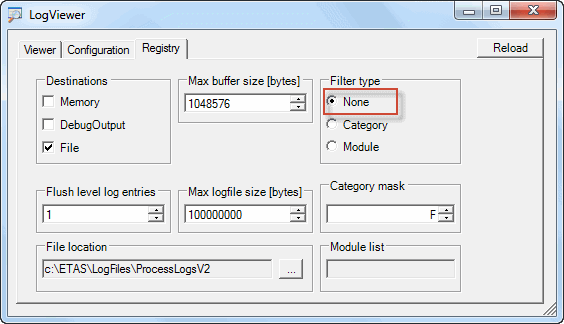
In this folder, double-click on the file Cfw.LogViewerGUI.exe to start the log viewer application. - Choose the tab Registry.
Change the filter type to None.
Note
If the problem is difficult to reproduce, you can set the value for Max logfile size [bytes] to 0; this will generate maximum-sized large log files.
As very large log files might be difficult to send to the support, use maximum-sized log files only if required.- Close the LogViewer.
- In the Windows Explorer, go to the folder
Check whether your changes in the Log Viewer have been successfully registered:
Open the Registry Editor.
 Details
In the Windows Start menu, select Run. A dialog opens.
Enter regedit into the entry field and push the Enter key to open the registry editor.In the Registry Editor, browse to:
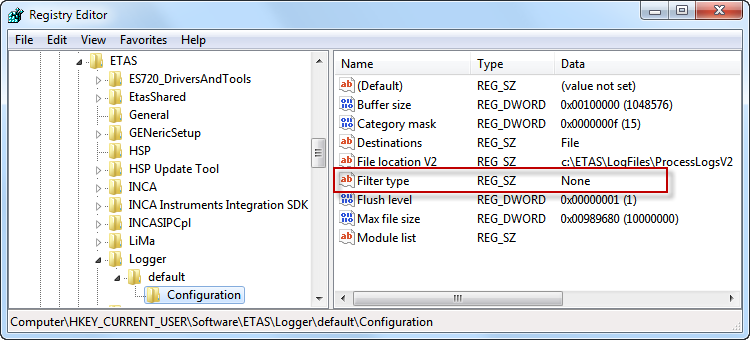
HKEY_CURRENT_USER\SOFTWARE\ETAS\Logger\Default\Configuration
Verify that the value for Filter Type has been modified to "None".
Delete the INCA LOG files and temporary files by executing the following steps:
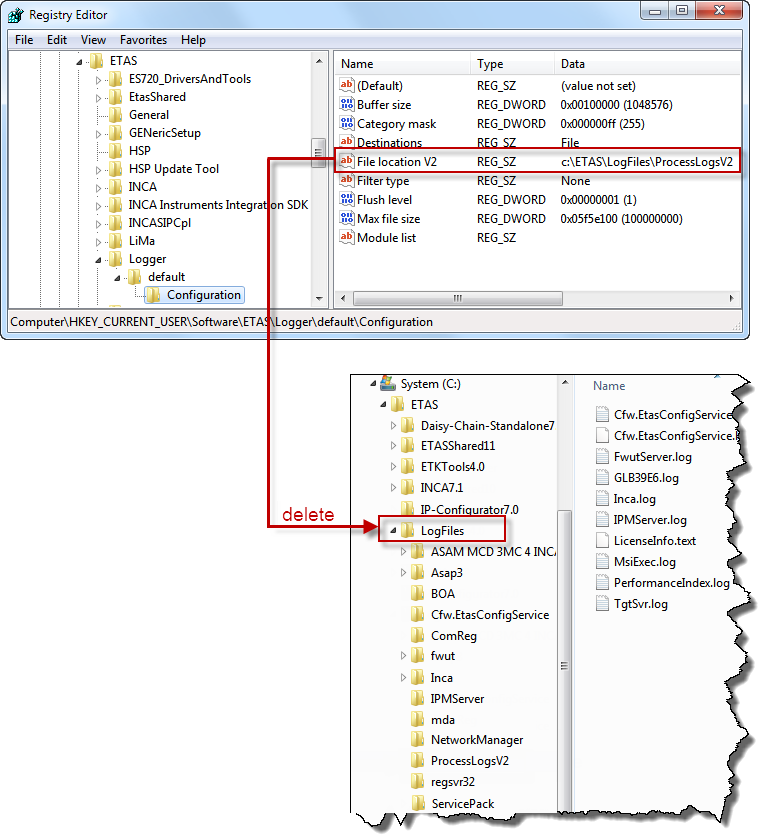
In the Registry Editor, browse to:
HKEY_CURRENT_USER\SOFTWARE\ETAS\Logger\Default\Configuration
In this folder, you will find the entry "File Location V2". The value of this entry indicates the location where INCA saves the LOG files.
Open the Windows Explorer and delete the LOG files folder including all sub-folders completely; at program start, INCA will create all necessary LOG files.
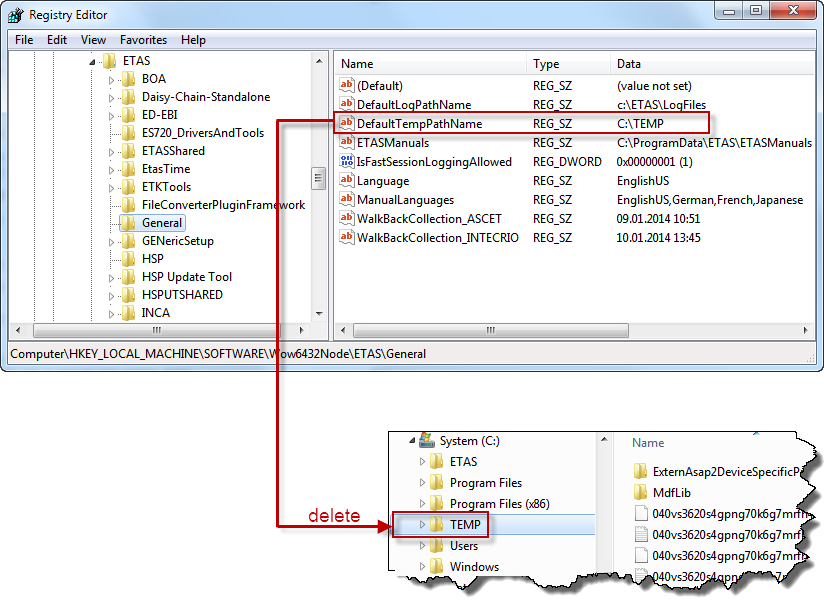
In the Registry Editor, browse to:
HKEY_LOCAL_MACHINE\SOFTWARE\Wow6432Node\ETAS\GeneralIn this folder, you will find the entry "DefaultTempPathName". The value of this entry indicates the location where INCA saves the TEMP files.
Open the Windows Explorer and delete that folder completely.
- Close the Registry Editor.
- Start INCA once again. Retrace the steps from your previous INCA session until you have reproduced the situation that needs to be analyzed.
Go to the INCA Database Manager (i.e. the INCA main window). In the "?" menu, select LOG files - Zip.
Make sure that you tick the checkbox Include project files. Then enter a description of the observed problem and click OK.
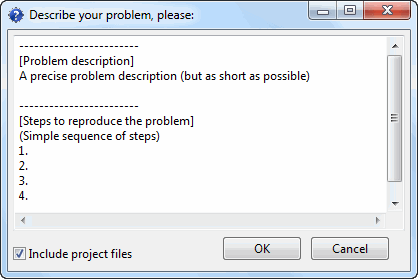
A dialog is shown, asking you whether you want to send the generated ZIP archive to the technical support. Confirm this message with Yes.
Note
If you want to send the zip archive later, you can do so at any time by selecting LOG files - Send from the "?" menu.
The technical support can be reached under INCA.Hotline@etas.com or under the local support address that is set in the INCA station options.
To disable extended logging:
- Close all ETAS applications.
Restore the original settings for logging:
- In the Windows Explorer, go to the folder
C:\Program Files\Common Files\ETAS\LogViewer (32-Bit Windows)
C:\Program Files\Common Files\ETAS\LogViewer (64-Bit Windows).
In this folder, double-click on the file Cfw.LogViewerGUI.exe to start the log viewer application. - Choose the tab Registry.
- Change the filter type back to Category.
- If modified, reset the value in the field Max logfile size [bytes] to a reasonable value, e.g. 100000000.
- Close the log viewer.
- In the Windows Explorer, go to the folder